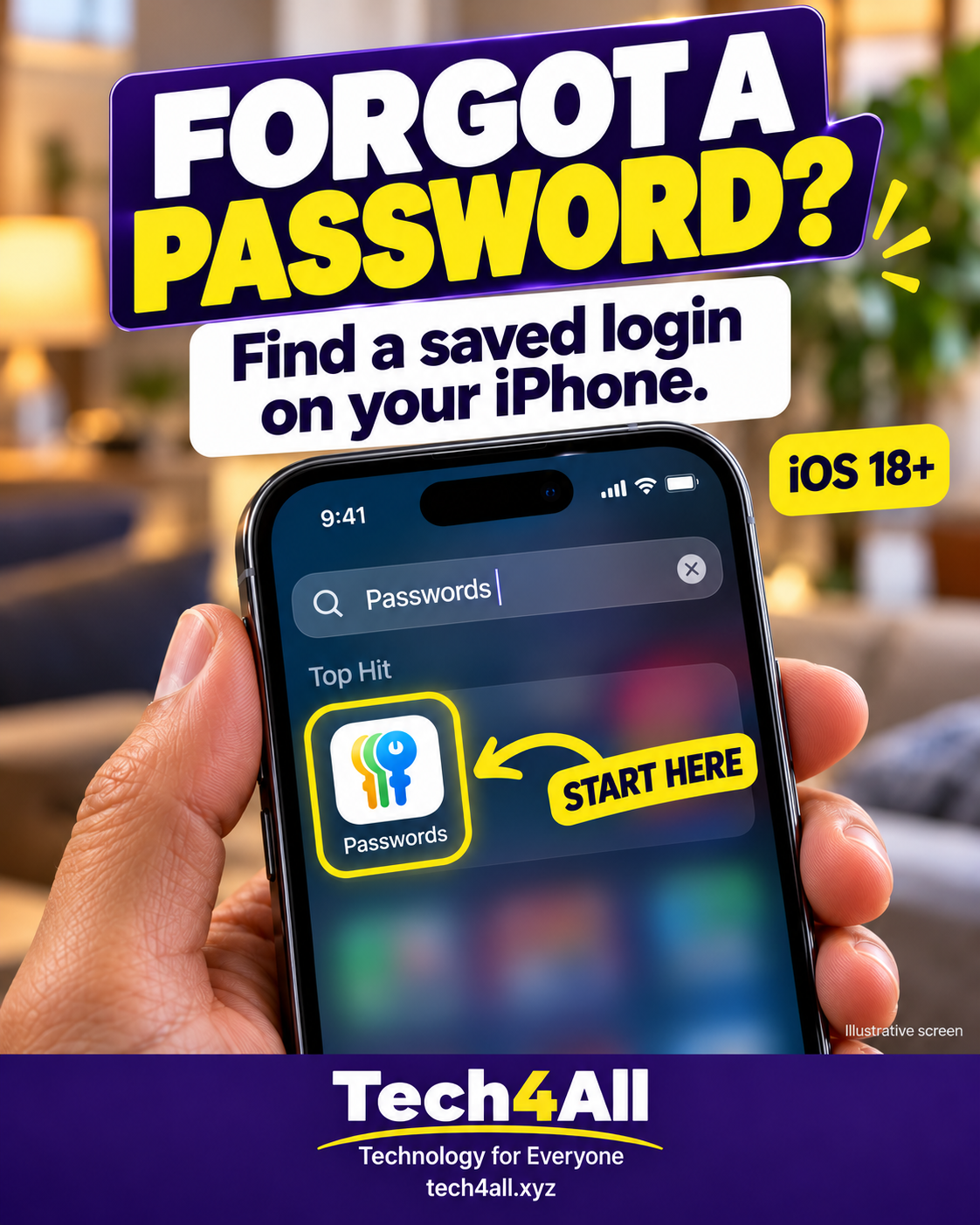
Forgot a password? Find a saved login on your iPhone.
For iOS 18 or later. On iOS 17 or earlier, open Settings → Passwords.
These approved photos and phone screens are AI-created teaching illustrations. Your screen may differ. Never share a password, verification code or account screenshot.
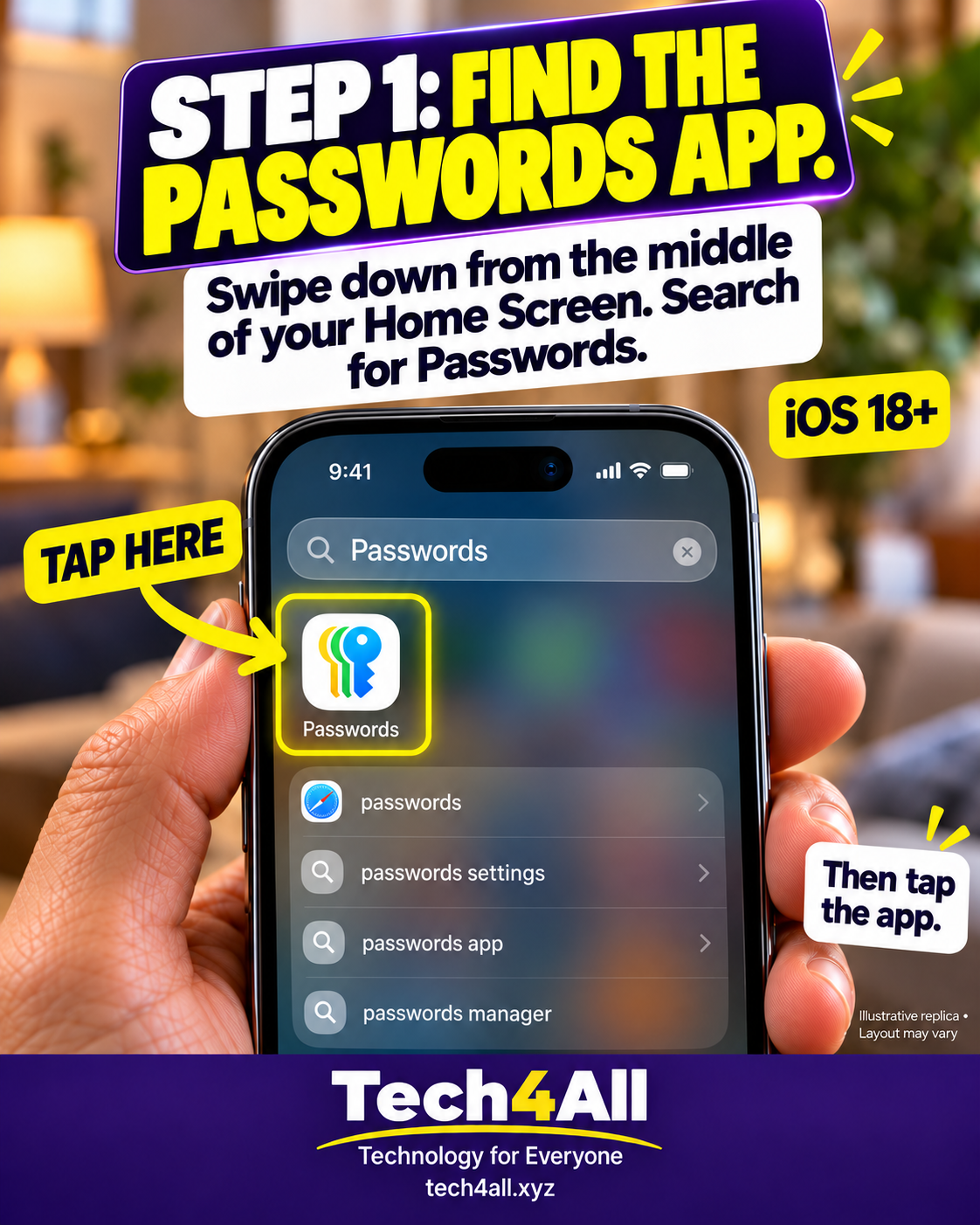
- Find the Passwords app. Swipe down from the middle of your Home Screen. Search for Passwords. Then tap the app.
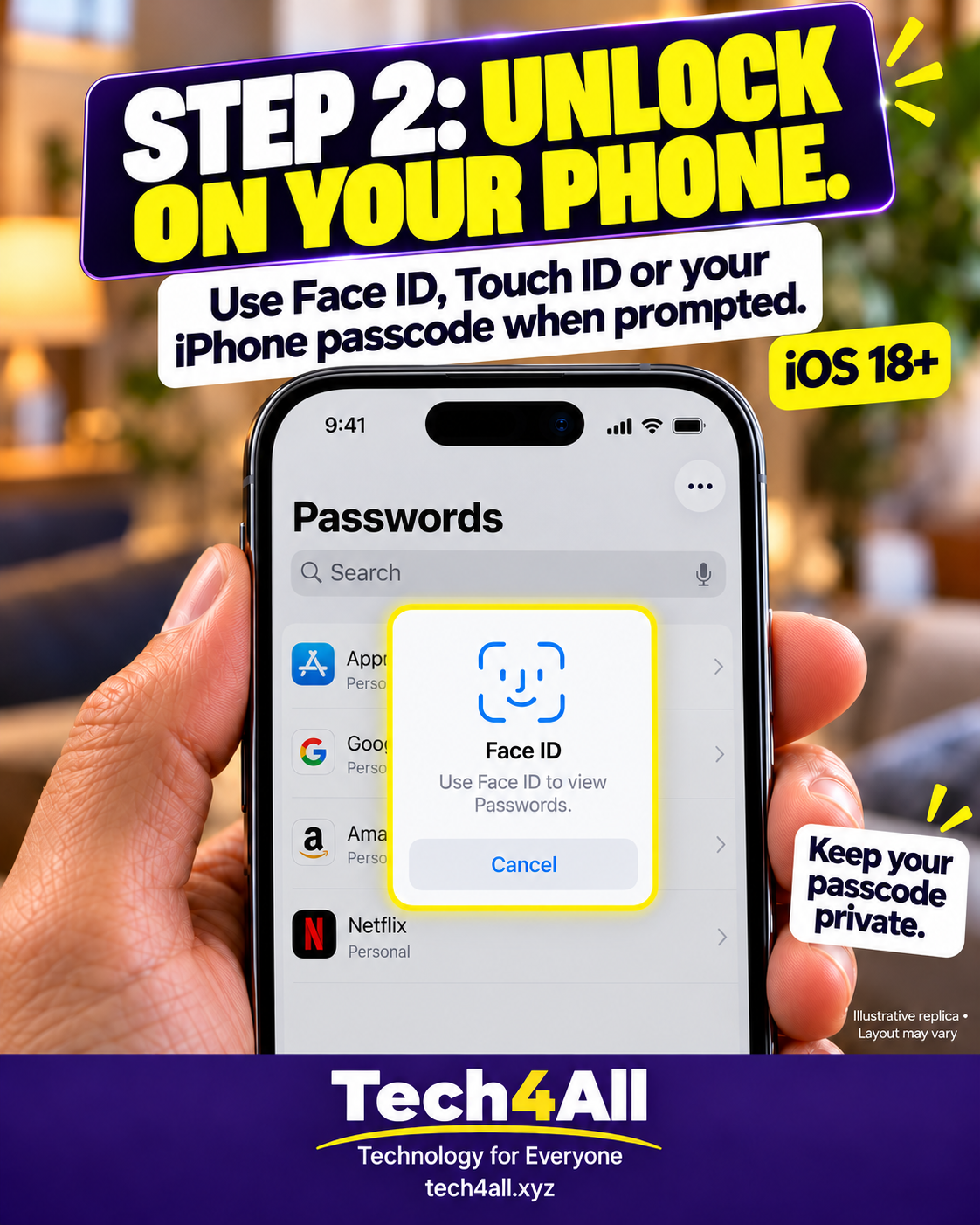
- Unlock on your phone. Use Face ID, Touch ID or your iPhone passcode when prompted. Keep your passcode private.
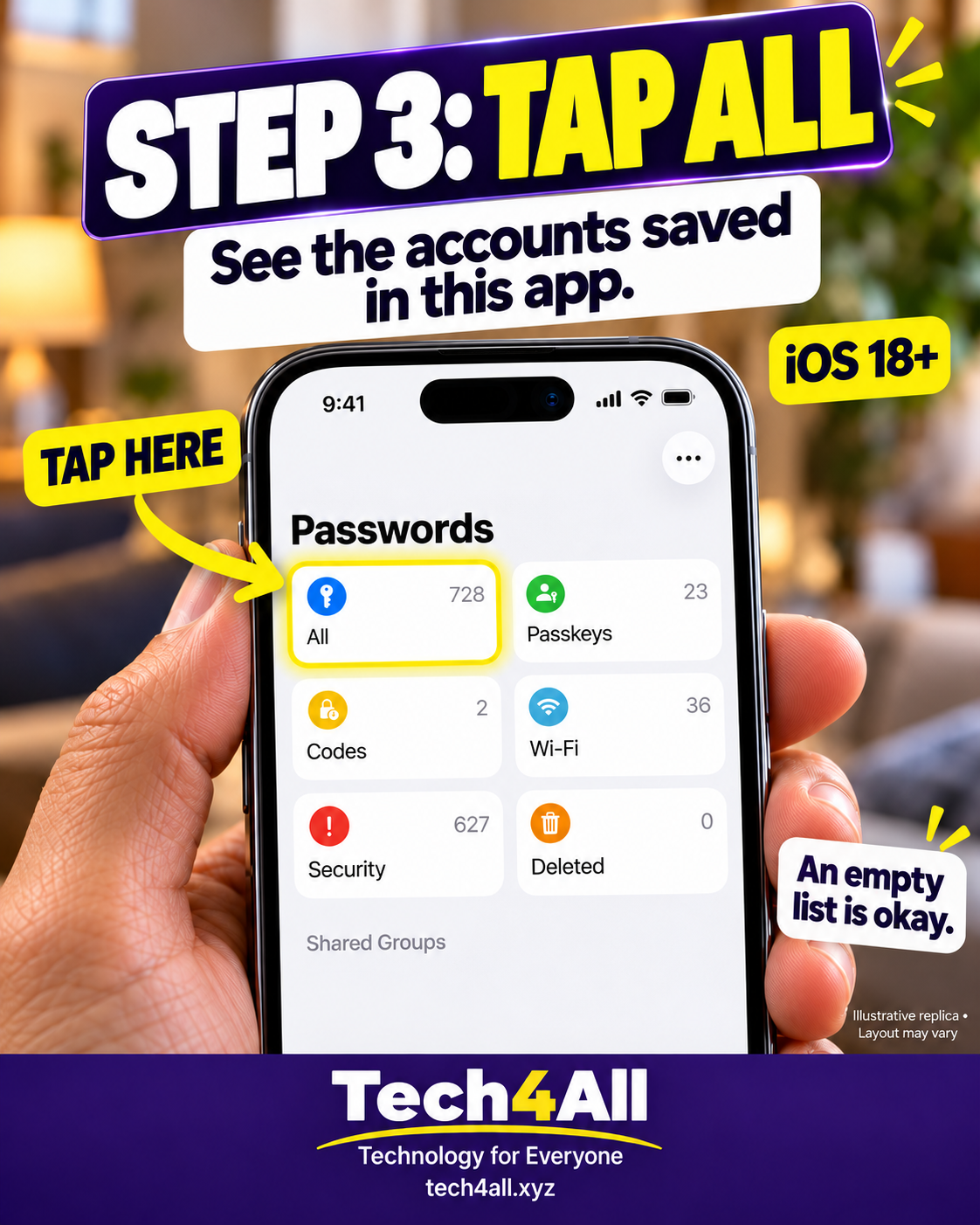
- Tap All. Look through the entries saved in the app. An empty list is okay.
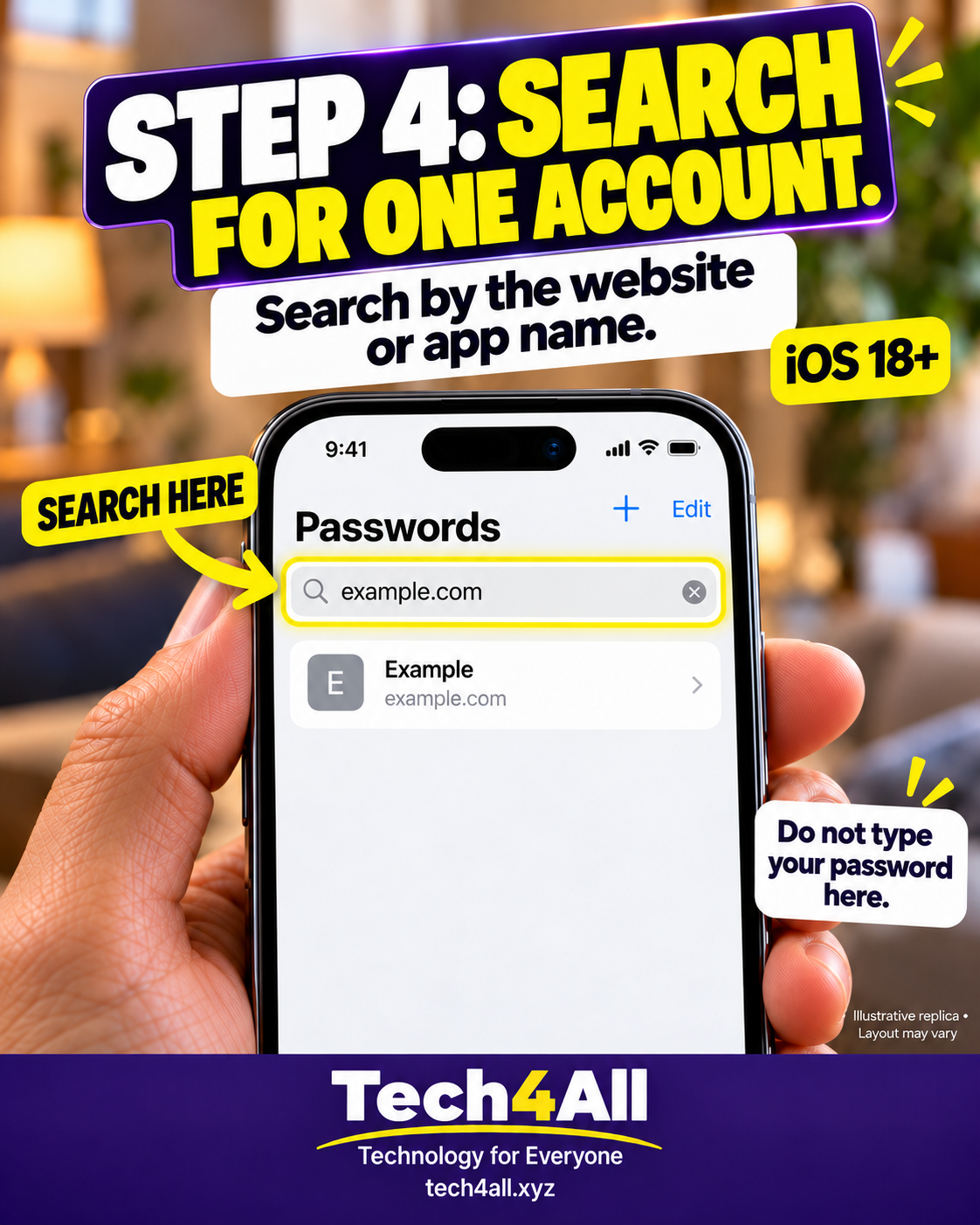
- Search for one account. Search by the website or app name. Do not type your password here.
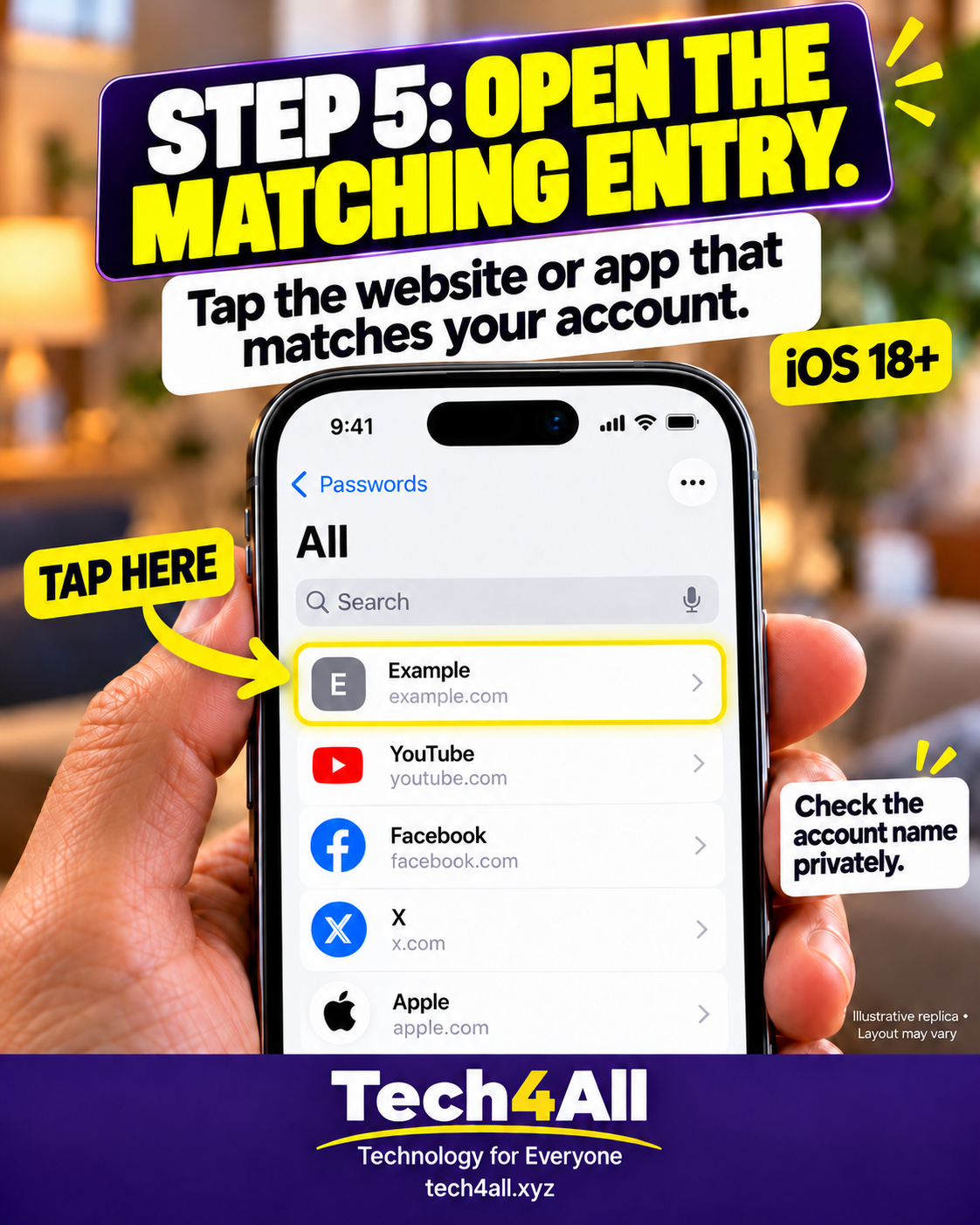
- Open the matching entry. Tap the website or app that matches your account. Check the account name privately.
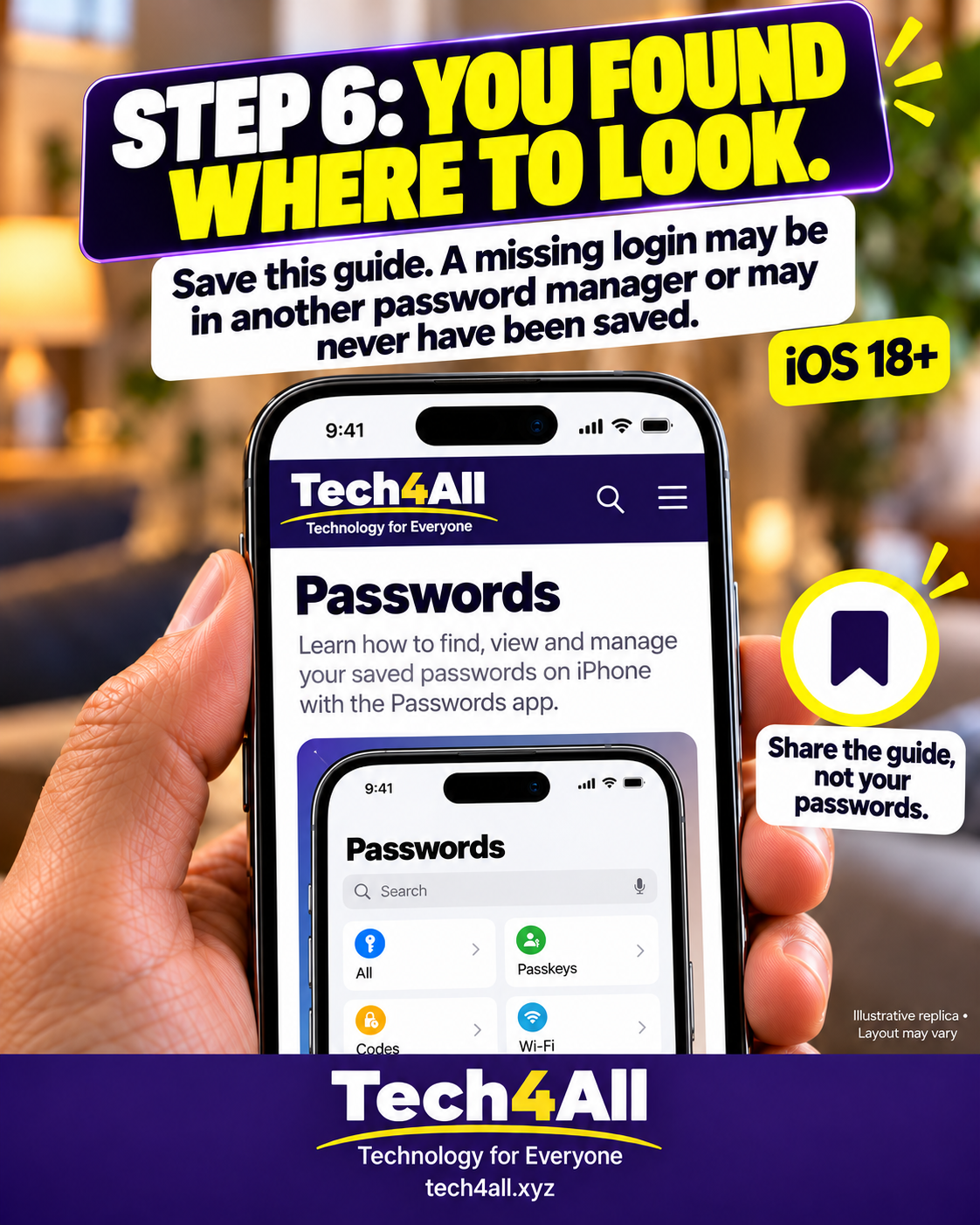
- You found where to look. Save this guide. A missing login may be in another password manager or may never have been saved. Share the guide, not your passwords.
Keep your login private. Search by the website or app name, not by your password.
The original seven-slide guide