Technology doesn't have to be scary.

We help everyday people — no matter your age or experience — feel confident and comfortable with technology. No jargon. No judgment. Ever.

Book In-Home Tech Help

60 minutes · $75 · Saturday & Sunday. In-home tech help in Alhambra and nearby communities.

Explore private tech classes in Alhambra →

Happy older woman smiling while using a tablet
🚫 No judgment, ever
💬 Plain English only
❤️ We go at your pace
✅ No question too basic
Grandparent and grandchild on a joyful video call Person getting friendly one-on-one tech help Older man smiling confidently while using his phone Group of seniors laughing together with technology

Does this sound familiar?

You're not alone — and we're here to help.

Person looking puzzled at their smartphone
"My phone keeps asking me to update and I'm afraid to press the wrong button…"
✅ Ask Harold explains exactly what the update does and walks you through it step by step.
Grandmother waving happily on a video call with family
"I want to video call my grandkids but I can never get it to work…"
✅ Ask Harold shows you the easiest way to connect with family — at whatever speed works for you.
Person looking worried at a suspicious email on screen
"I got a scary email saying my account was hacked. I don't know what to do…"
✅ Ask Harold helps you figure out if it's real or a scam, and exactly what to do next.

How it works

Getting help is as easy as sending a text message.

1

Ask your question

Type anything you're confused about — in your own words. No tech knowledge needed.

2

Ask Harold explains it

Our AI tech helper gives you a clear, friendly answer in plain English. No complicated words.

3

Feel confident

Ask as many follow-up questions as you need. Ask Harold never gets impatient.

How we can help you

Whether you want quick answers or hands-on learning, we've got you covered.

Friendly AI chat interface

🤖 Ask Harold

Your simple AI tech helper

Have a technology question? Ask Harold, our AI-powered tech helper designed to explain things simply — without confusing jargon or judgment. Available anytime.

Free to try
Two people working together on a laptop

🧑‍💻 1-on-1 Help with Harold

Personal, human help from Harold himself. He'll walk you through your own device, step by step, at your pace.

Explore personal help
Person watching an easy online course

📚 Easy Courses

Short, simple video lessons on the topics that matter most to you.

Coming soon
Watching helpful videos on a smartphone

📱 Follow Us

Free tips and how-to videos on YouTube, Facebook, and Instagram. Simple, friendly, and fun.

▶️ YouTube 📘 Facebook 📸 Instagram

Technology Help for Older Adults

Tech 4 All helps older adults feel more confident using everyday technology through patient, practical, hands-on guidance. We're developing programs for senior centers and community organizations covering smartphones, tablets, online safety, communication, AI basics, and everyday technology questions.

Interested in bringing Tech 4 All to your organization? 📬 Contact Us
Harold, founder of Tech 4 All

Tech help with heart

At Tech 4 All, we believe everyone deserves to feel comfortable with technology — no matter how old you are or how much experience you have.

We've helped friends, family, and coworkers with everything from setting up email to spotting online scams. Now we're bringing that same patient, judgment-free help to everyone.

Every question is a good question. And we'll stay with you until you truly understand.

Try Ask Harold

Tap a question below to see how our AI tech helper answers — or type your own!

Quick tips, at your pace

30 useful iPhone tips. Pick a topic and open it right here.

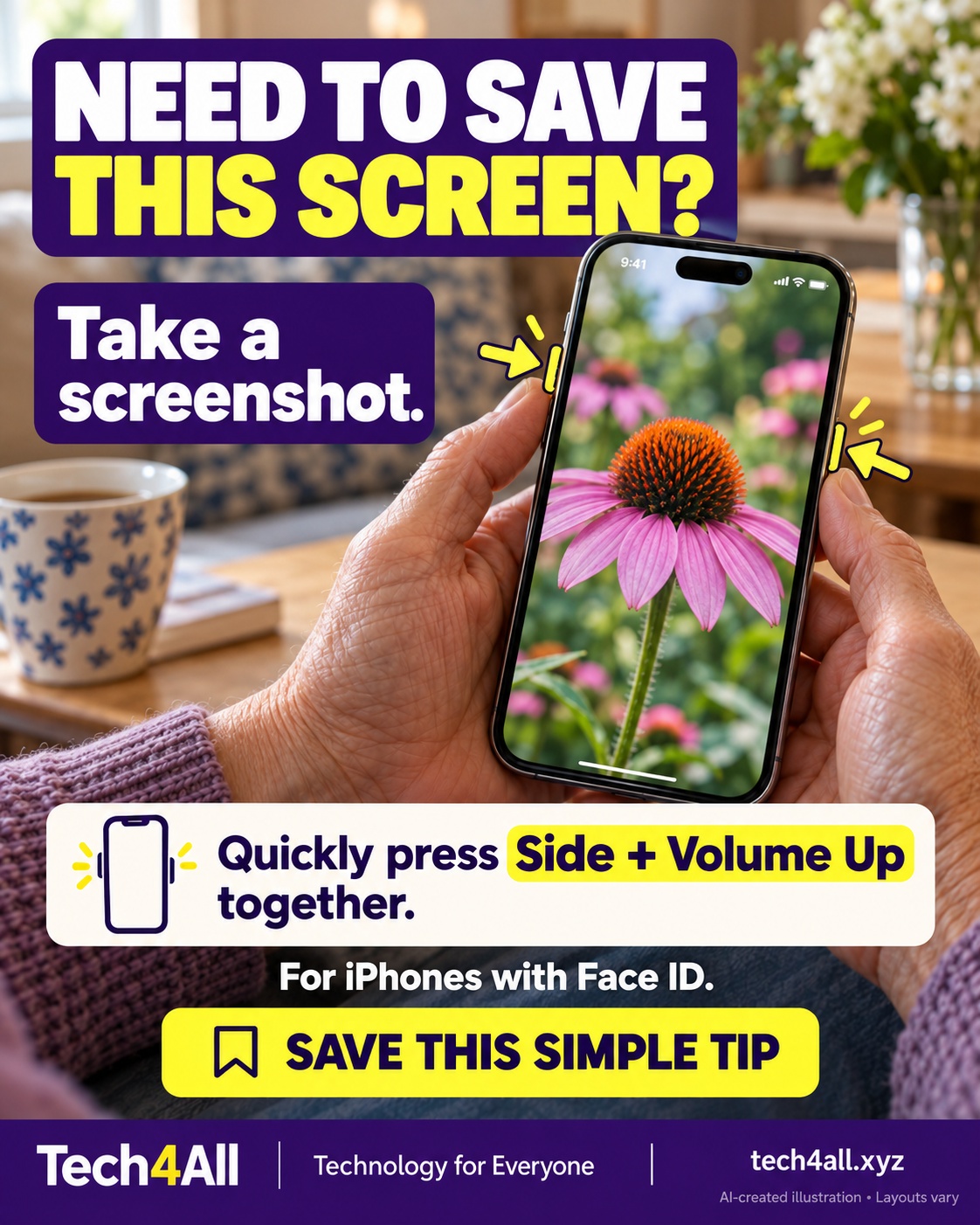
QT-001Take a screenshot

On an iPhone with Face ID, quickly press and release the Side button and Volume Up at the same time. Try it on a harmless screen first. Keep private information out of anything you share.

Take a screenshot — AI-created iPhone illustration

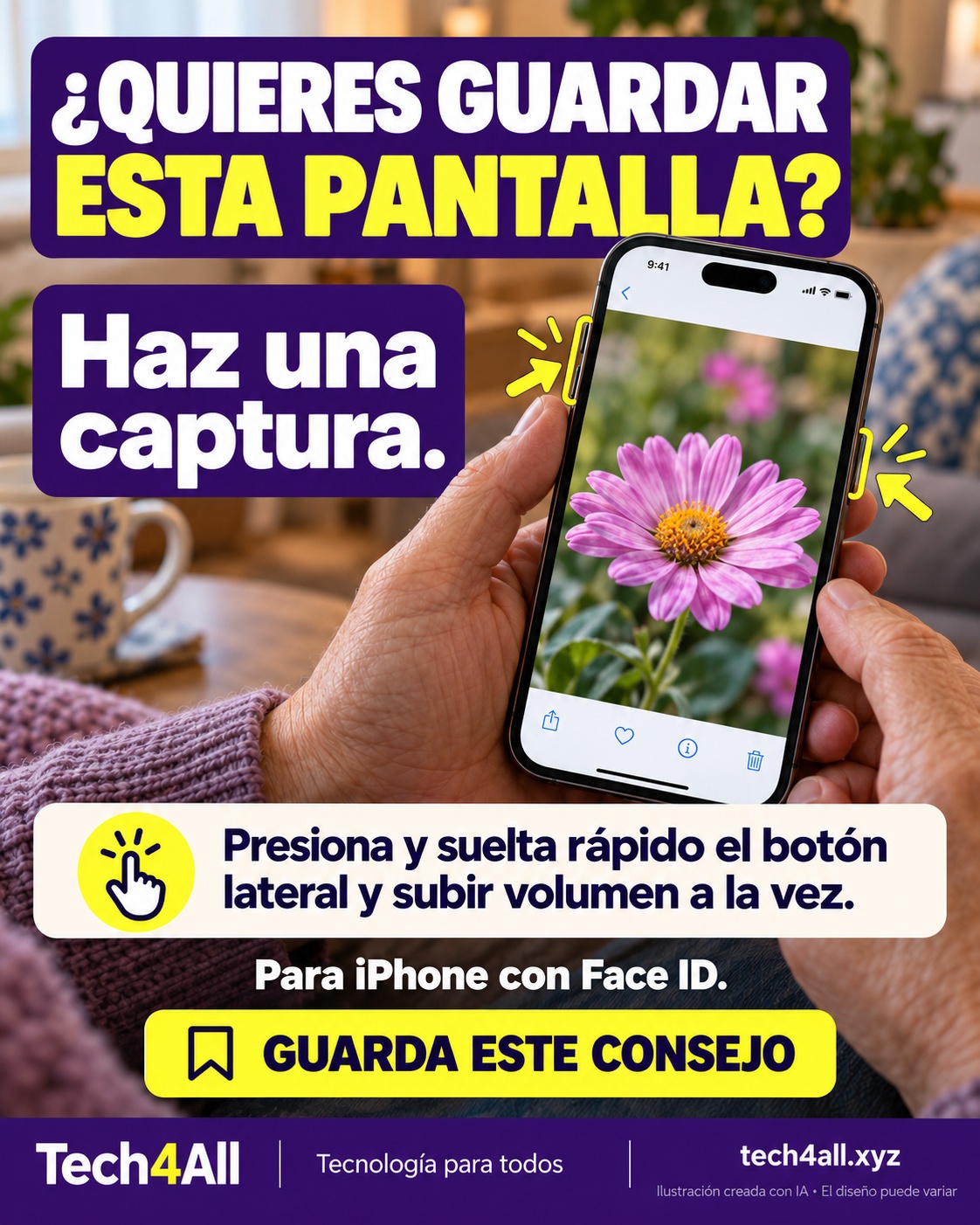
En un iPhone con Face ID, presiona y suelta rápidamente el botón lateral y el de subir volumen al mismo tiempo. Pruébalo con una pantalla sin datos privados antes de compartir una captura.

Haz una captura de pantalla — ilustración de iPhone creada con IA
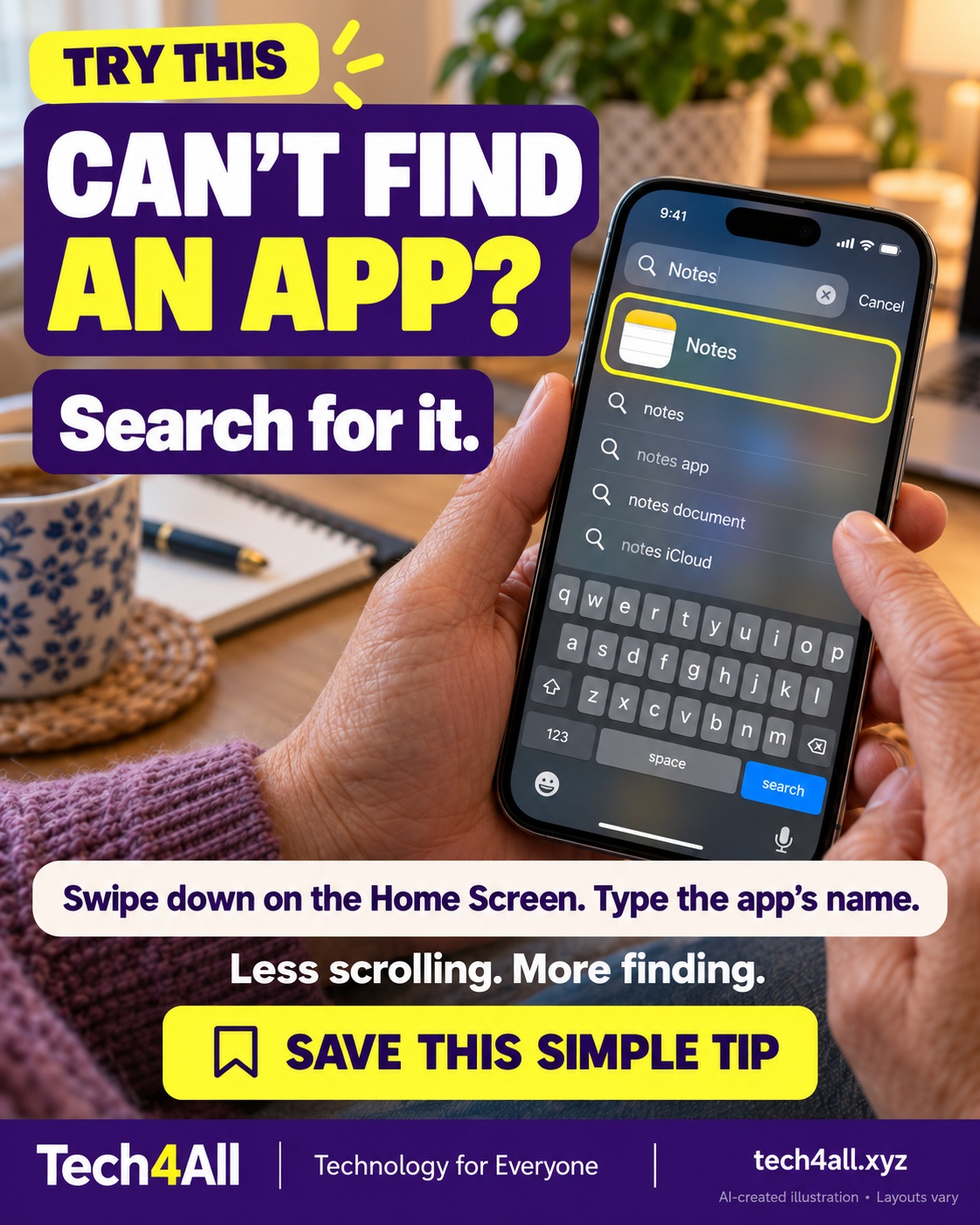
QT-002Find an app

Swipe down from the middle of your iPhone Home Screen, type an app’s name, and tap its result. Try searching for Notes. It is a handy way to find an app without remembering its folder.
Find an app — AI-created iPhone illustration

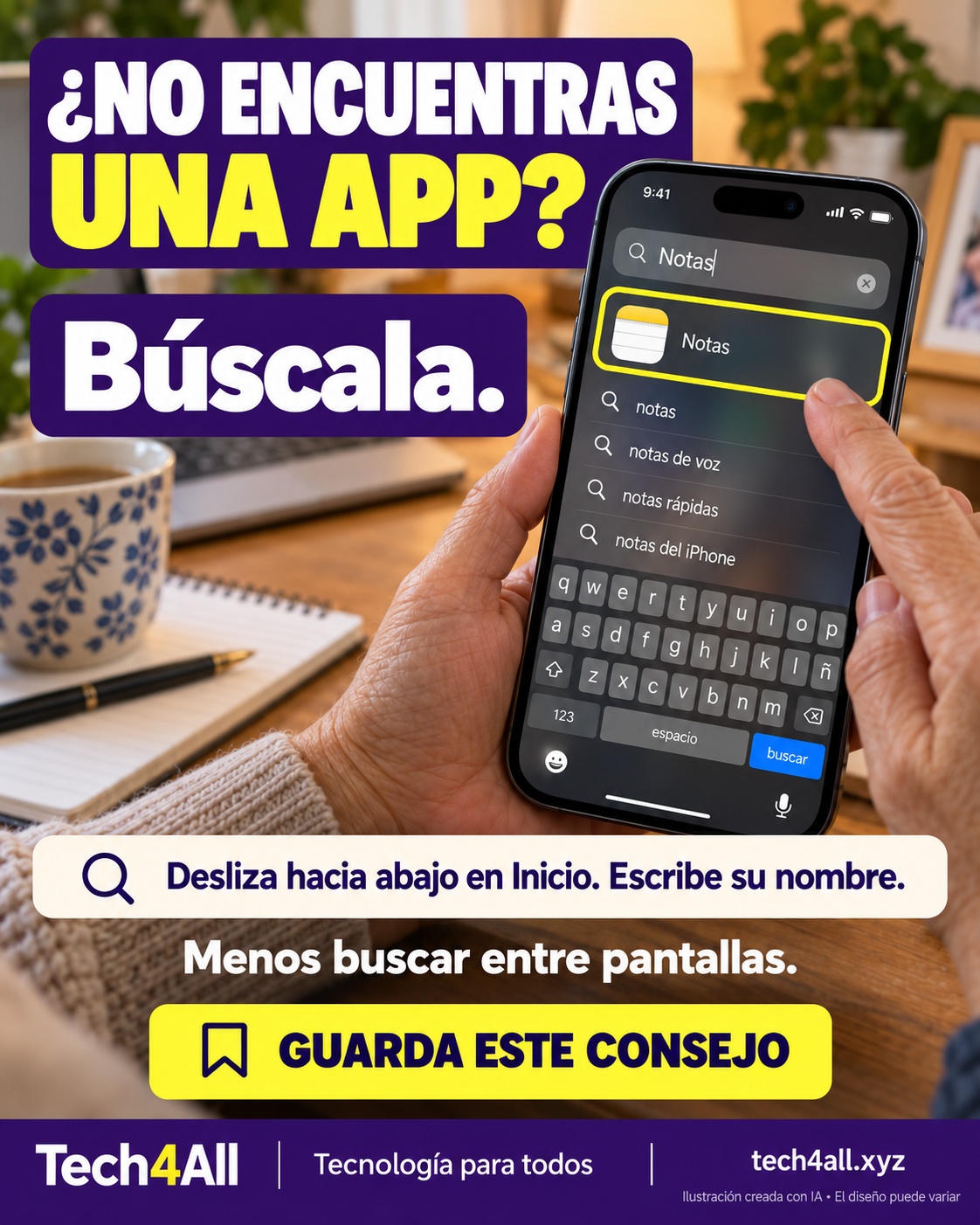
Desliza hacia abajo desde el centro de la pantalla de inicio del iPhone. Escribe el nombre de una app y toca el resultado. Prueba con Notas: no necesitas recordar en qué carpeta está.

Encuentra una app — ilustración de iPhone creada con IA
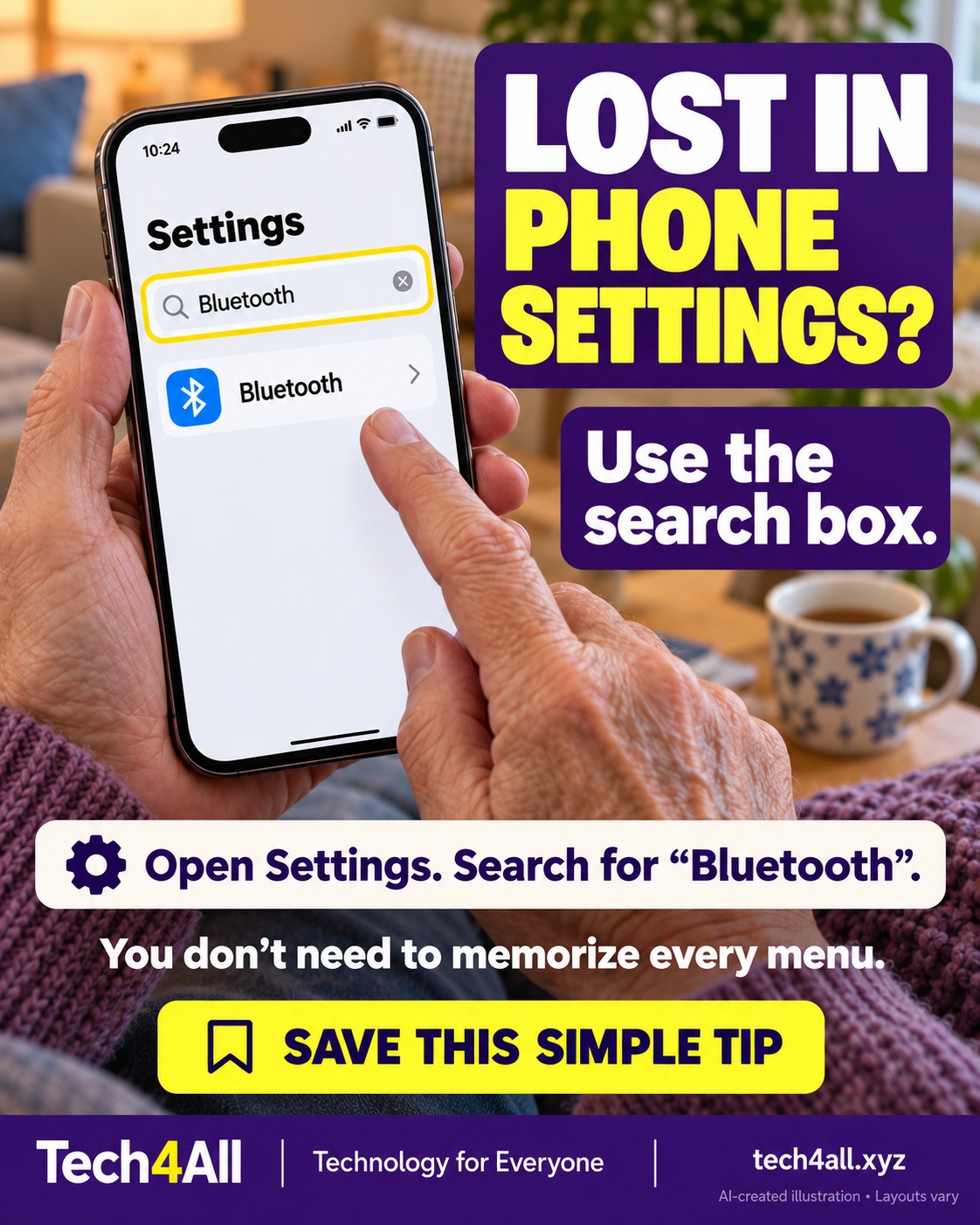
QT-003Find a setting

Open Settings and tap its search field. Type Bluetooth, then tap the matching setting. The search box may be in a different place depending on your iOS version.

Find a setting — AI-created iPhone illustration

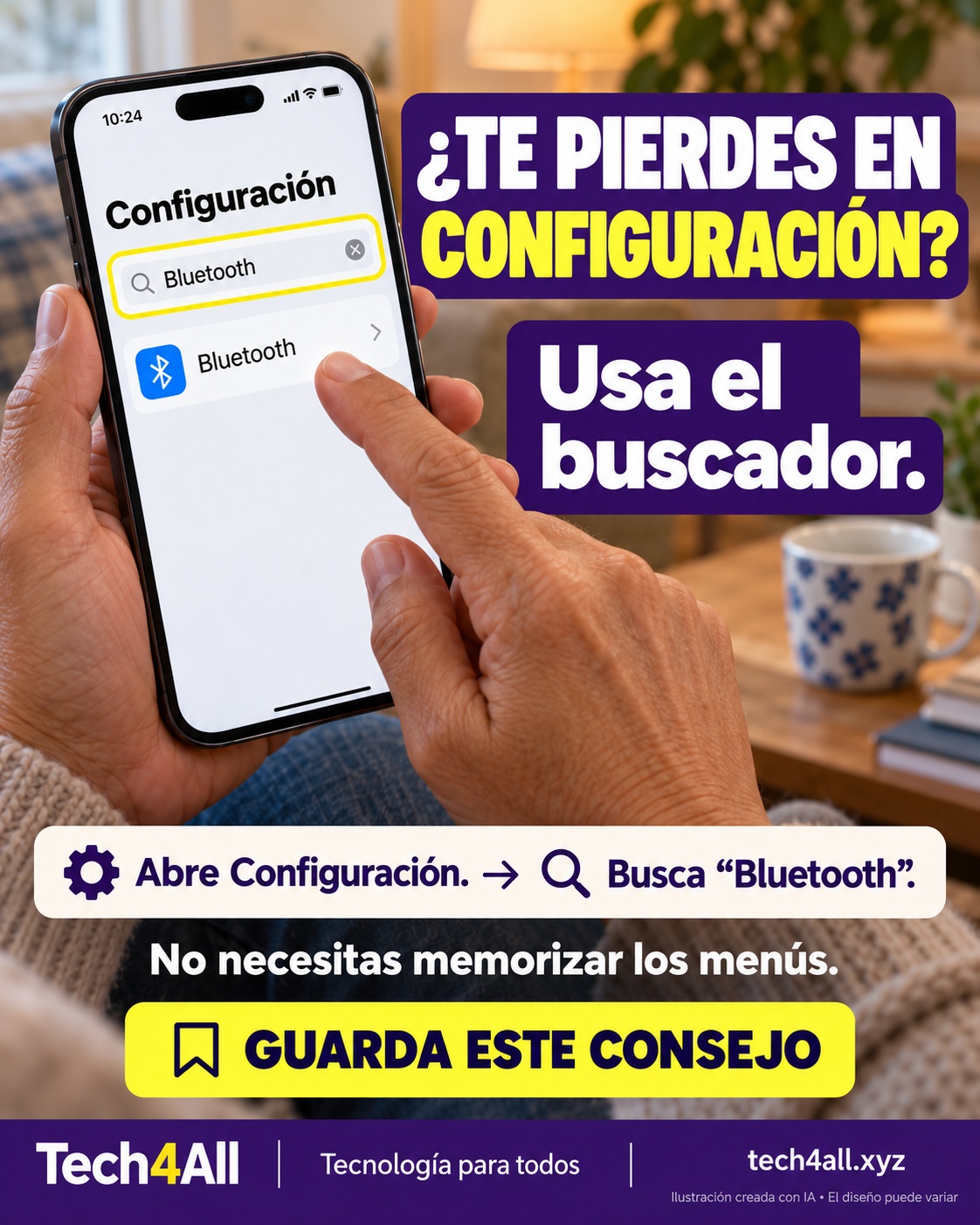
Abre Configuración y toca el campo de búsqueda. Escribe Bluetooth y toca el ajuste correspondiente. La ubicación del buscador puede cambiar según la versión de iOS.

Encuentra un ajuste — ilustración de iPhone creada con IA
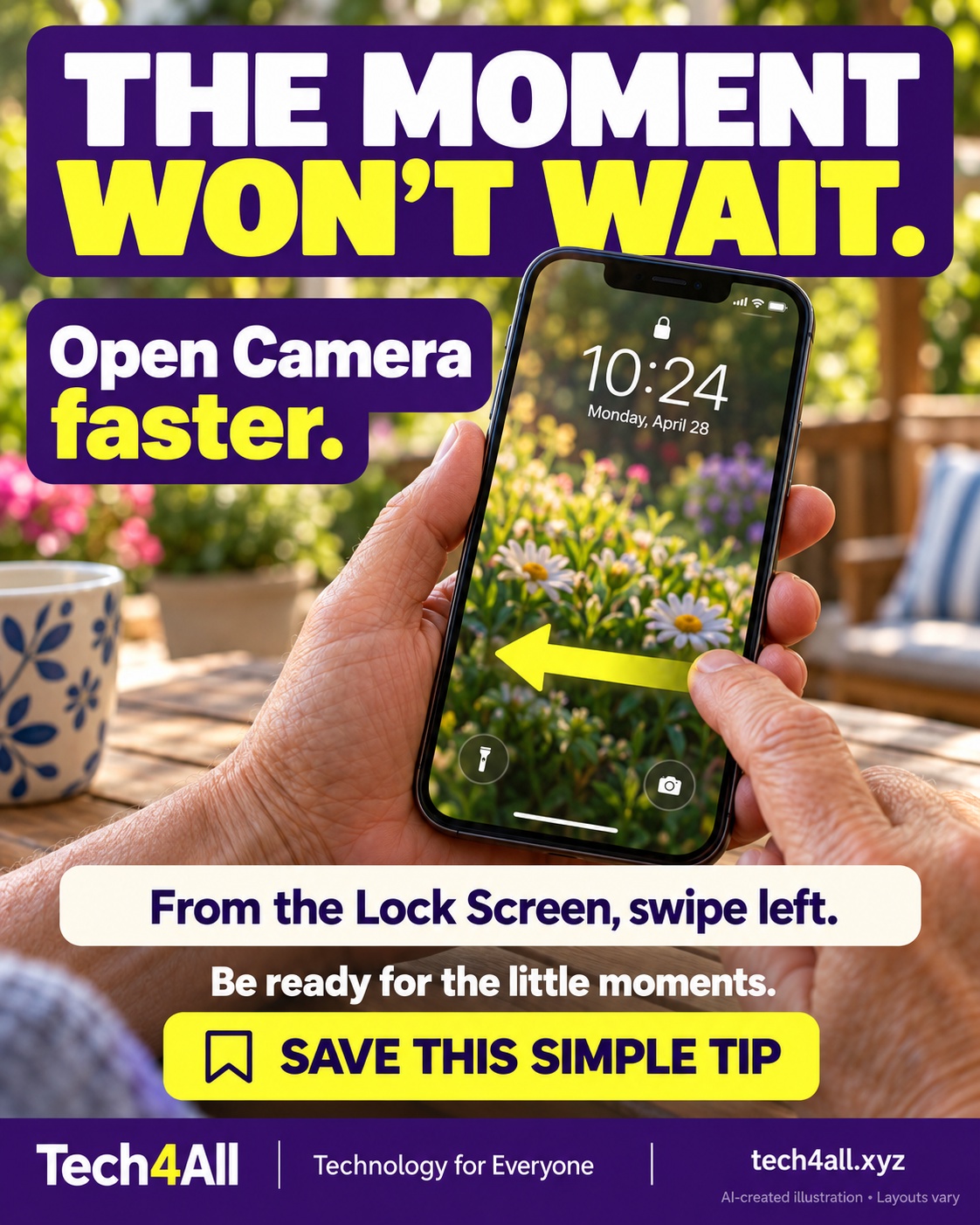
QT-004Open Camera quickly

From your iPhone Lock Screen, swipe left to open Camera. Practice once so the gesture feels familiar before the next photo opportunity.

Open Camera quickly — AI-created iPhone illustration

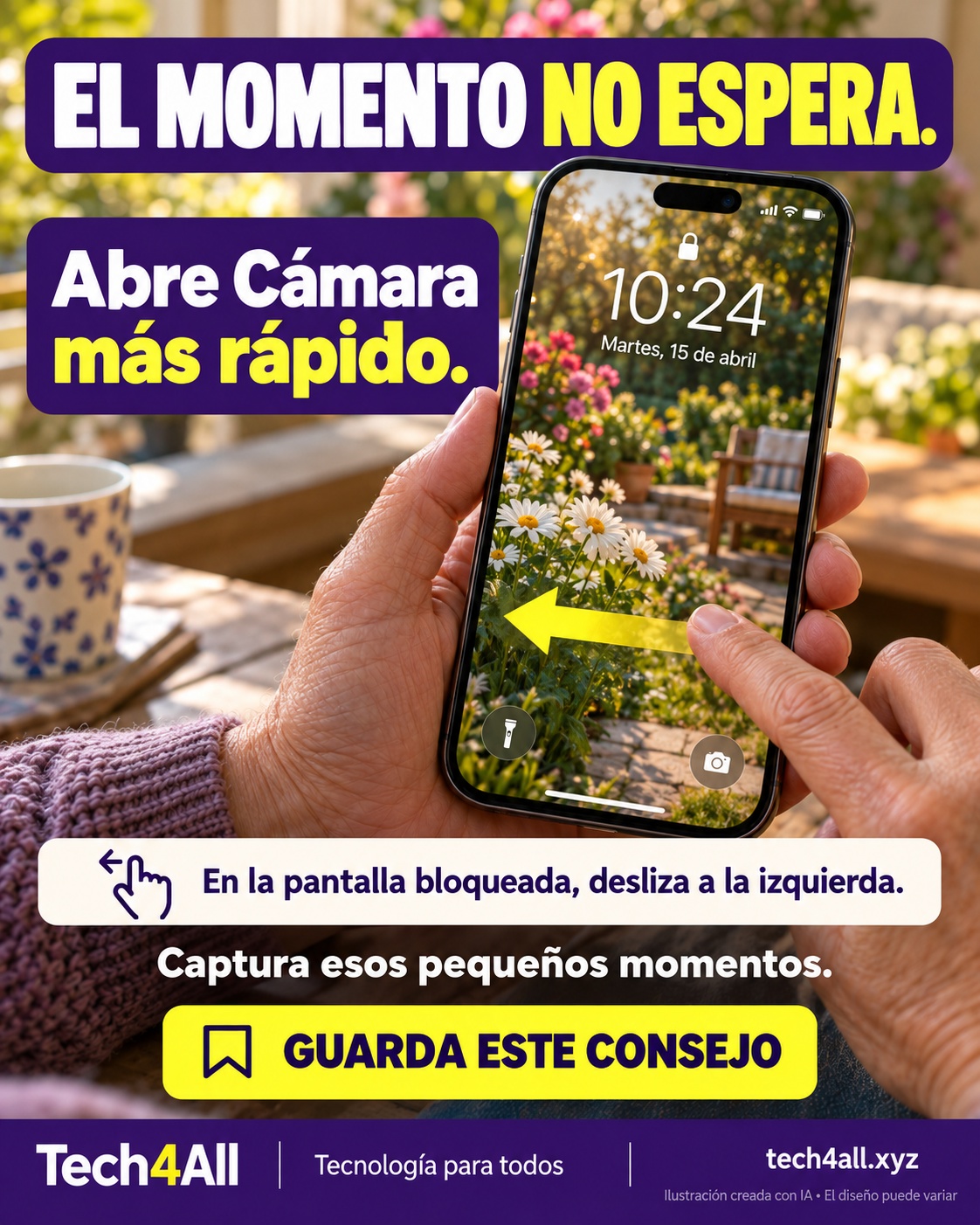
En la pantalla bloqueada del iPhone, desliza a la izquierda para abrir Cámara. Pruébalo una vez para que el movimiento te resulte familiar cuando llegue el momento de tomar una foto.

Abre Cámara rápidamente — ilustración de iPhone creada con IA
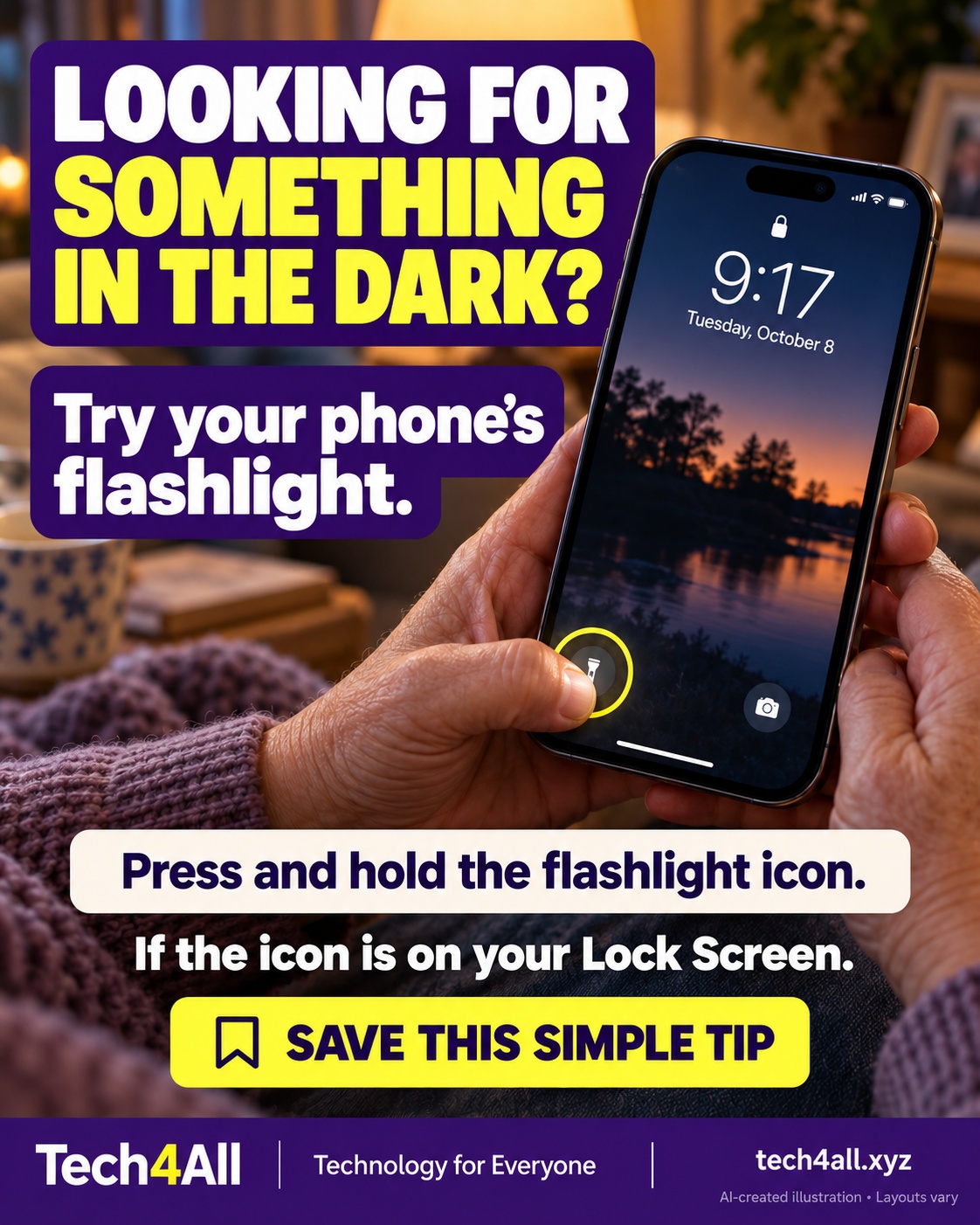
QT-005Use the flashlight

If your iPhone Lock Screen has a flashlight button, press and hold it to turn the light on. Press and hold again to turn it off. Lock Screen controls can be customized, so your buttons may differ.

Use the flashlight — AI-created iPhone illustration

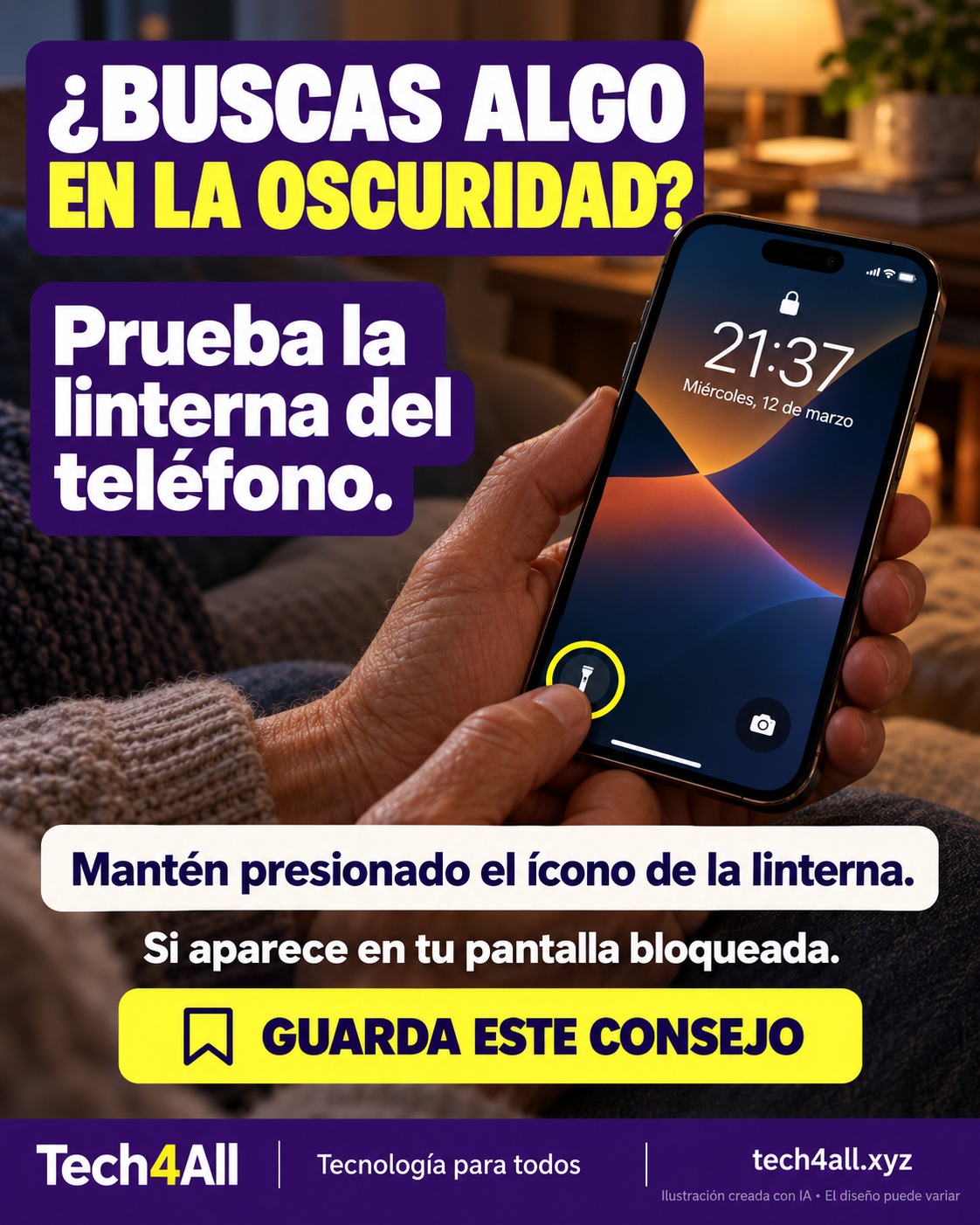
Si tu pantalla bloqueada tiene el botón de la linterna, mantenlo presionado para encenderla. Repite para apagarla. Los botones pueden cambiar si personalizaste la pantalla.

Usa la linterna — ilustración de iPhone creada con IA
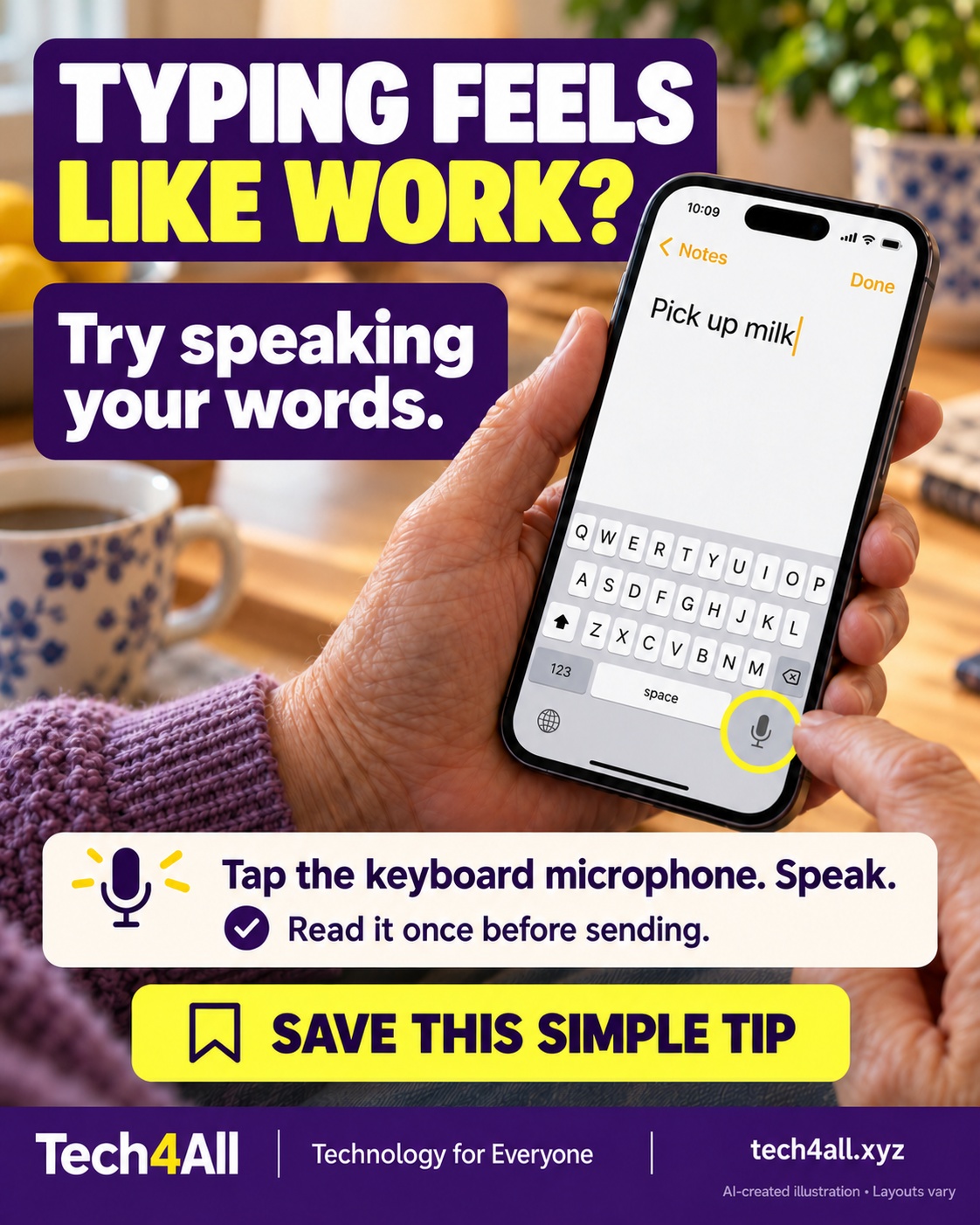
QT-006Speak instead of typing

Tap a text field so the keyboard appears, then tap the keyboard’s Dictation microphone and speak. Review the words before sending or saving. Dictation must be enabled and availability varies by language and region.

Speak instead of typing — AI-created iPhone illustration

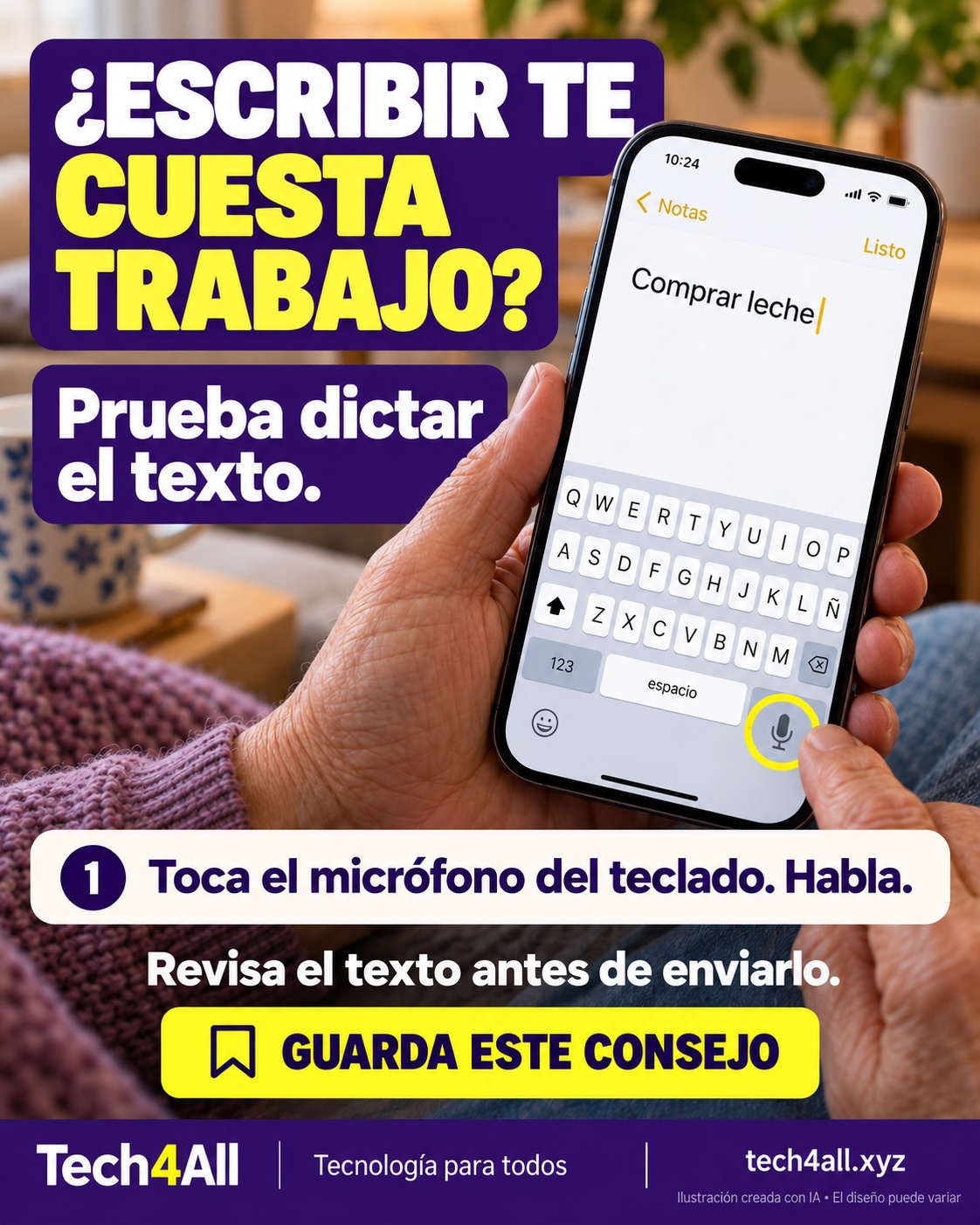
Toca un campo de texto para abrir el teclado. Luego toca el micrófono de dictado y habla. Revisa las palabras antes de guardar o enviar. El dictado debe estar activado y su disponibilidad depende del idioma y la región.

Dicta en lugar de escribir — ilustración de iPhone creada con IA
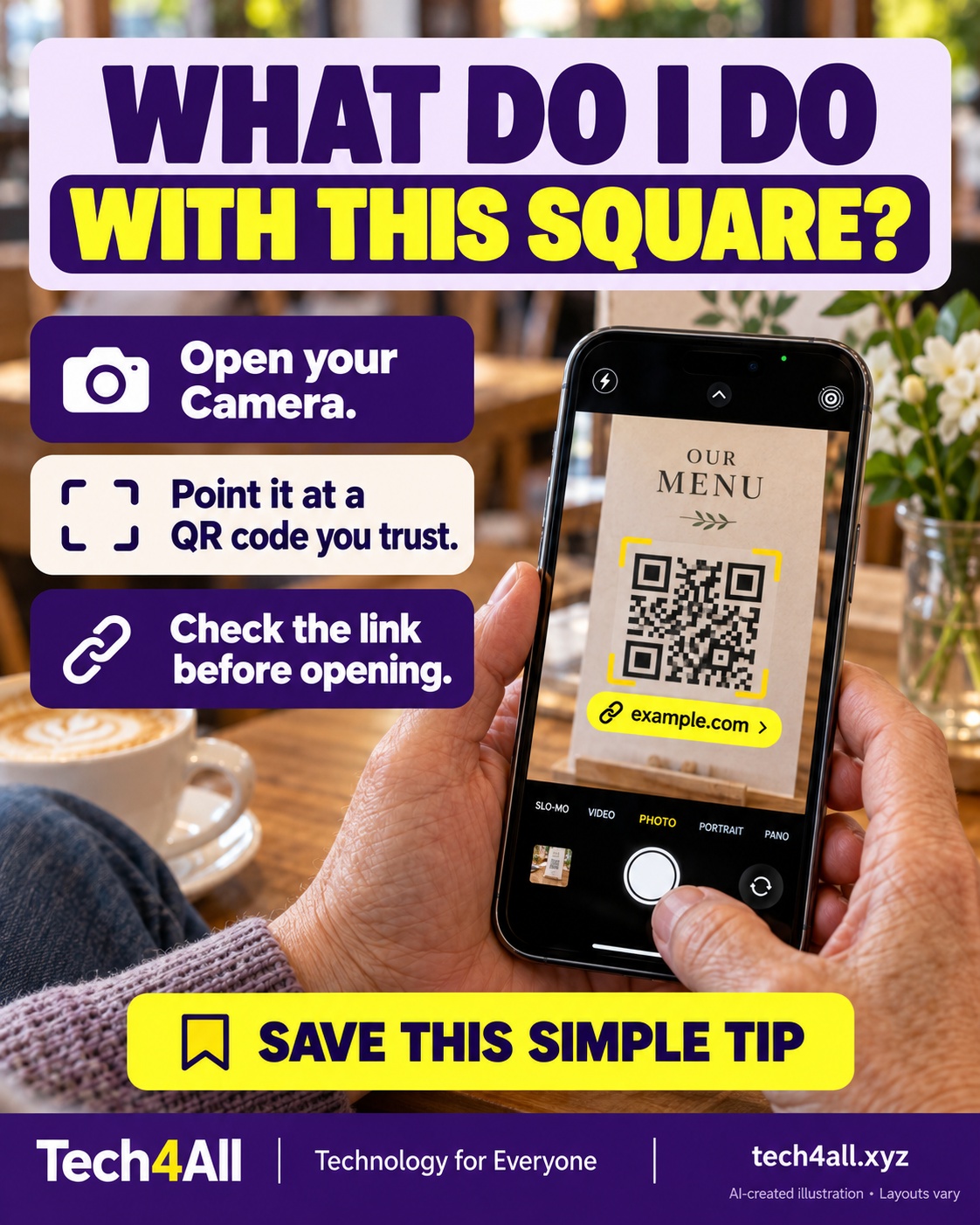
QT-007Scan a QR code

Open Camera and point it at a QR code from a source you trust. When a link appears, check it before tapping. Scanning a code does not prove the website is safe.

Scan a QR code — AI-created iPhone illustration

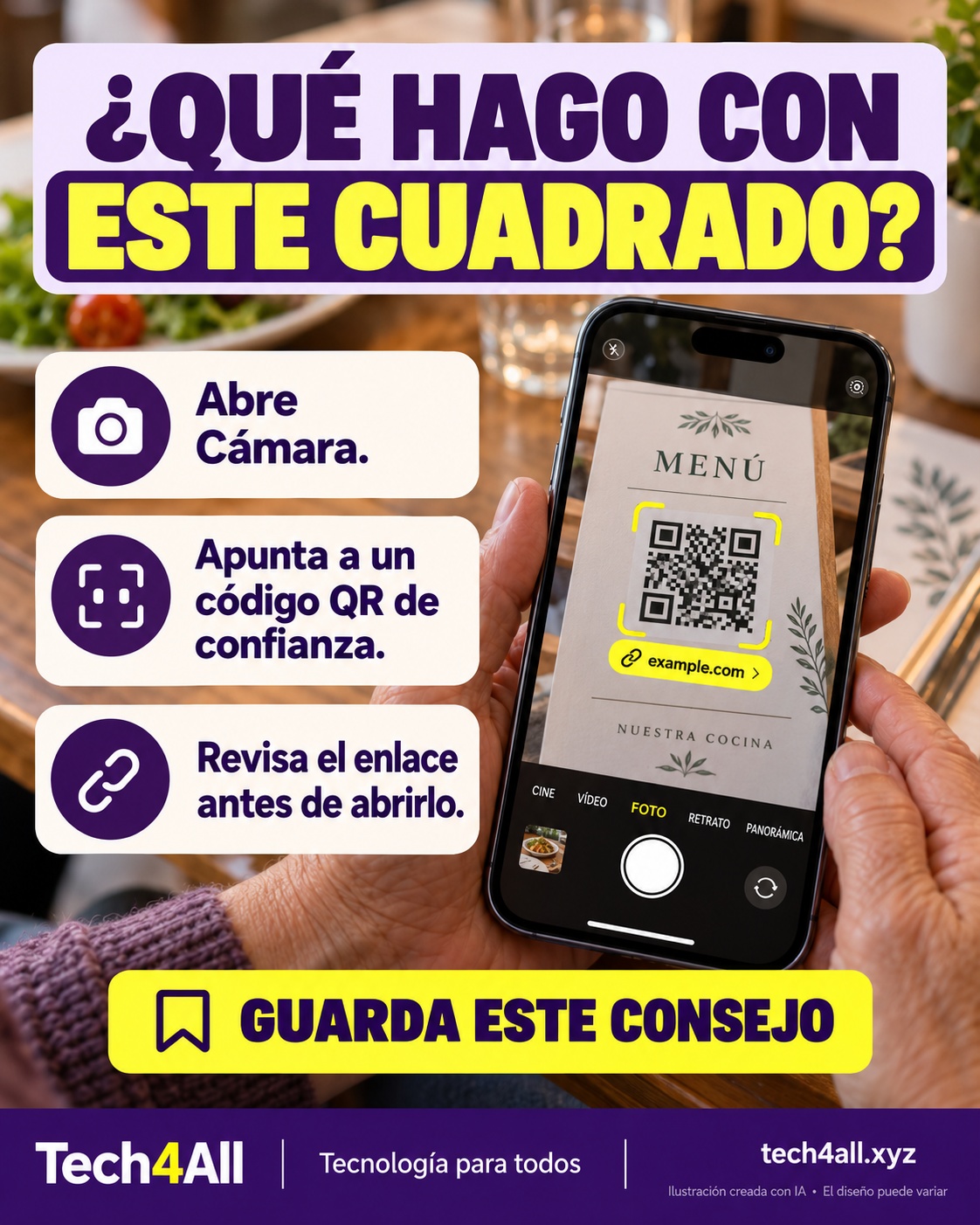
Abre Cámara y apunta a un código QR de una fuente de confianza. Cuando aparezca el enlace, revísalo antes de tocarlo. Escanear un código no demuestra que el sitio sea seguro.

Escanea un código QR — ilustración de iPhone creada con IA
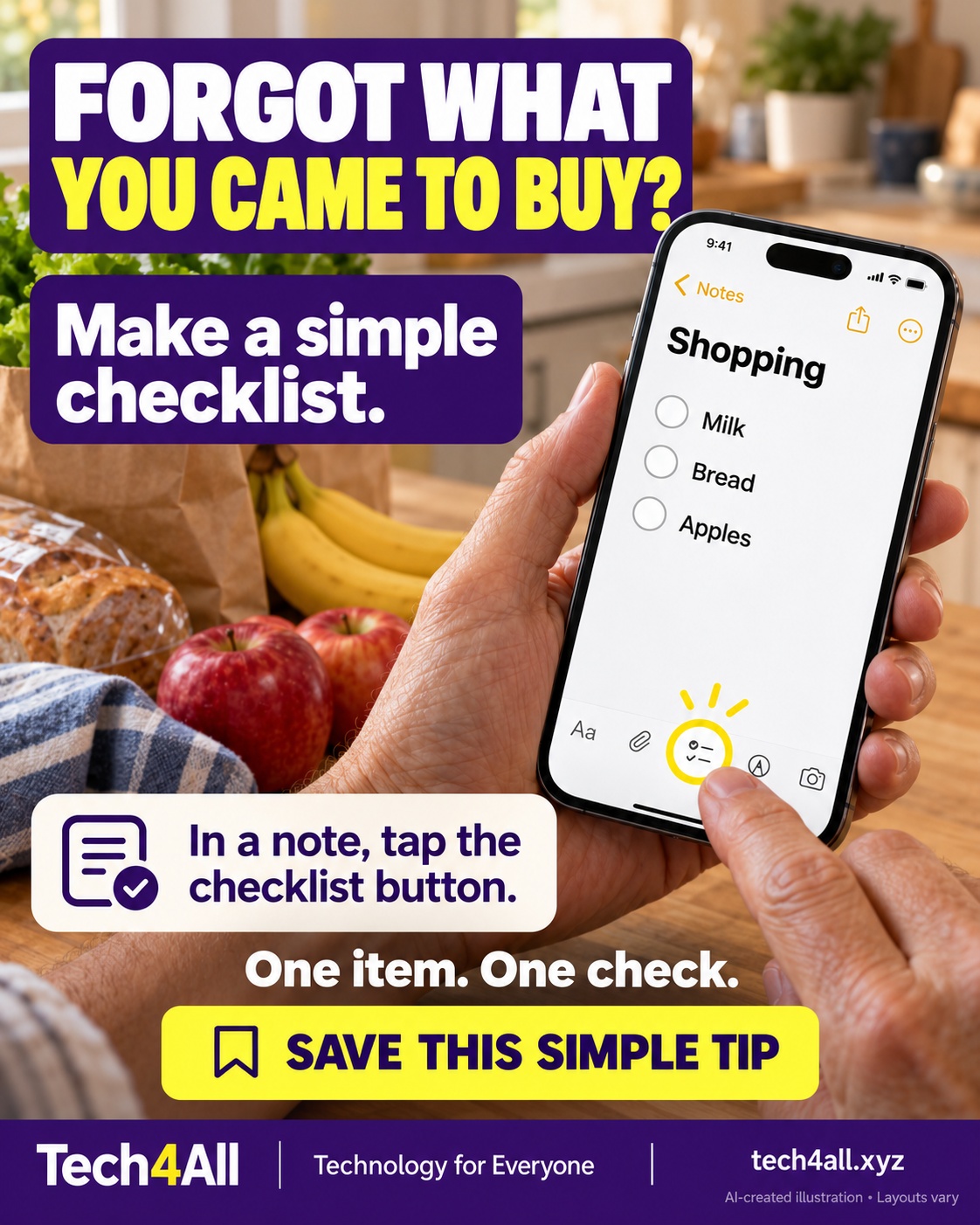
QT-008Make a shopping checklist

Open a note in Notes and tap the checklist button. Add a short shopping list, then tap each circle as you finish an item. Start with three things and keep it simple.

Make a shopping checklist — AI-created iPhone illustration

Abre una nota en Notas y toca el botón de lista de verificación. Escribe una lista corta y marca cada círculo al terminar. Empieza con tres cosas y hazlo sencillo.

Haz una lista de compras — ilustración de iPhone creada con IA
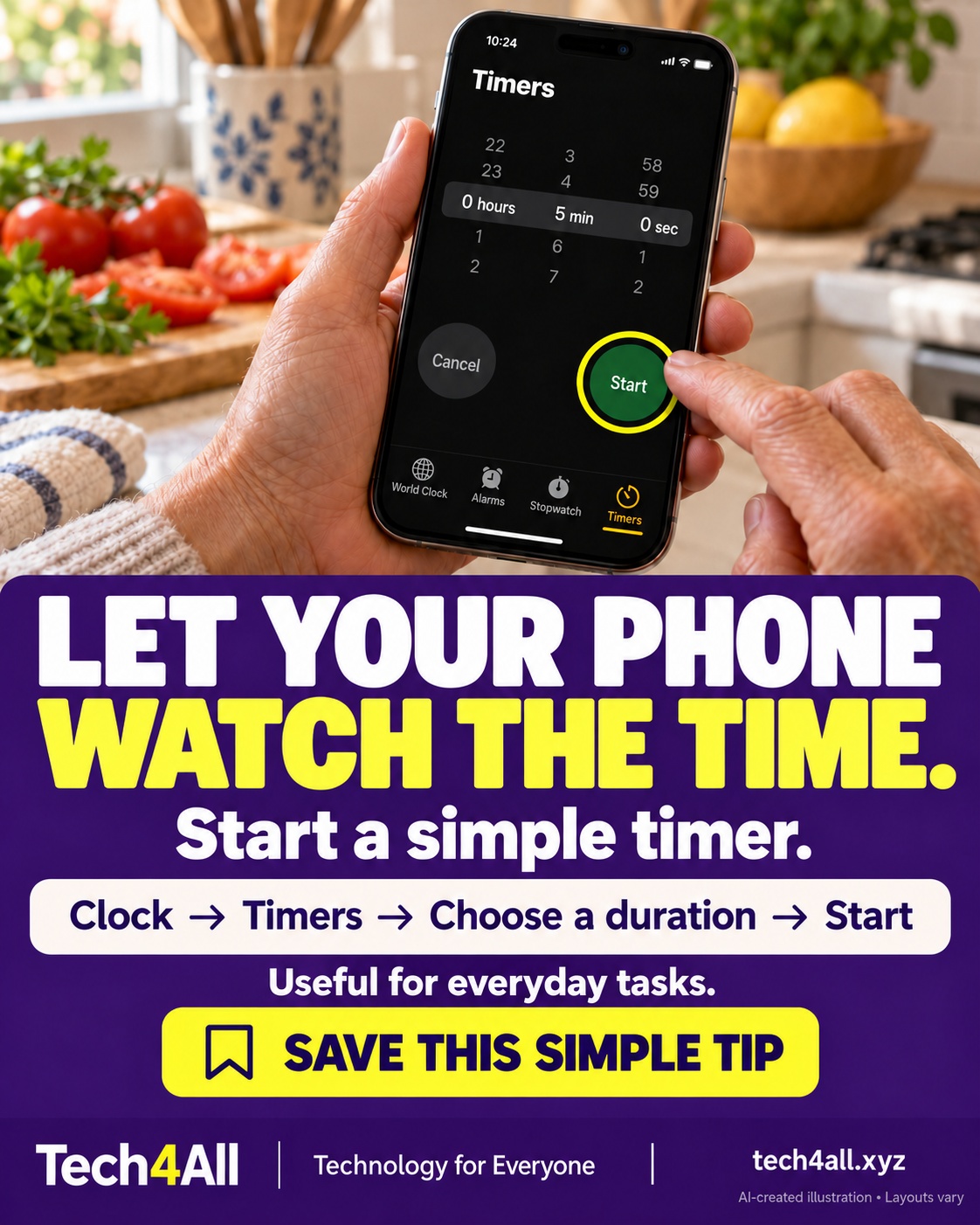
QT-009Start a timer

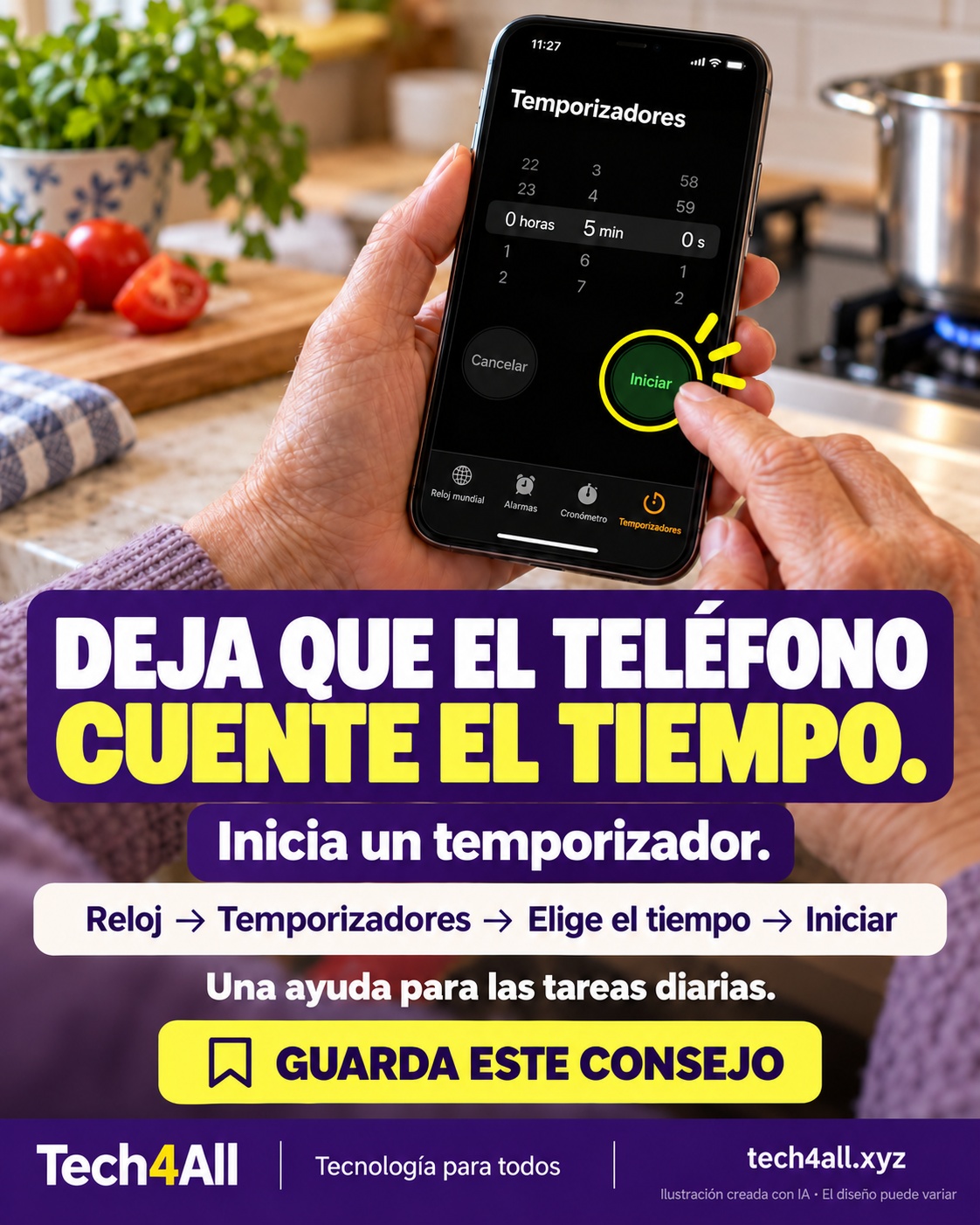
Open Clock, choose Timers, set a duration and tap Start. Try a five-minute timer for a small everyday task. Check the timer sound so you know what to listen for.

Start a timer — AI-created iPhone illustration

Abre Reloj, elige Temporizadores, ajusta el tiempo y toca Iniciar. Prueba cinco minutos para una tarea pequeña. Comprueba el sonido para reconocer el aviso.

Inicia un temporizador — ilustración de iPhone creada con IA
QT-010Share a photo

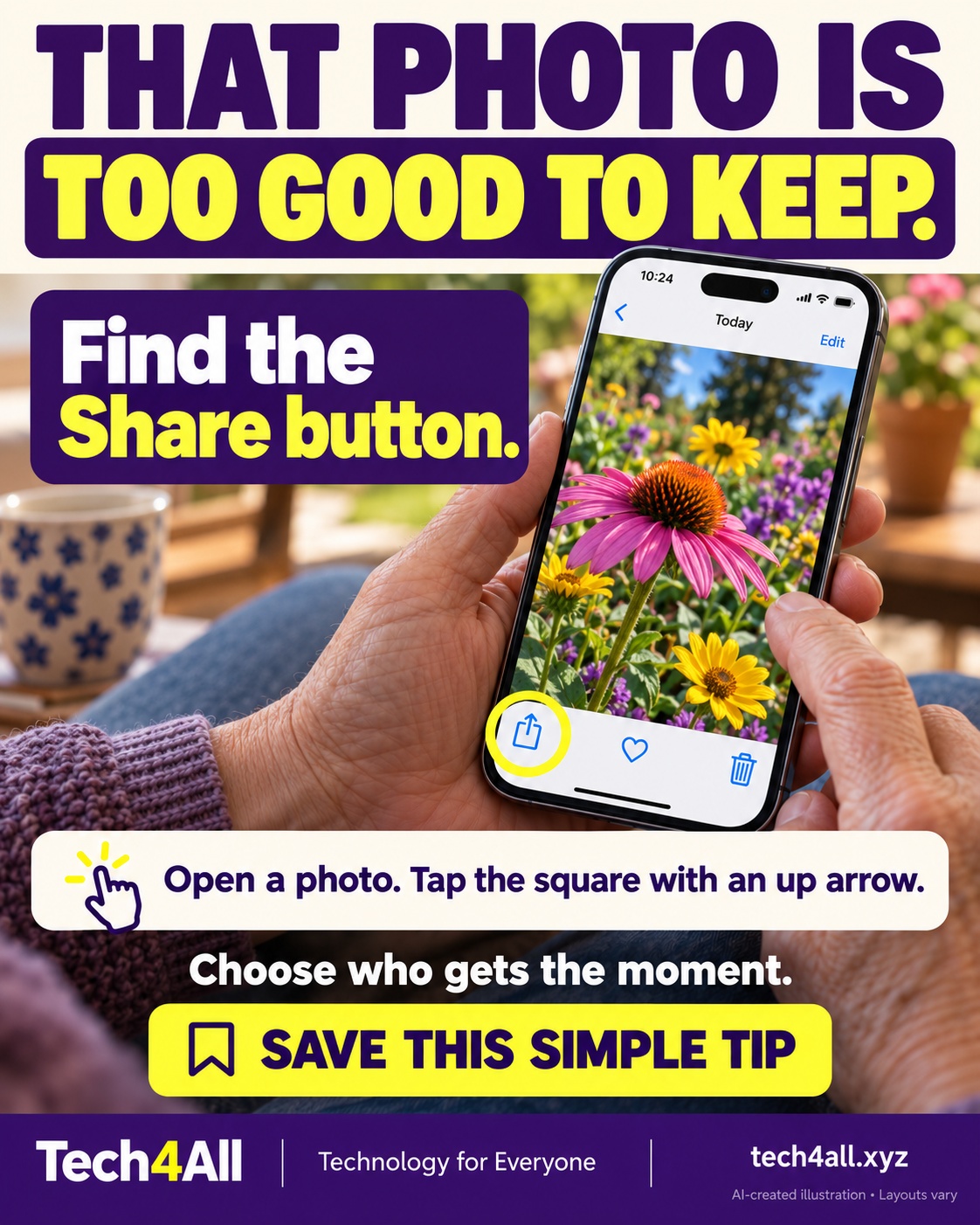
Open a photo in Photos and tap Share—the square with an upward arrow. Choose how to share it and check the recipient before sending. Take a moment to notice any private details in the photo.

Share a photo — AI-created iPhone illustration

Abre una foto en Fotos y toca Compartir: el cuadro con una flecha hacia arriba. Elige cómo compartirla y verifica el destinatario antes de enviar. Revisa si la imagen incluye datos privados.
Comparte una foto — ilustración de iPhone creada con IA
QT-011Check Do Not Disturb

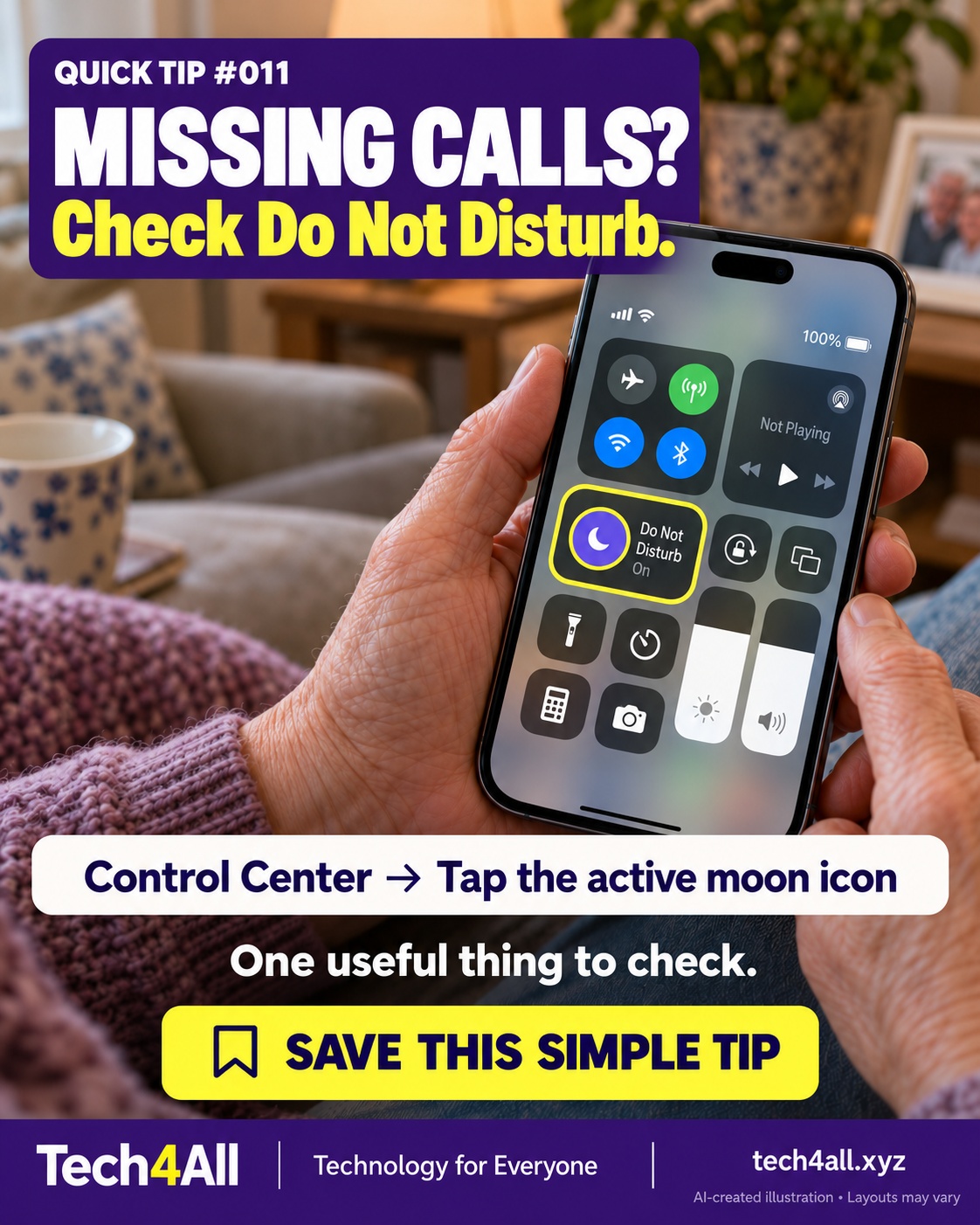
Open Control Center and tap the active Do Not Disturb moon icon to turn it off. On Face ID iPhones, swipe down from the top-right; on Home-button models, swipe up from the bottom. This is one possible cause of missed alerts, not a complete diagnosis.
Check Do Not Disturb — AI-created iPhone illustration

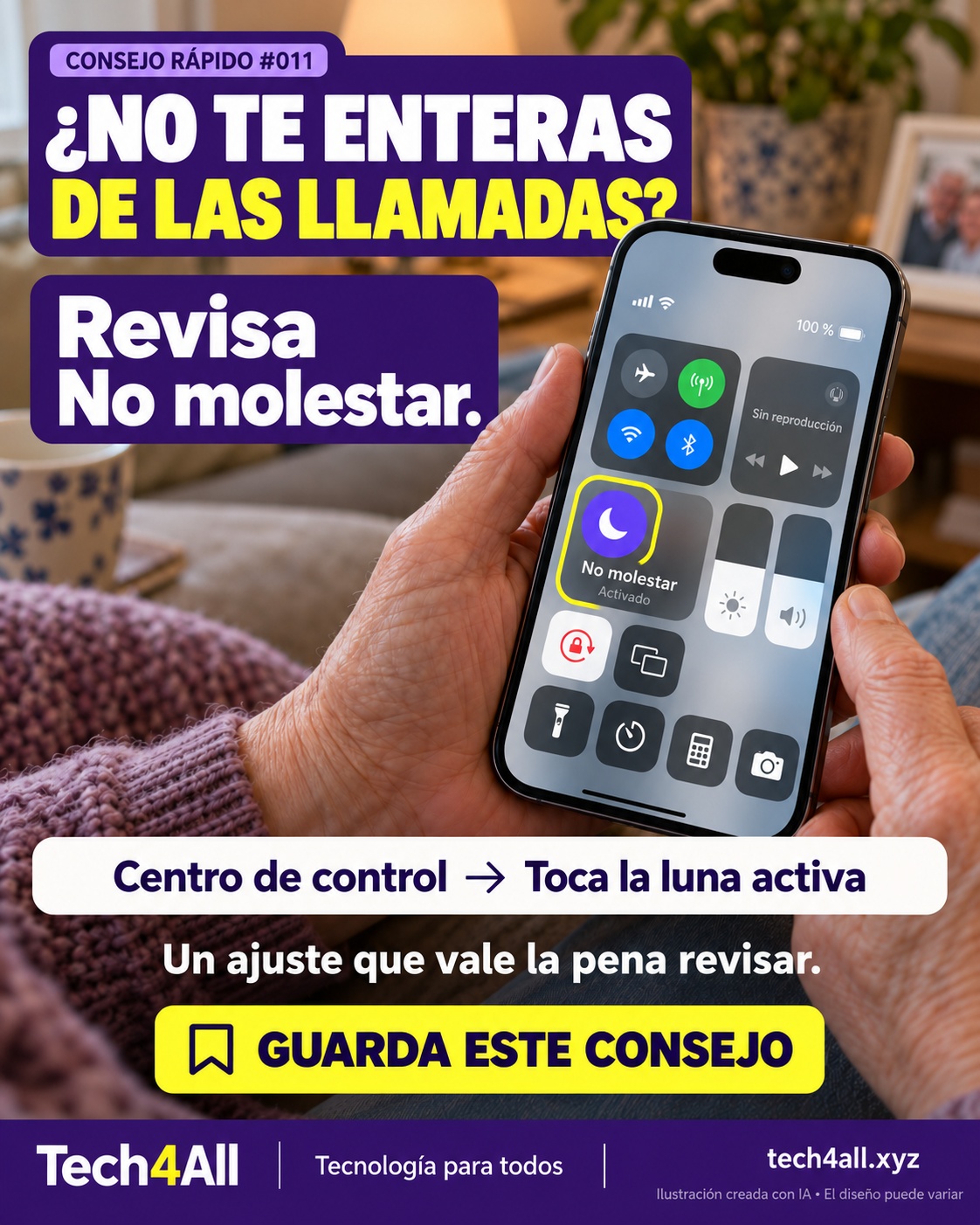
Abre el Centro de control y toca la luna activa de No molestar para desactivarlo. Con Face ID, desliza desde la esquina superior derecha; con botón de inicio, desde abajo. Es una posible causa de avisos silenciados.

Revisa No molestar — ilustración de iPhone creada con IA
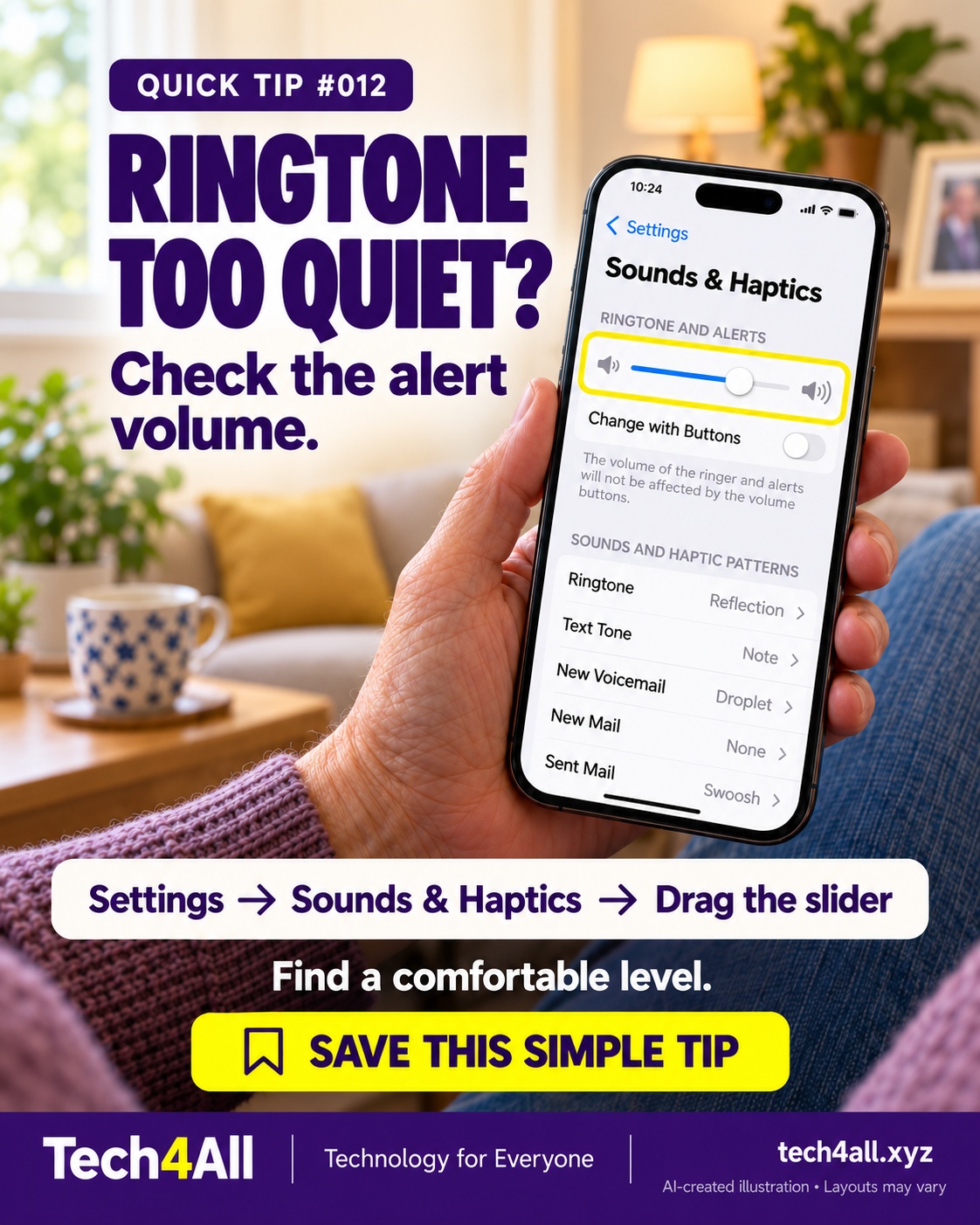
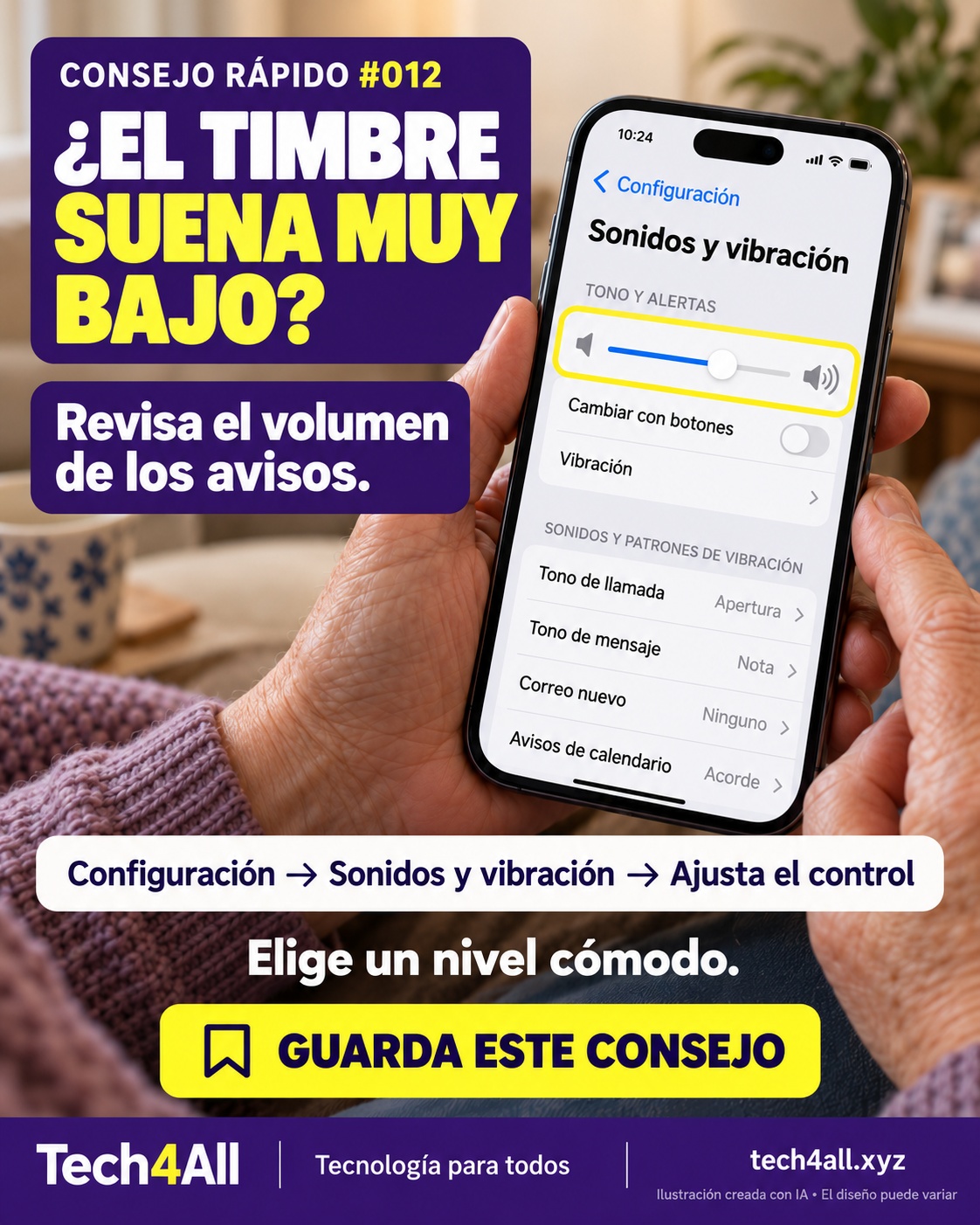
QT-012Adjust ringtone volume

In Settings, open Sounds & Haptics and adjust the Ringtone and Alerts slider. Listen to the preview at a comfortable level. Also check Silent mode and Focus if calls still do not ring.

Adjust ringtone volume — AI-created iPhone illustration

En Configuración, abre Sonidos y vibración y ajusta el control de Tono y alertas. Escucha la prueba a un volumen cómodo. Si las llamadas siguen sin sonar, revisa el modo Silencio y los modos de concentración.

Ajusta el volumen del timbre — ilustración de iPhone creada con IA
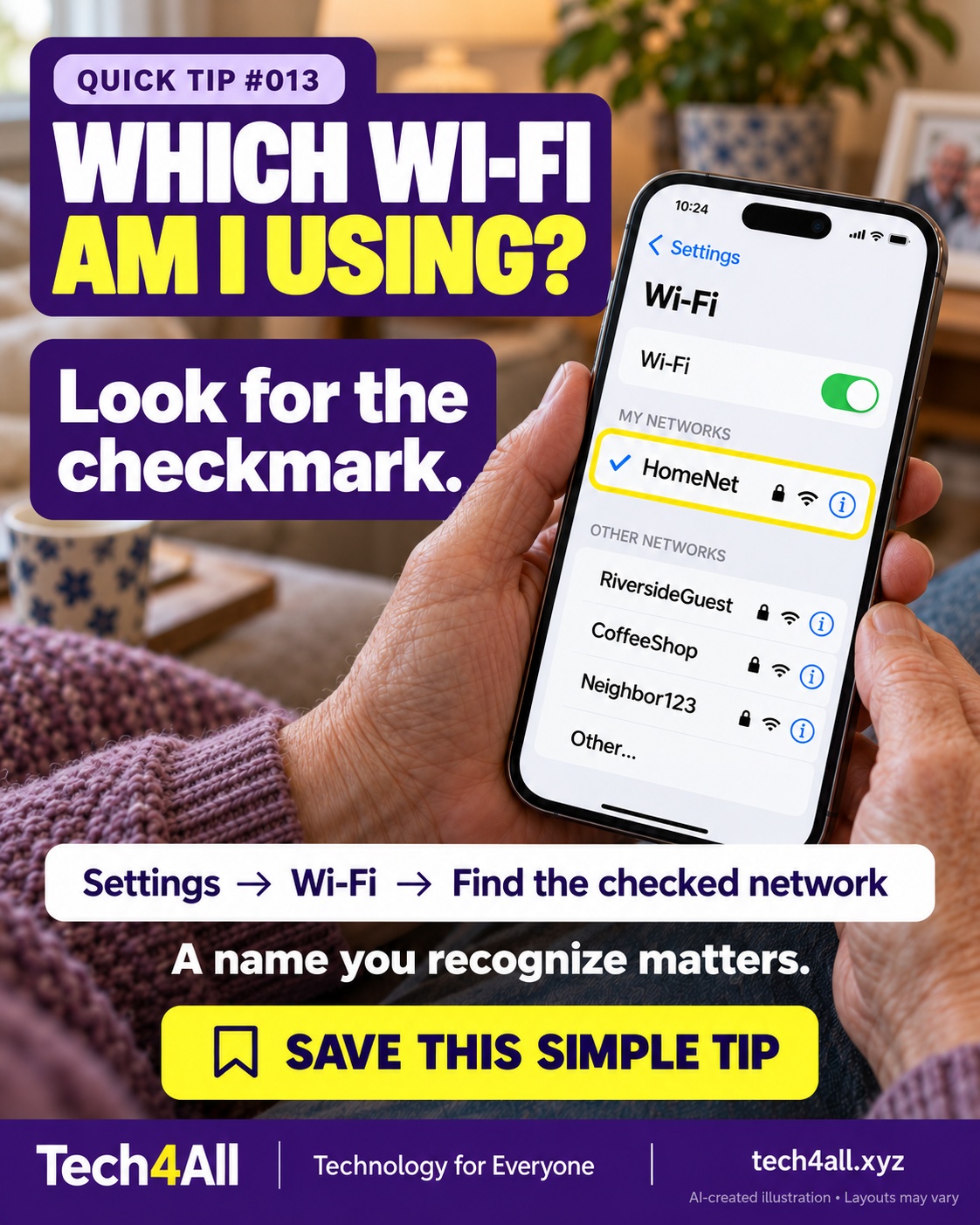
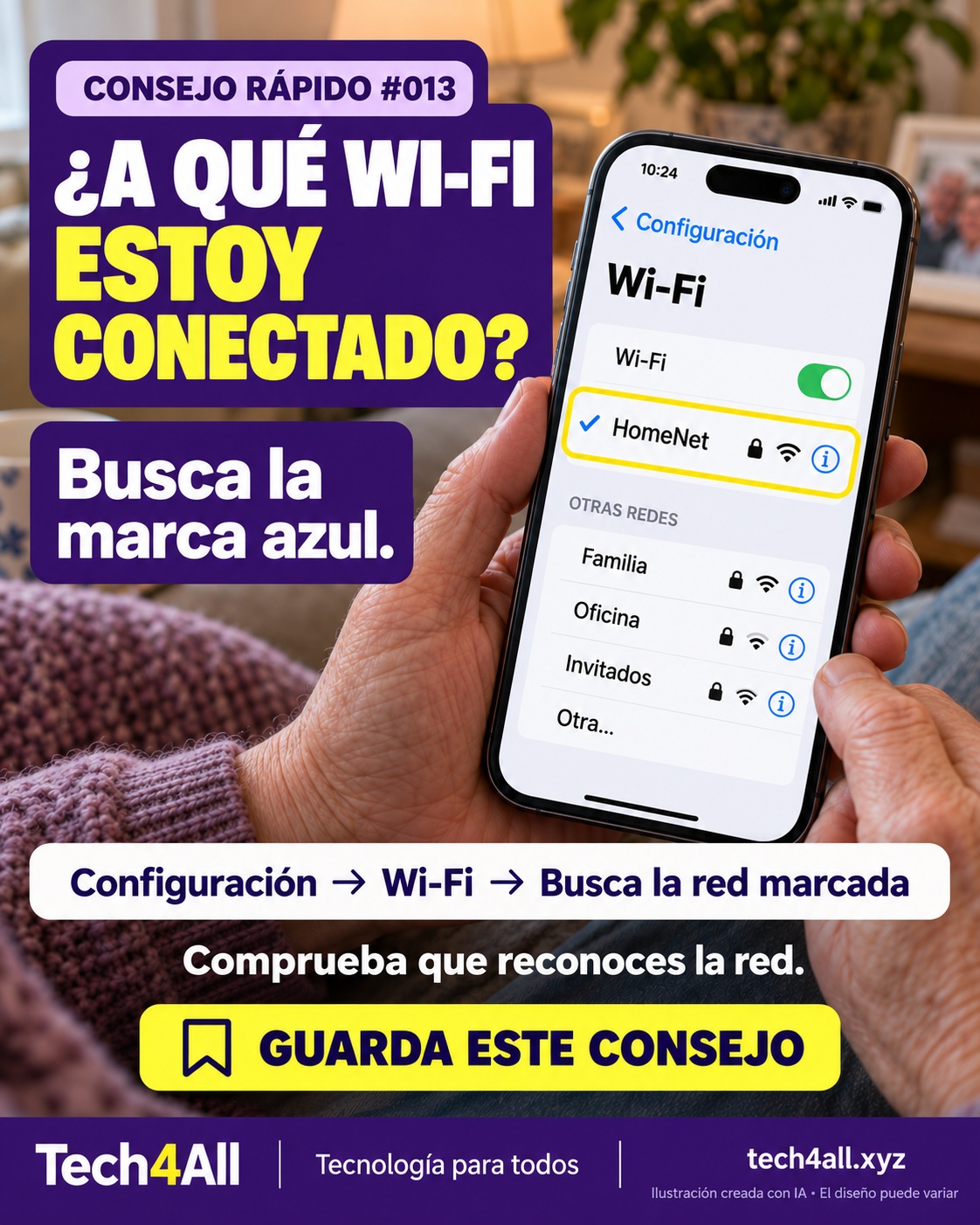
QT-013Check your connected Wi-Fi network

Open Settings, then Wi-Fi. A blue checkmark identifies your connected network. Check that it is the network you intended to use; a checkmark alone does not prove a network is trustworthy.

Check your connected Wi-Fi network — AI-created iPhone illustration

Abre Configuración y luego Wi-Fi. La marca azul indica la red conectada. Comprueba que sea la que querías usar; la marca no demuestra que una red sea confiable.

Comprueba la red Wi-Fi conectada — ilustración de iPhone creada con IA
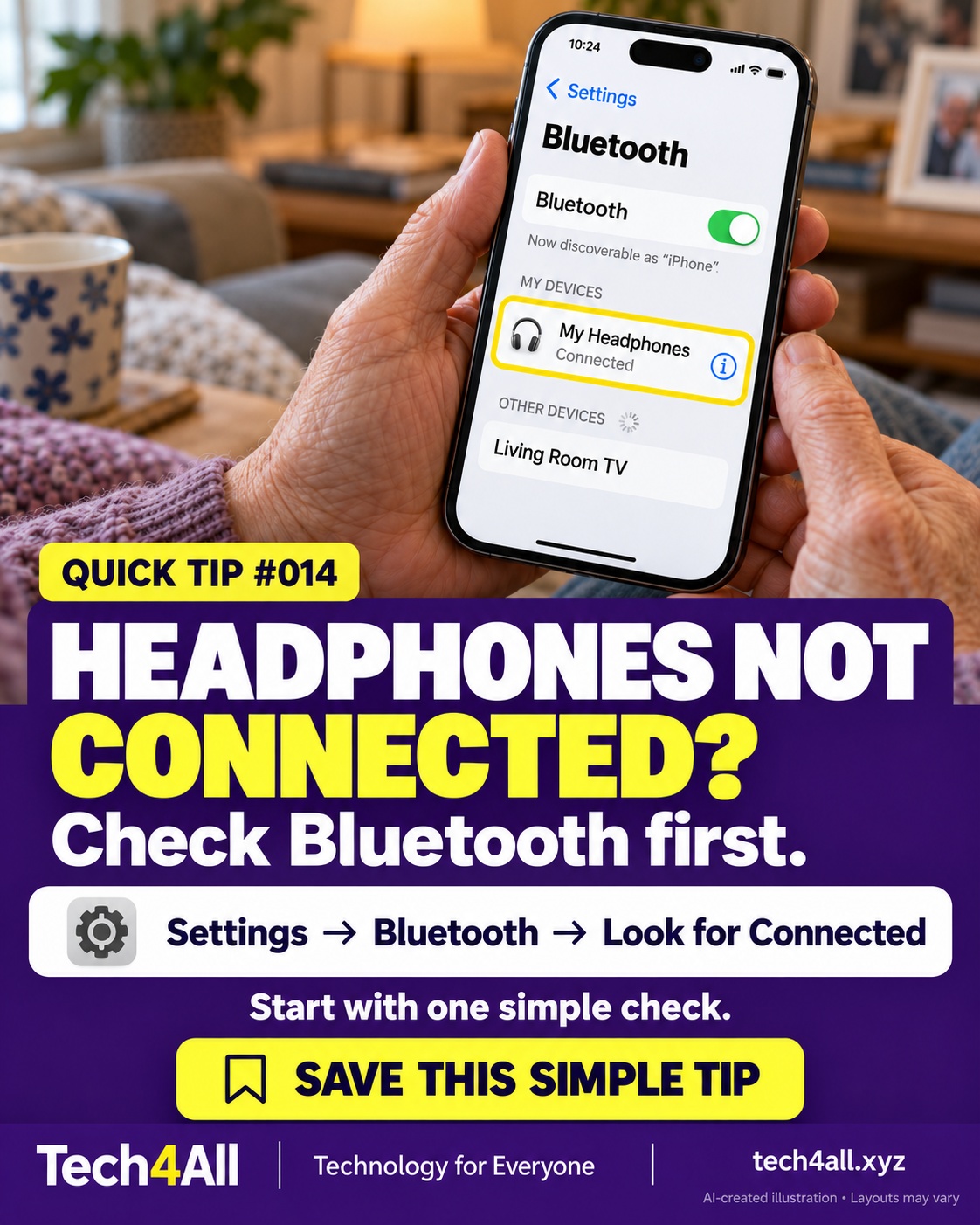
QT-014Check headphone connection

Open Settings and Bluetooth to check your headphones' connection status. If they are not connected, make sure they are charged and nearby, and follow their pairing instructions. The graphic illustrates a connected example.

Check headphone connection — AI-created iPhone illustration

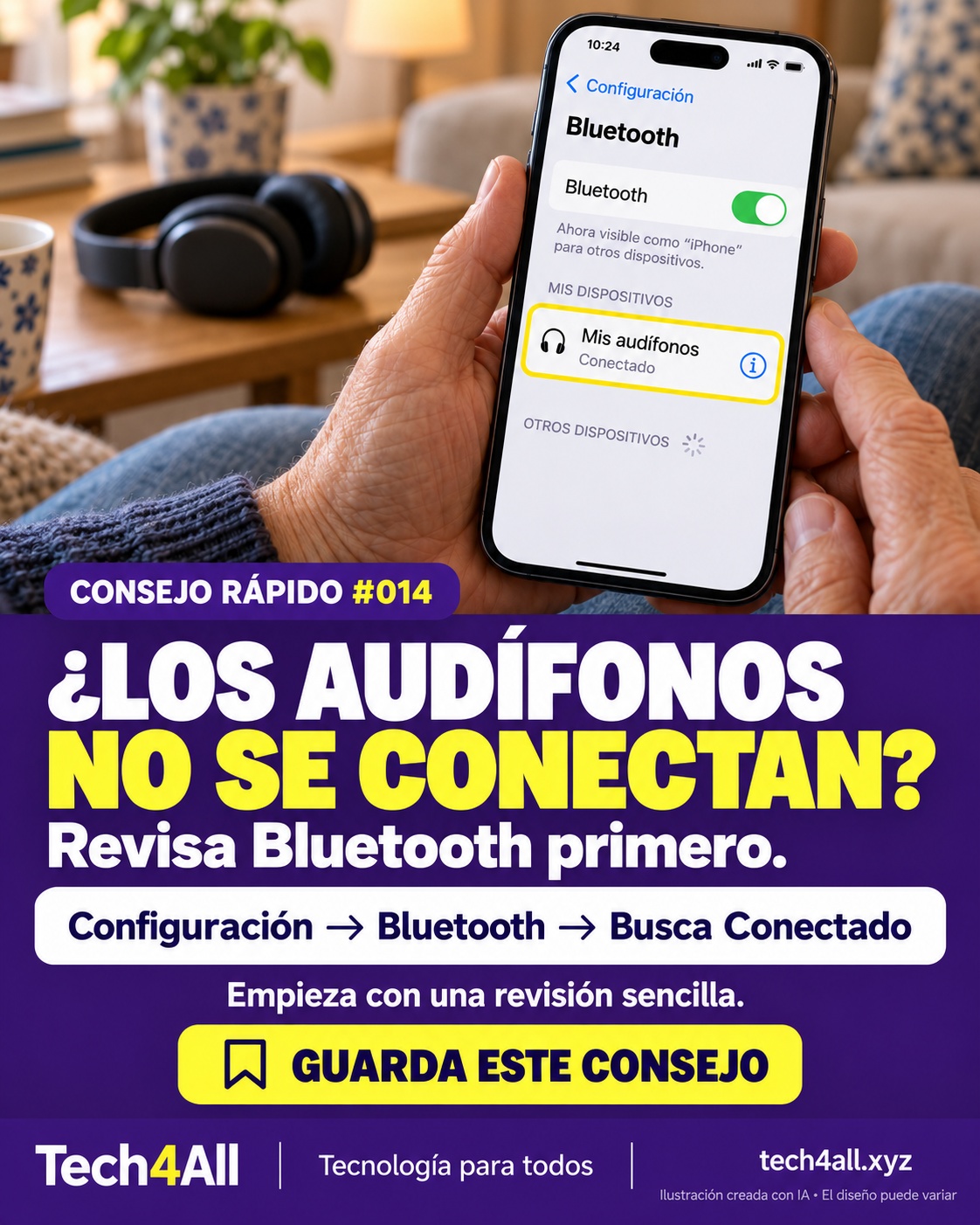
Abre Configuración y Bluetooth para comprobar si tus audífonos están conectados. Si no lo están, revisa la carga, acércalos y sigue sus instrucciones de enlace. La imagen muestra un ejemplo conectado.

Comprueba la conexión de los audífonos — ilustración de iPhone creada con IA
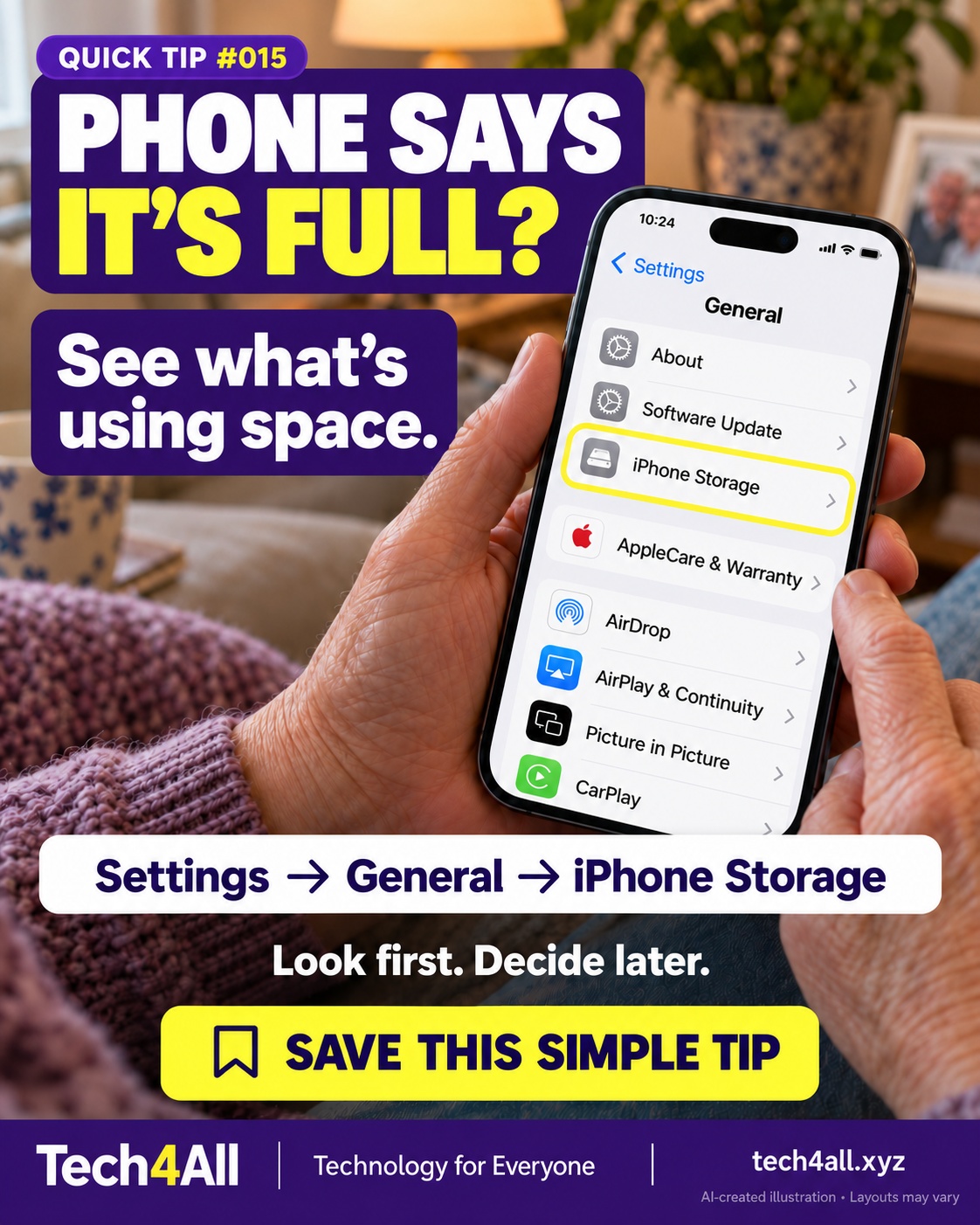
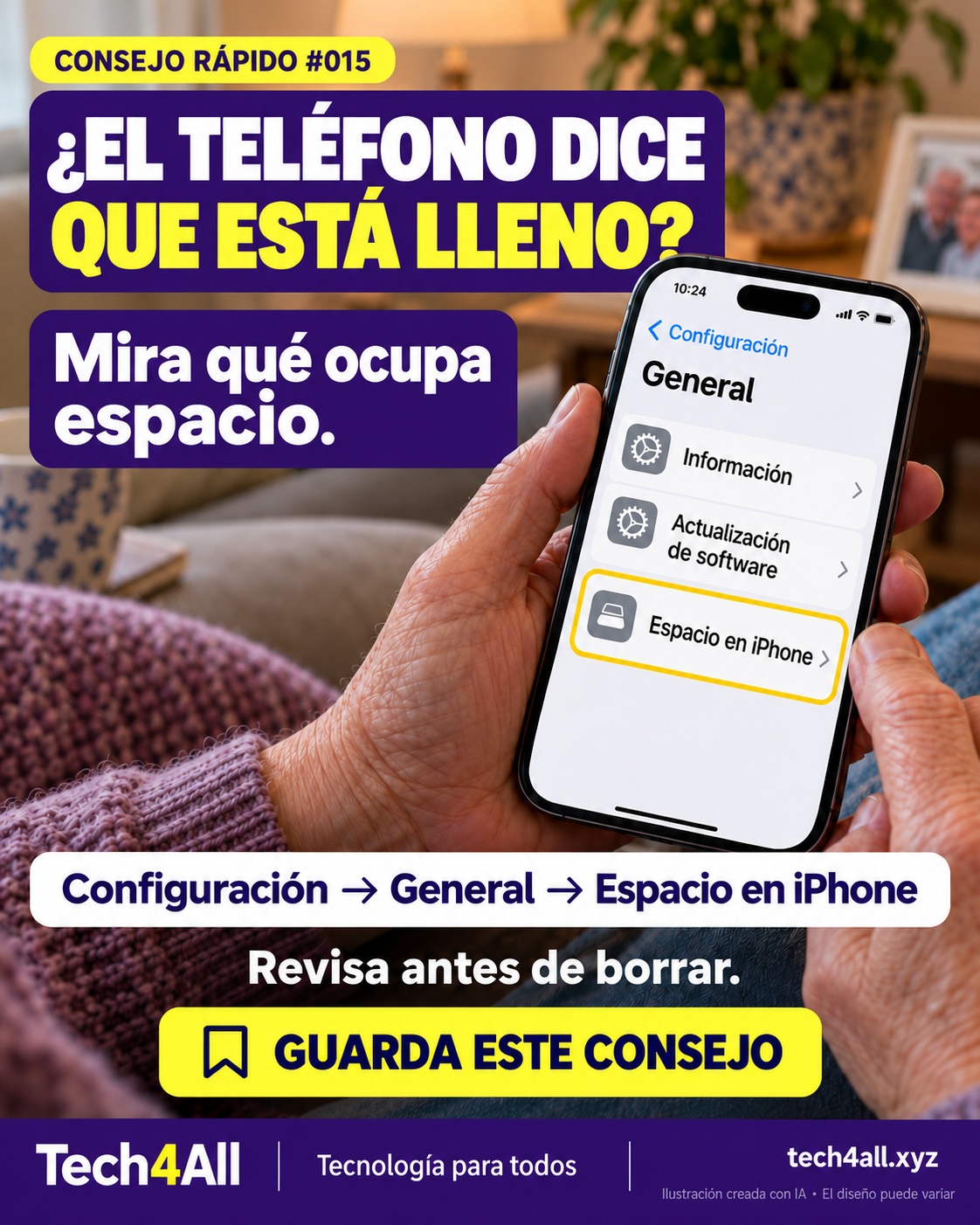
QT-015Check iPhone storage

Open Settings, General, then iPhone Storage to see how device space is used. Review the recommendations before deleting anything. Device storage and iCloud storage are different.

Check iPhone storage — AI-created iPhone illustration

Abre Configuración, General y Espacio en iPhone para ver qué ocupa el almacenamiento del teléfono. Revisa las recomendaciones antes de borrar algo. El espacio del dispositivo y el de iCloud son distintos.

Revisa el espacio del iPhone — ilustración de iPhone creada con IA
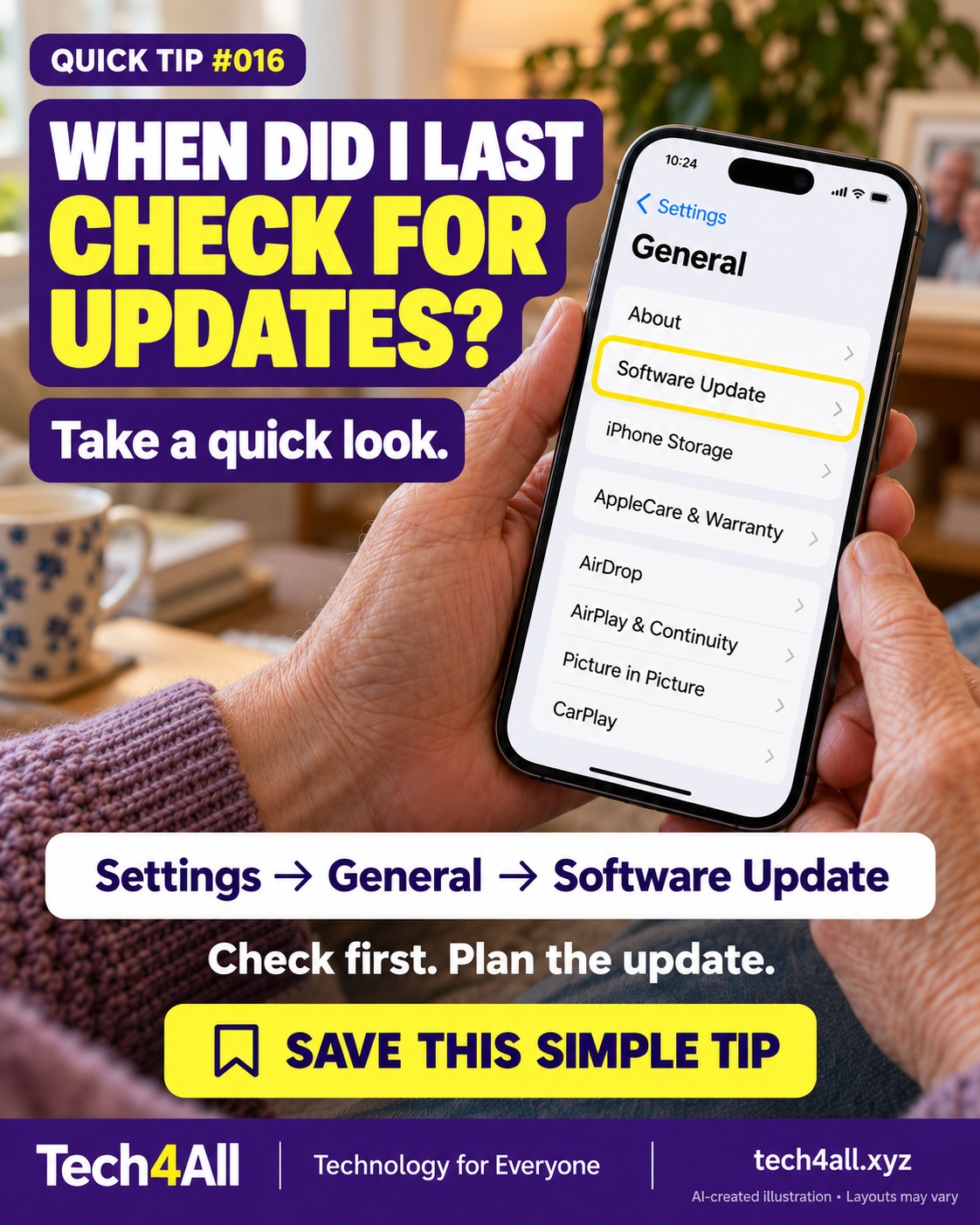
QT-016Check for software updates

Open Settings, General, then Software Update to check what your iPhone offers. Before installing, back up your phone and follow Apple's power, network and space requirements. This tip is about checking, not installing immediately.

Check for software updates — AI-created iPhone illustration

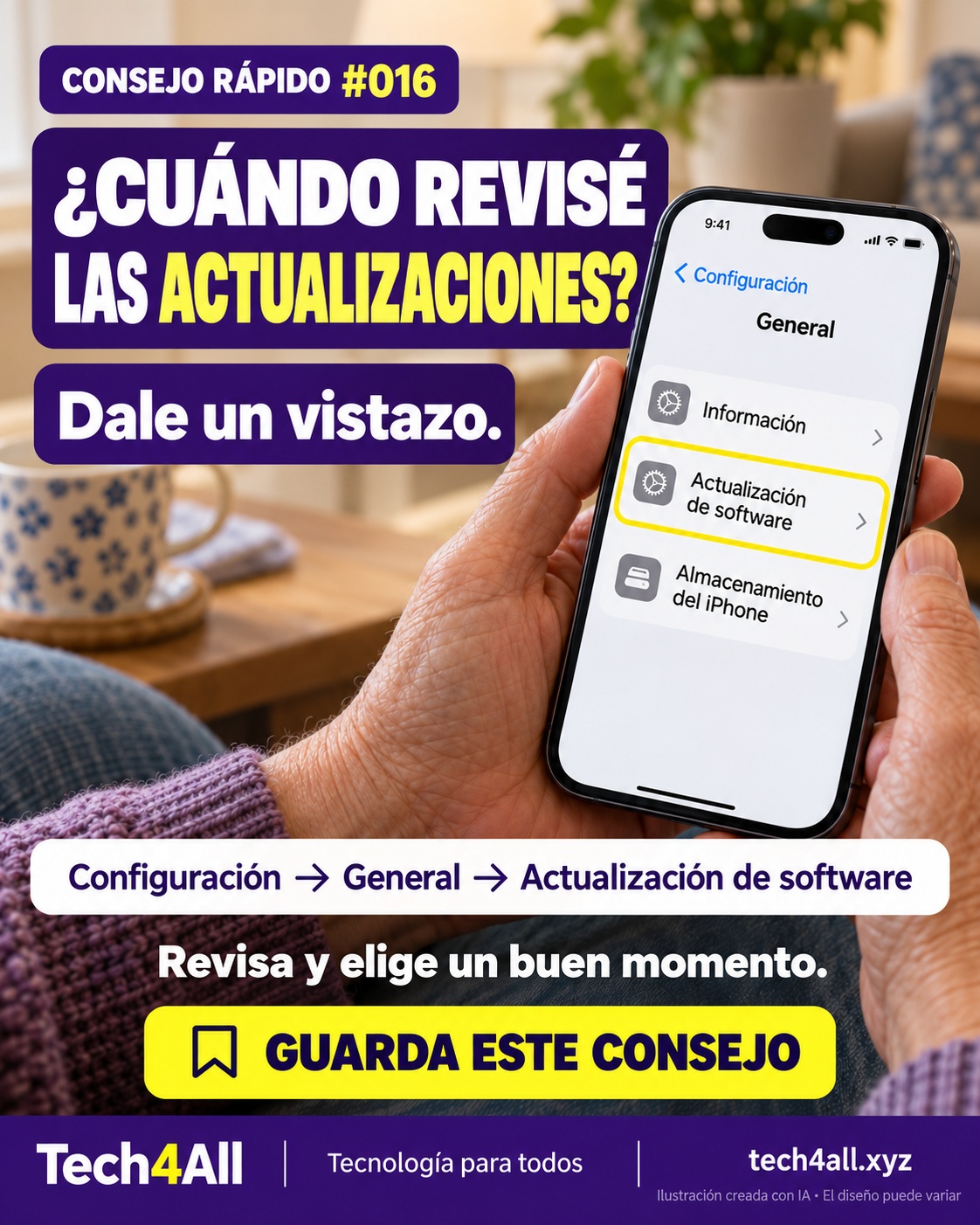
Abre Configuración, General y Actualización de software para comprobar qué ofrece tu iPhone. Antes de instalar, haz una copia de seguridad y sigue los requisitos de Apple sobre carga, conexión y espacio.

Busca actualizaciones de software — ilustración de iPhone creada con IA
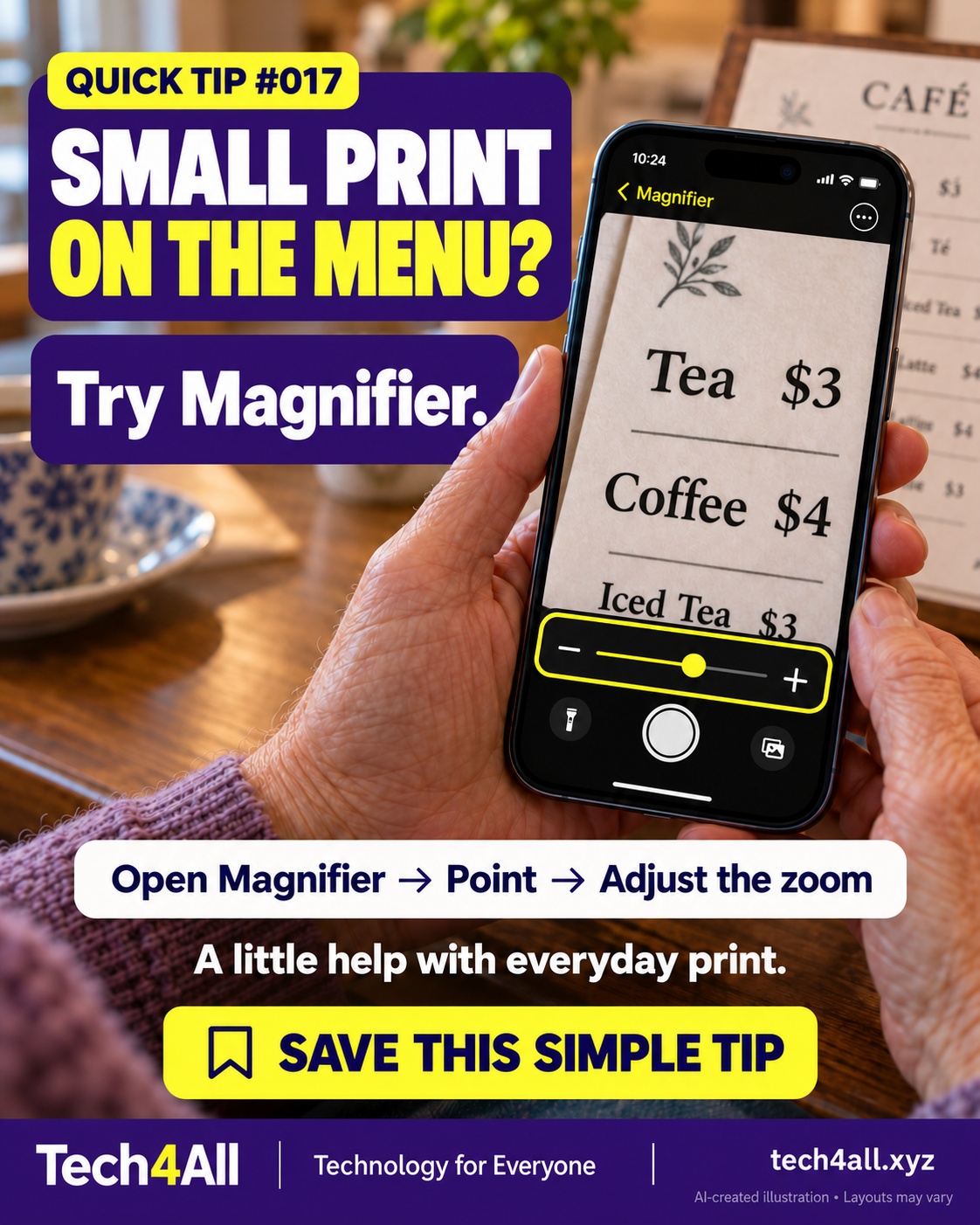
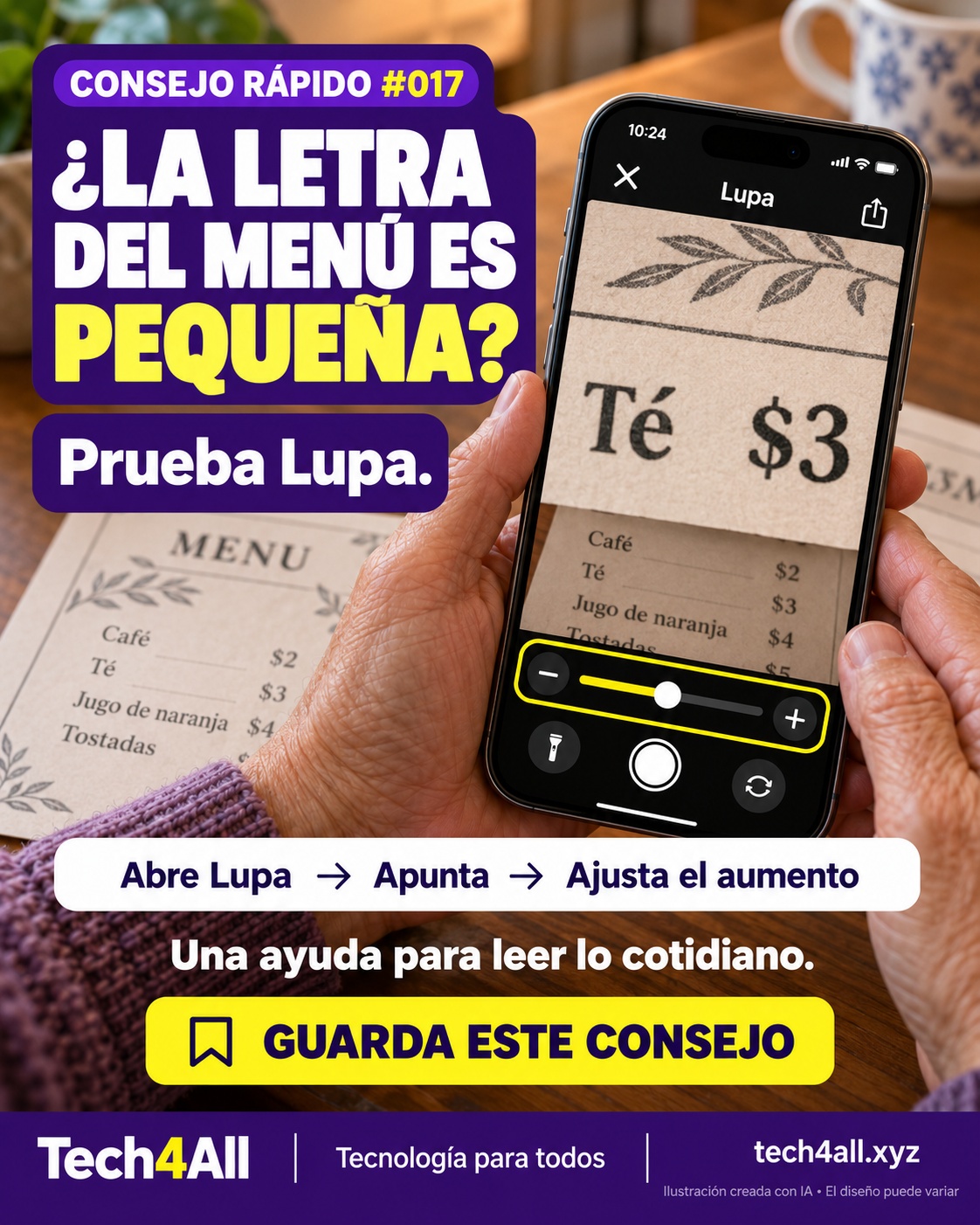
QT-017Read small print with Magnifier

Open Magnifier, point your iPhone camera at nearby print and drag the zoom slider. Try a menu or product label in good light.

Read small print with Magnifier — AI-created iPhone illustration

Abre Lupa, apunta la cámara a un texto cercano y mueve el control de aumento. Prueba con un menú o una etiqueta con buena luz. Es una ayuda para visualizar el texto.

Lee letra pequeña con Lupa — ilustración de iPhone creada con IA
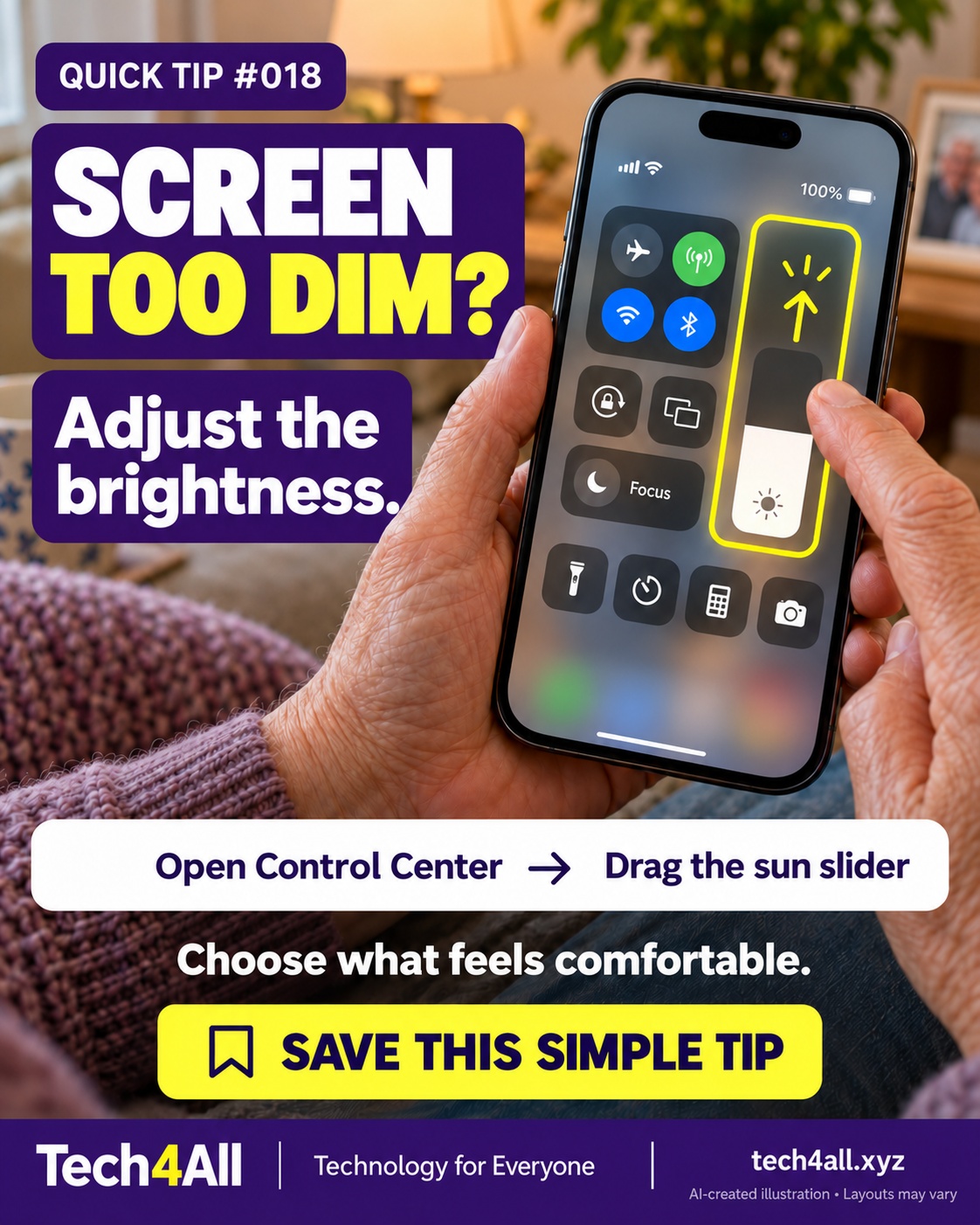
QT-018Adjust screen brightness

Open Control Center and drag the brightness control marked with a sun. On Face ID models, open it from the top-right corner; on Home-button models, swipe up from the bottom. Adjust to a comfortable level.

Adjust screen brightness — AI-created iPhone illustration

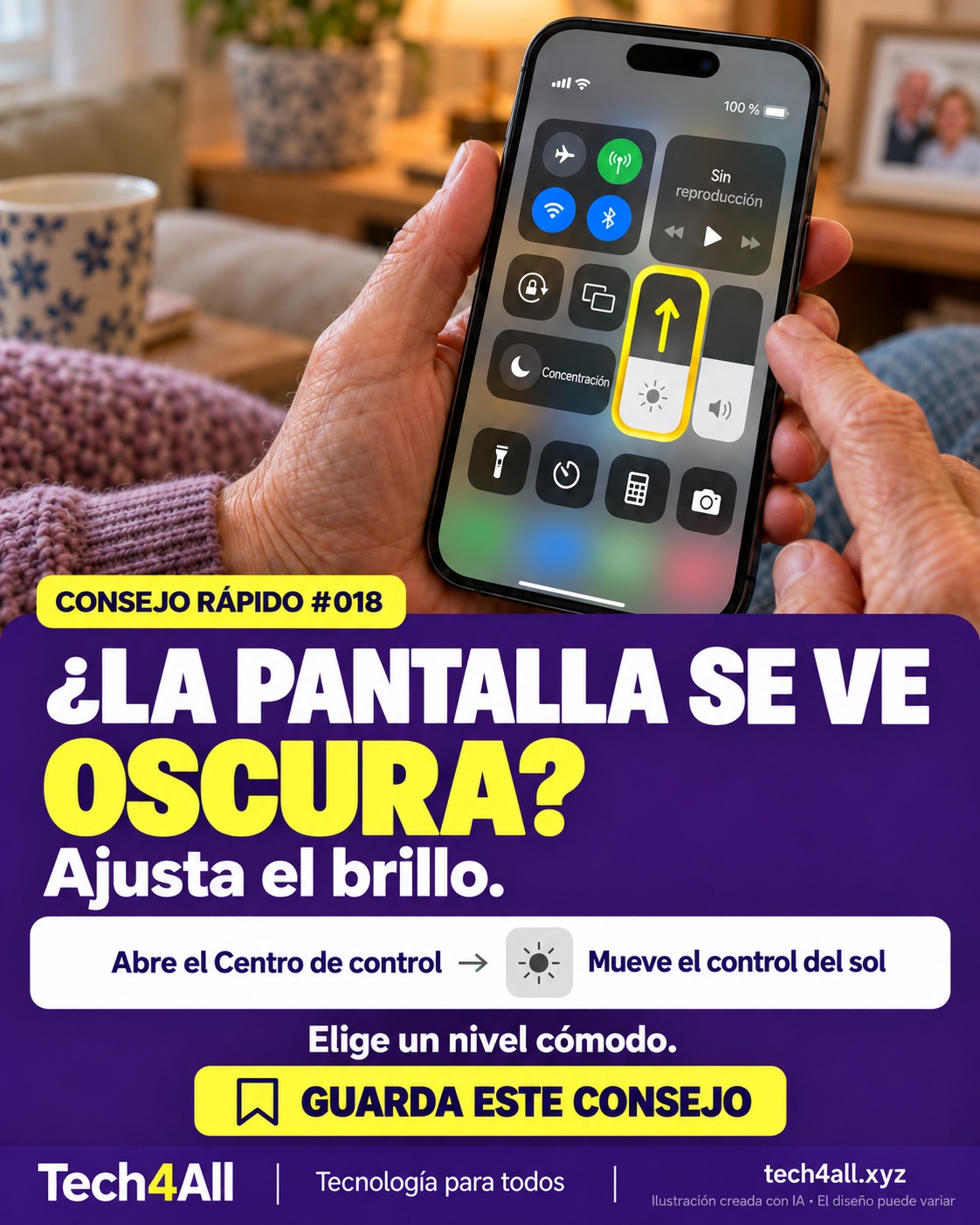
Abre el Centro de control y mueve el control de brillo con el símbolo del sol. Con Face ID, desliza desde la esquina superior derecha; con botón de inicio, desde abajo. Ajusta el nivel a tu gusto.

Ajusta el brillo de la pantalla — ilustración de iPhone creada con IA
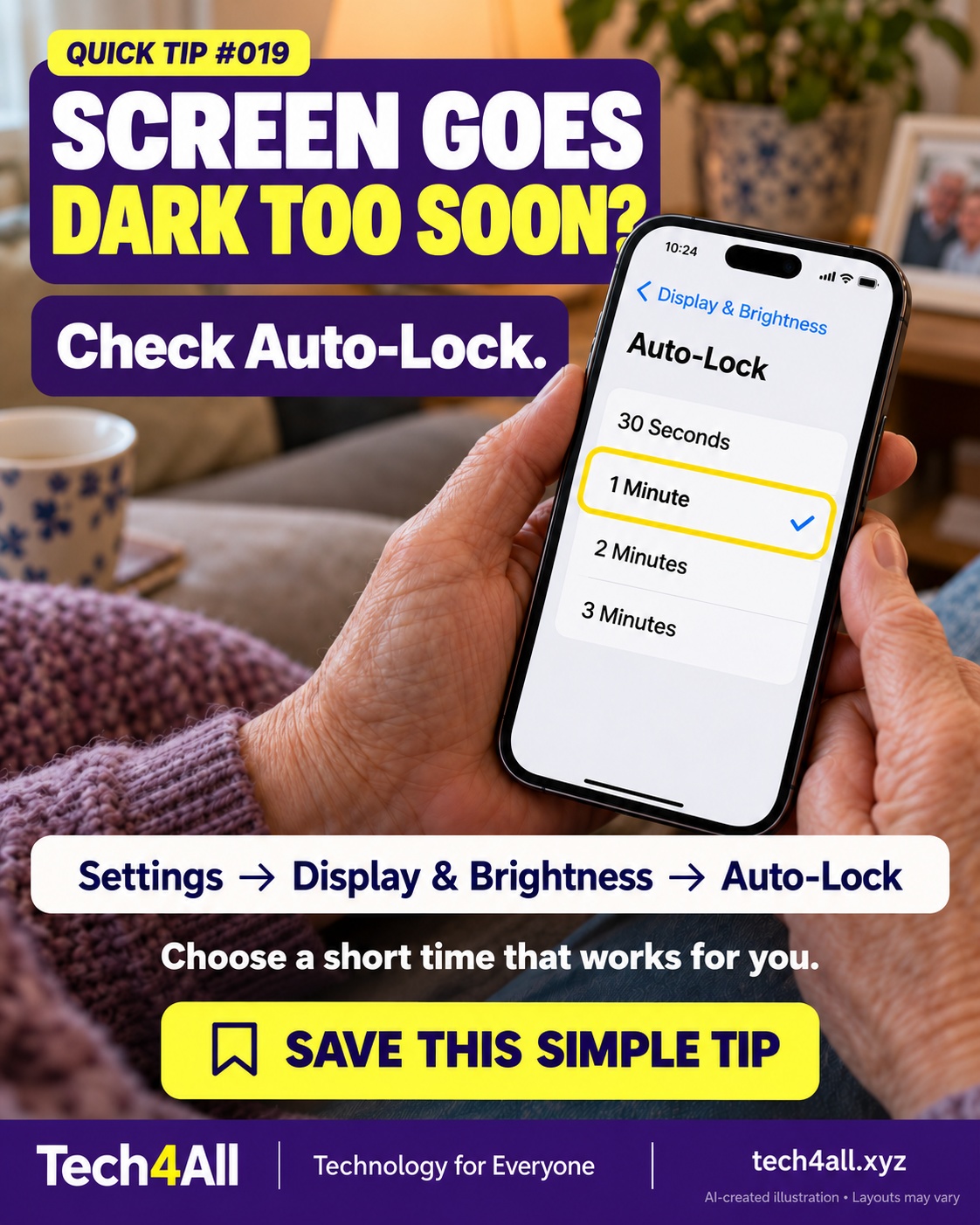
QT-019Change Auto-Lock timing

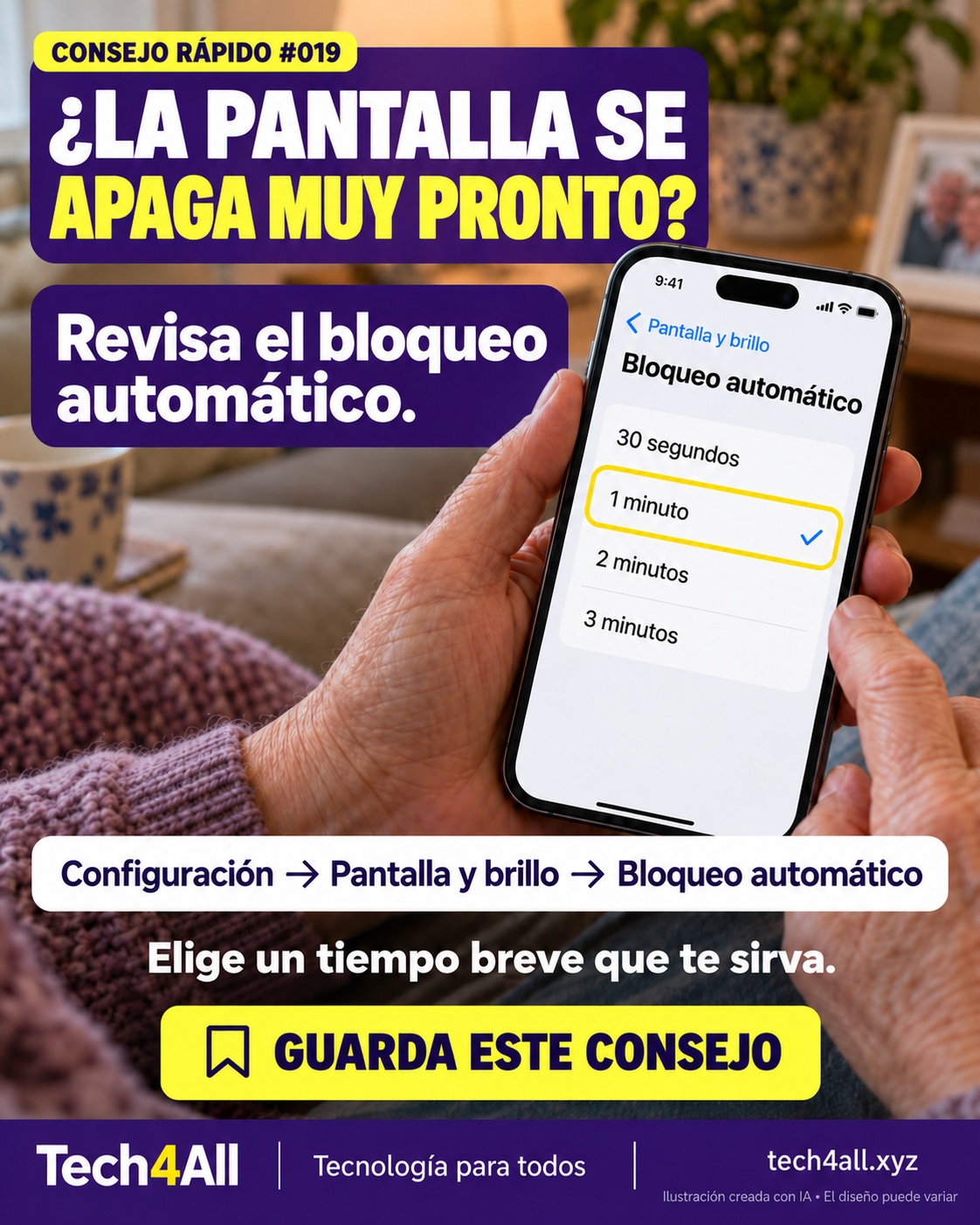
In Settings, open Display & Brightness and Auto-Lock to review the delay. Choose a short interval that gives you enough time. Some devices or power settings restrict the options; lock the phone with its Side button when you finish.

Change Auto-Lock timing — AI-created iPhone illustration

En Configuración, abre Pantalla y brillo y Bloqueo automático. Elige un intervalo breve que te permita terminar. Algunas opciones pueden estar restringidas. Al terminar, bloquea el teléfono con el botón lateral.

Ajusta el bloqueo automático — ilustración de iPhone creada con IA
QT-020Check screen rotation lock

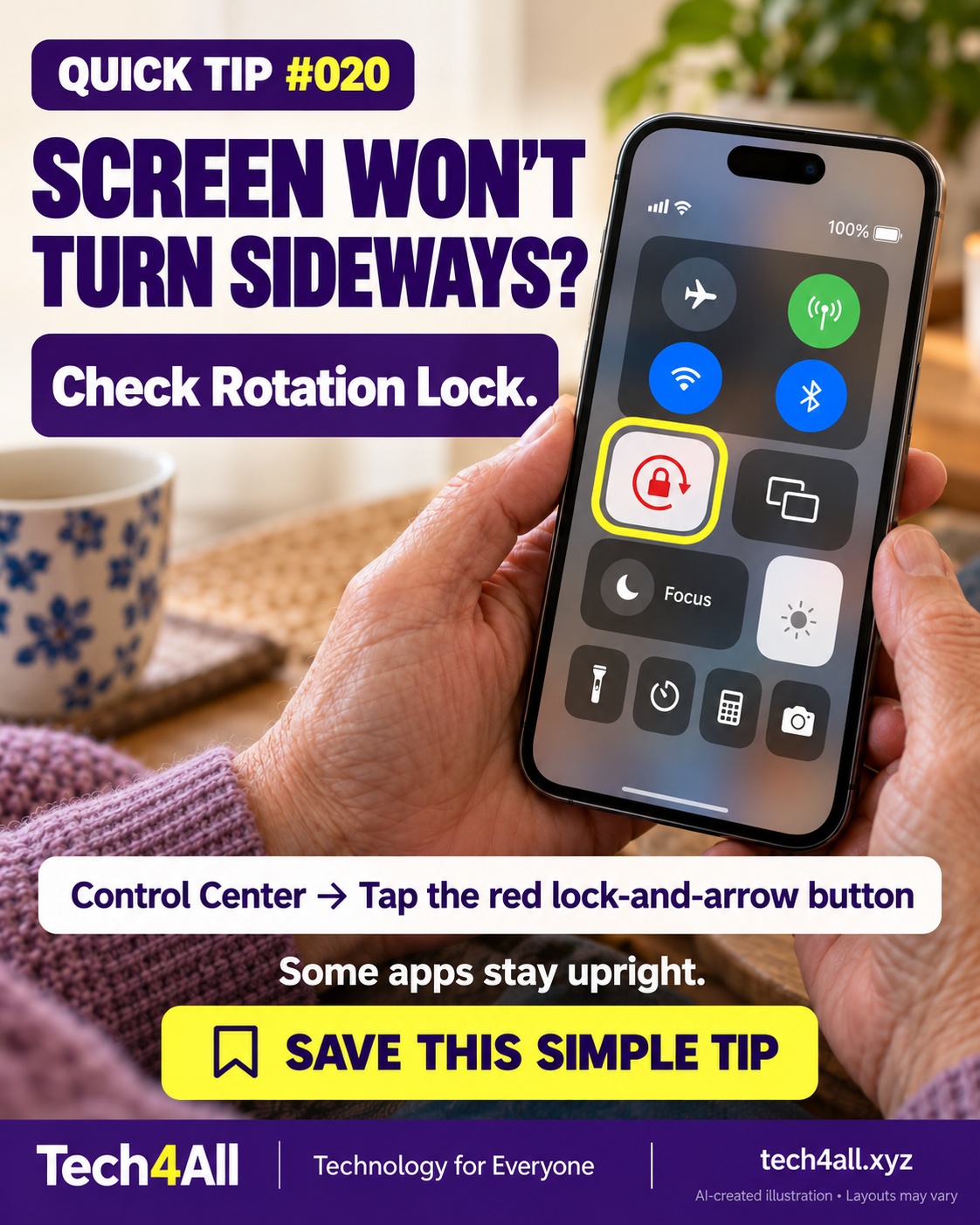
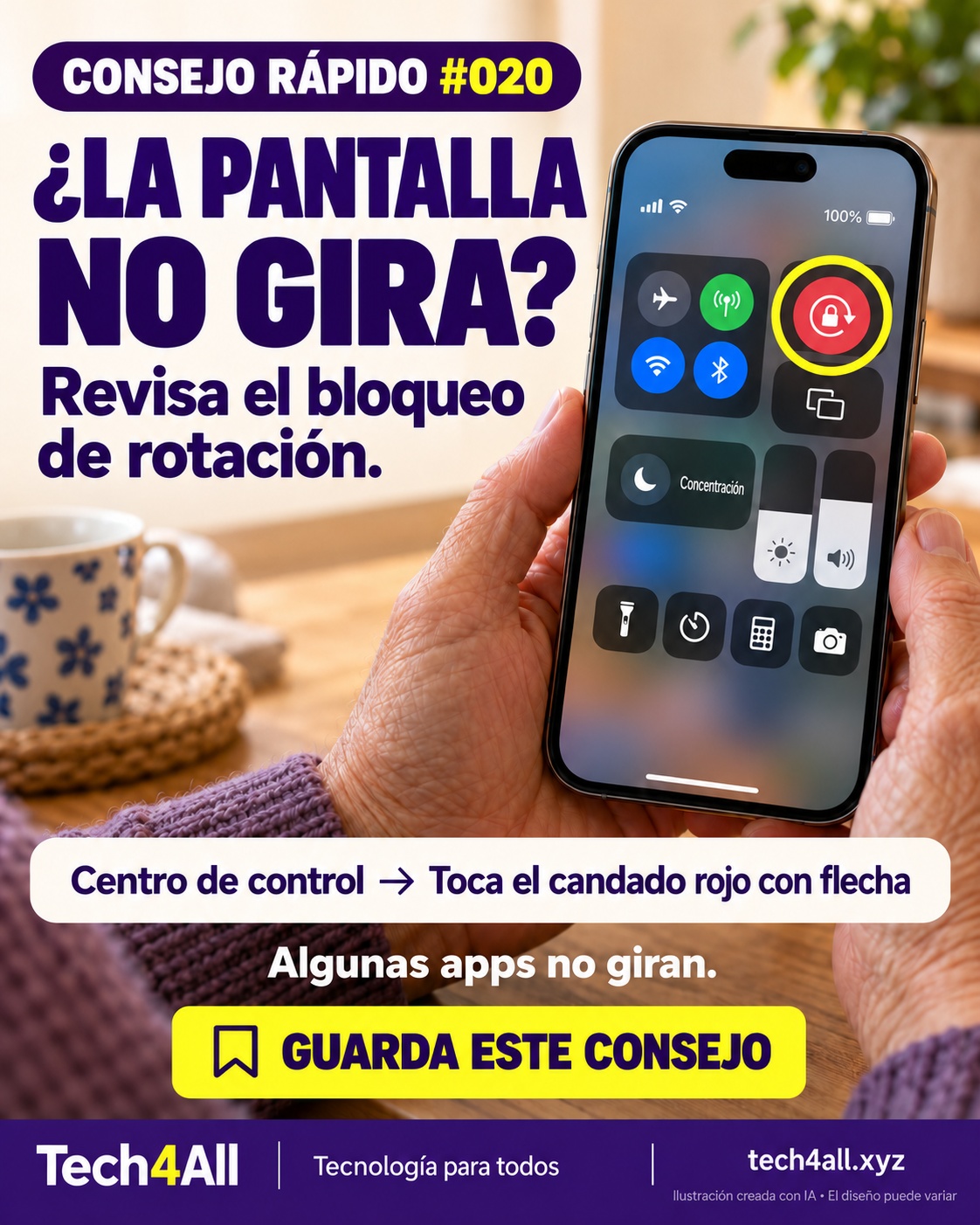
If the Rotation Lock control is red, tap it in Control Center to unlock rotation, then turn your phone sideways. Some apps do not support rotation. If the control is missing, it can be added to Control Center.

Check screen rotation lock — AI-created iPhone illustration

Si el botón de bloqueo de rotación está rojo, tócalo en el Centro de control y gira el teléfono. Algunas apps no admiten rotación. Si no ves el botón, puedes añadirlo al Centro de control.

Revisa el bloqueo de rotación — ilustración de iPhone creada con IA
QT-021Zoom in on a photo

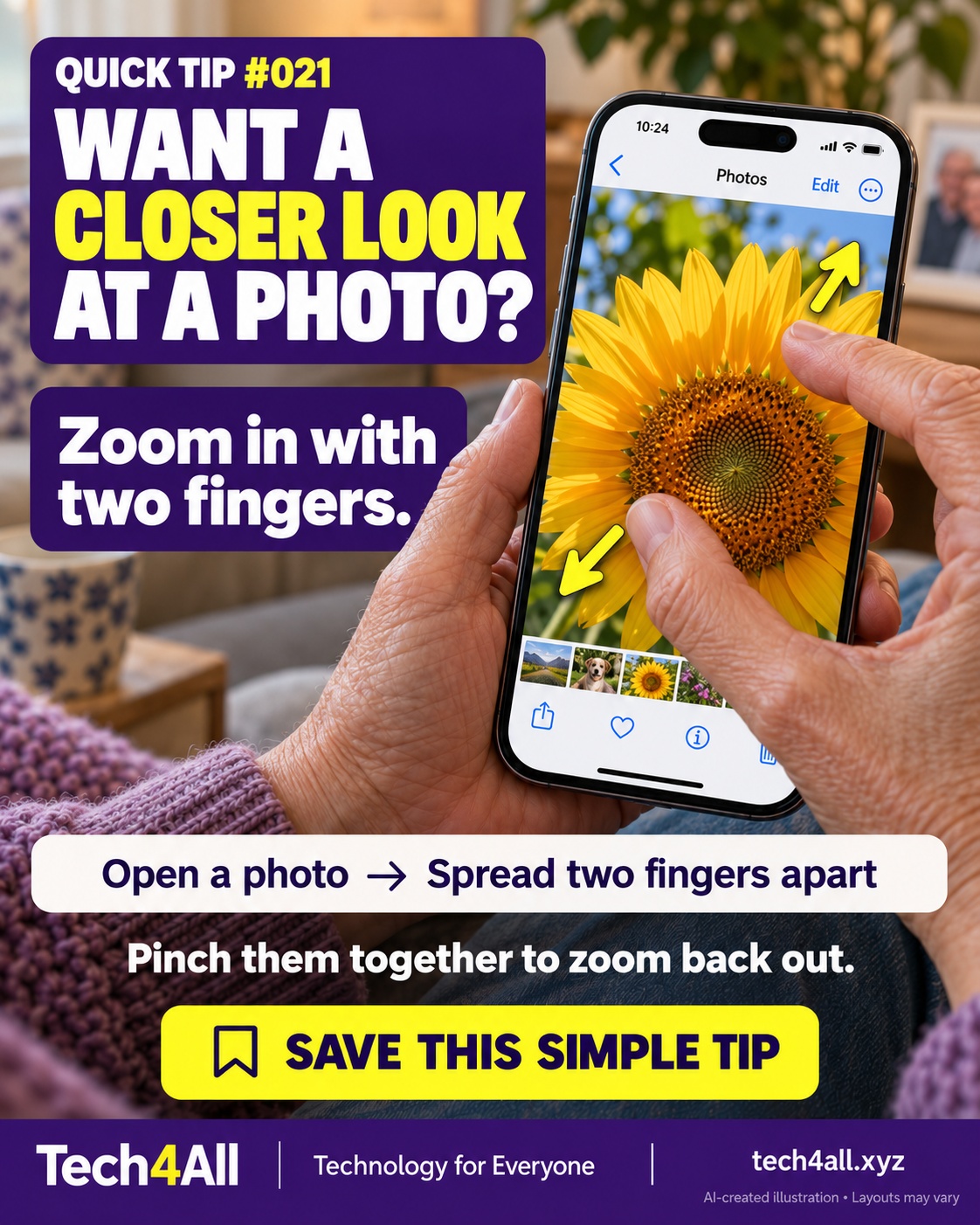
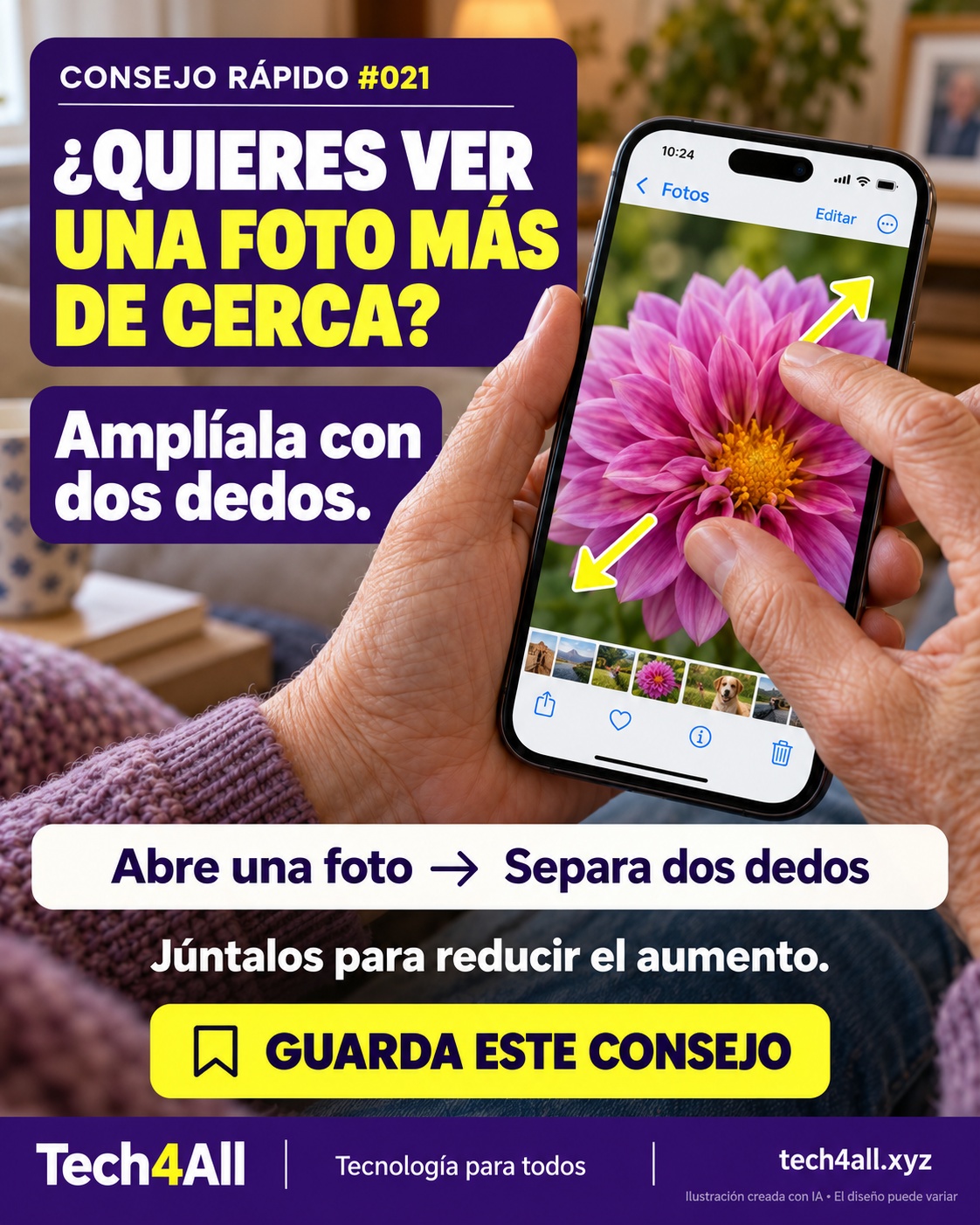
Open a photo in Photos and spread two fingers apart to zoom in. Pinch them together to zoom back out. Viewing a closer detail does not require saving an edit.

Zoom in on a photo — AI-created iPhone illustration

Abre una foto en Fotos y separa dos dedos para ampliarla. Júntalos para reducir el aumento. Para mirar un detalle más de cerca no necesitas guardar una edición.

Amplía una foto — ilustración de iPhone creada con IA
QT-022Switch to the selfie camera

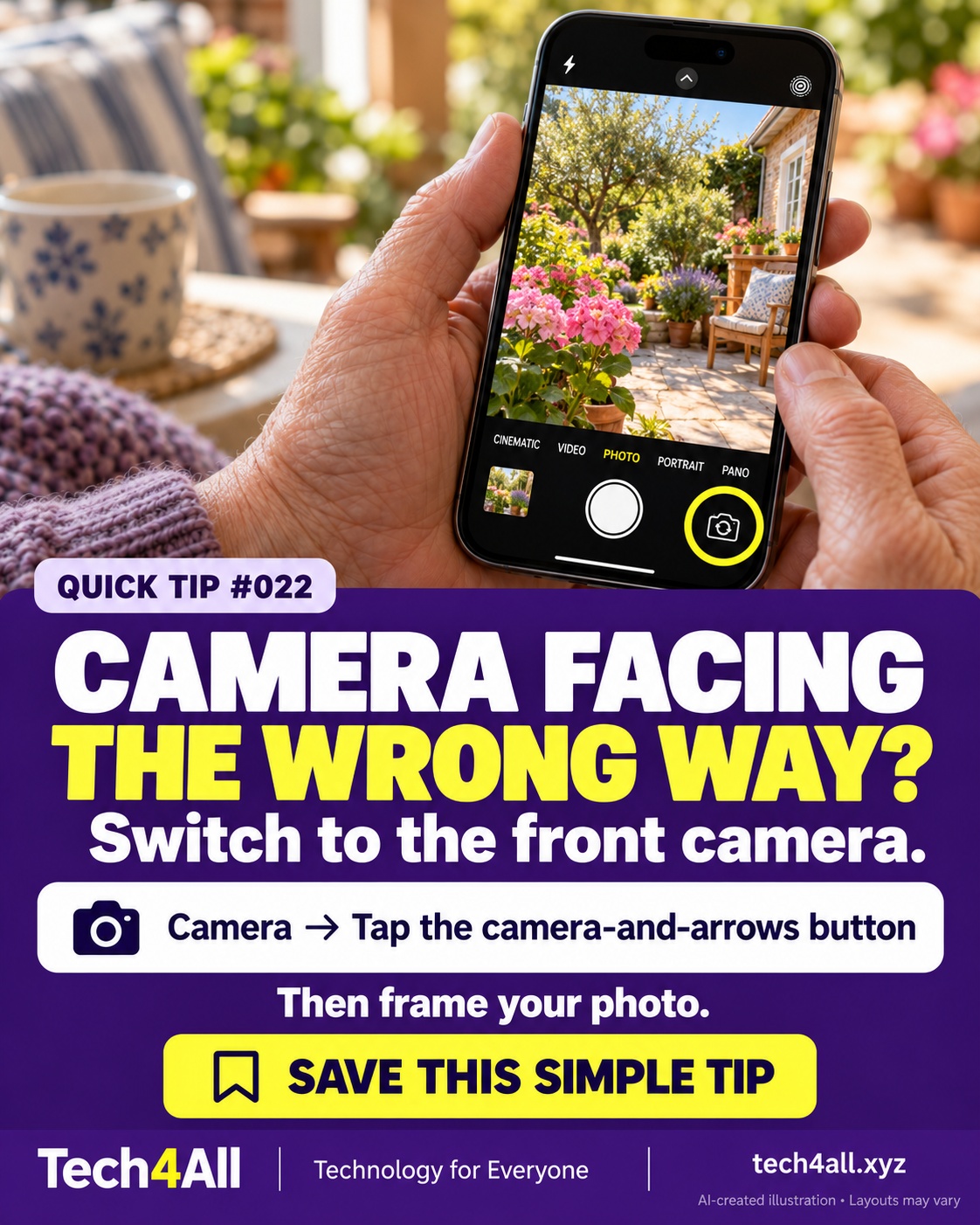
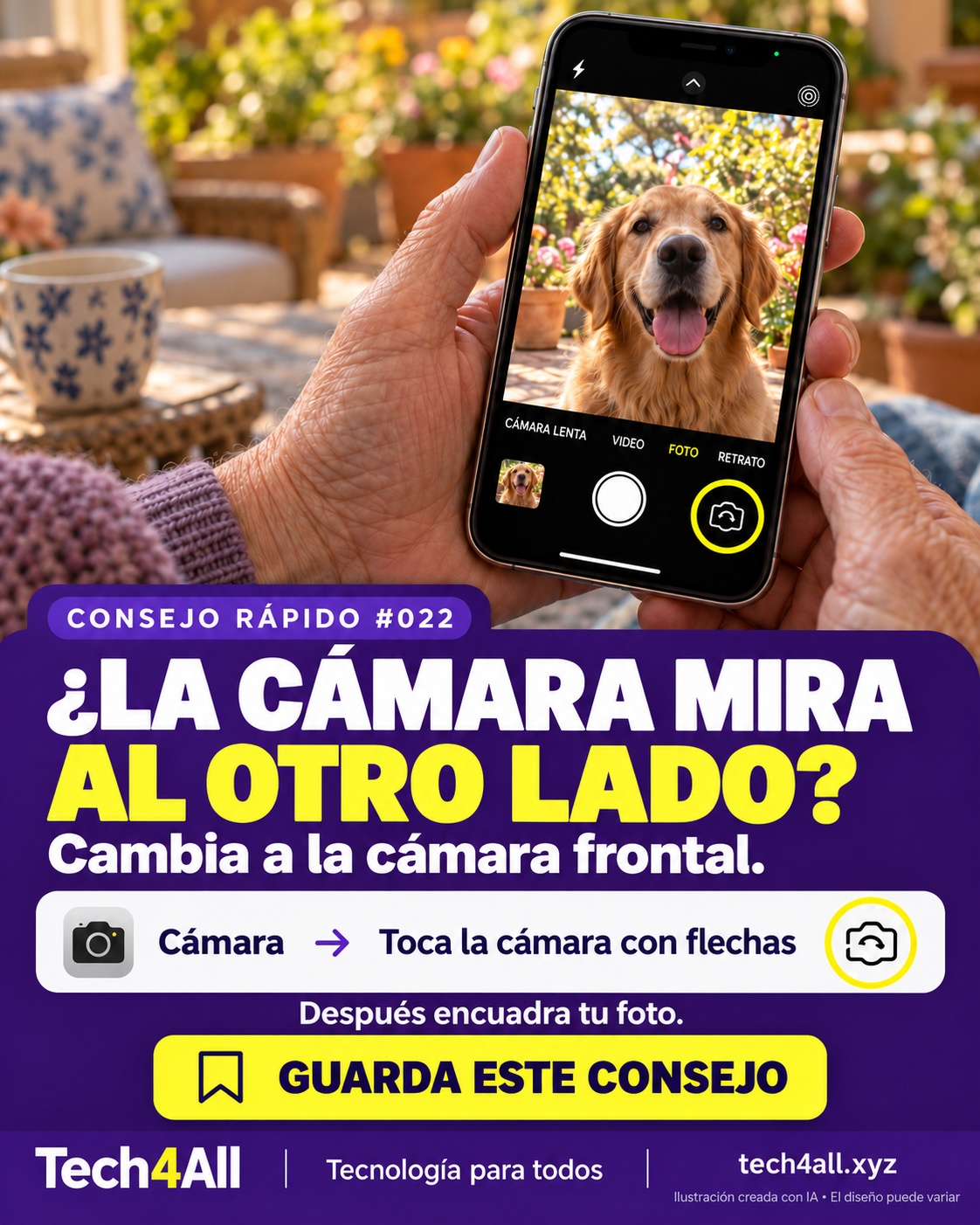
Open Camera and tap the camera-switch button to use the front-facing camera. Hold the phone comfortably and check your framing before taking a photo.

Switch to the selfie camera — AI-created iPhone illustration

Abre Cámara y toca el botón para cambiar a la cámara frontal. Sostén el teléfono de forma cómoda y comprueba el encuadre antes de tomar la foto.

Cambia a la cámara frontal — ilustración de iPhone creada con IA
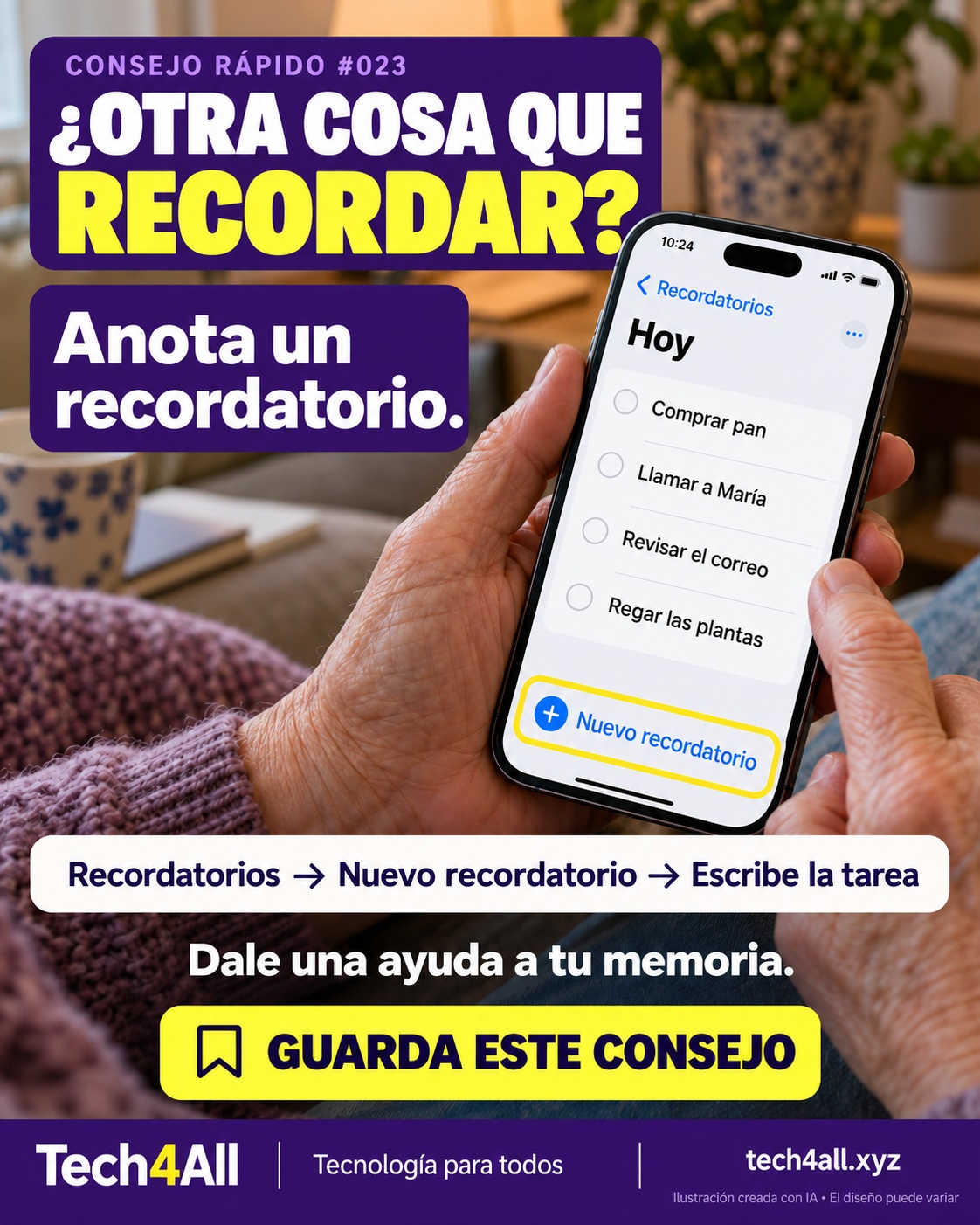
QT-023Add a reminder

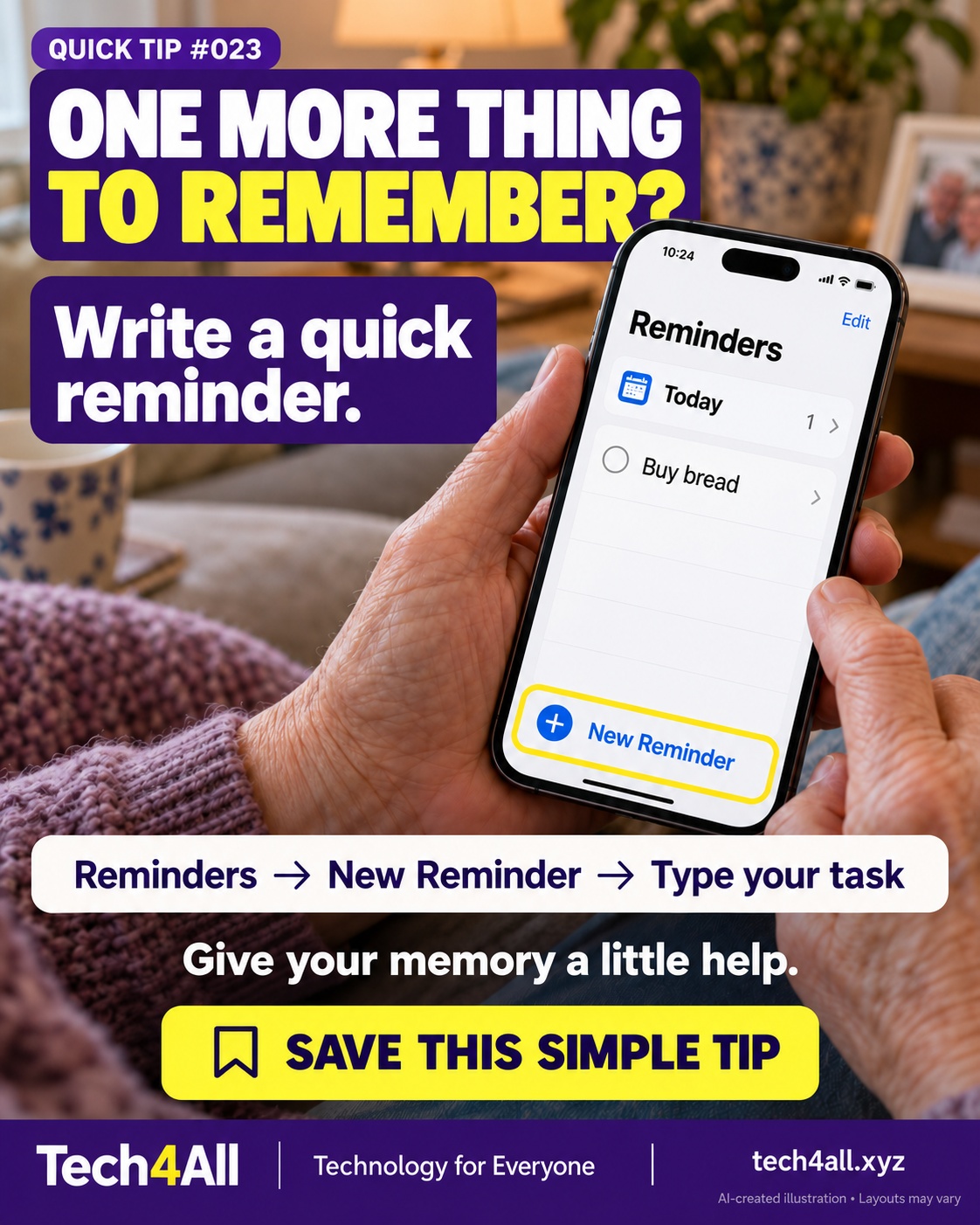
Open Reminders, tap New Reminder and enter a task. Set a date and time if you want a timed notification, and check that notifications are allowed. Start with one small task.

Add a reminder — AI-created iPhone illustration

Abre Recordatorios, toca Nuevo recordatorio y escribe una tarea. Añade fecha y hora si quieres un aviso programado y comprueba los permisos de notificación. Empieza con algo sencillo.

Añade un recordatorio — ilustración de iPhone creada con IA
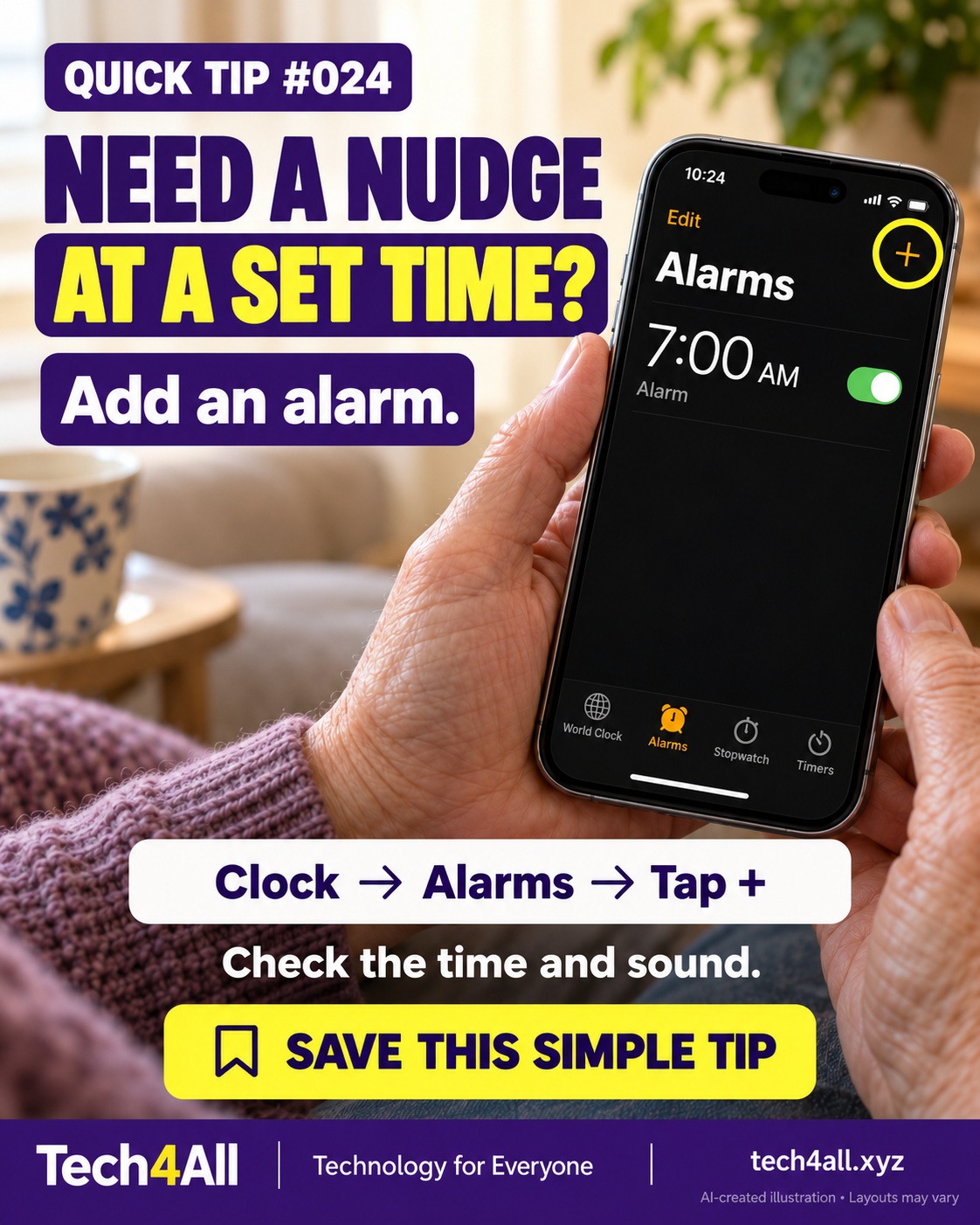
QT-024Add an alarm

Open Clock, choose Alarms and tap +. Set the time, choose a sound, and confirm with Done or Save, depending on your version. Double-check AM/PM where applicable and the alert volume.

Add an alarm — AI-created iPhone illustration

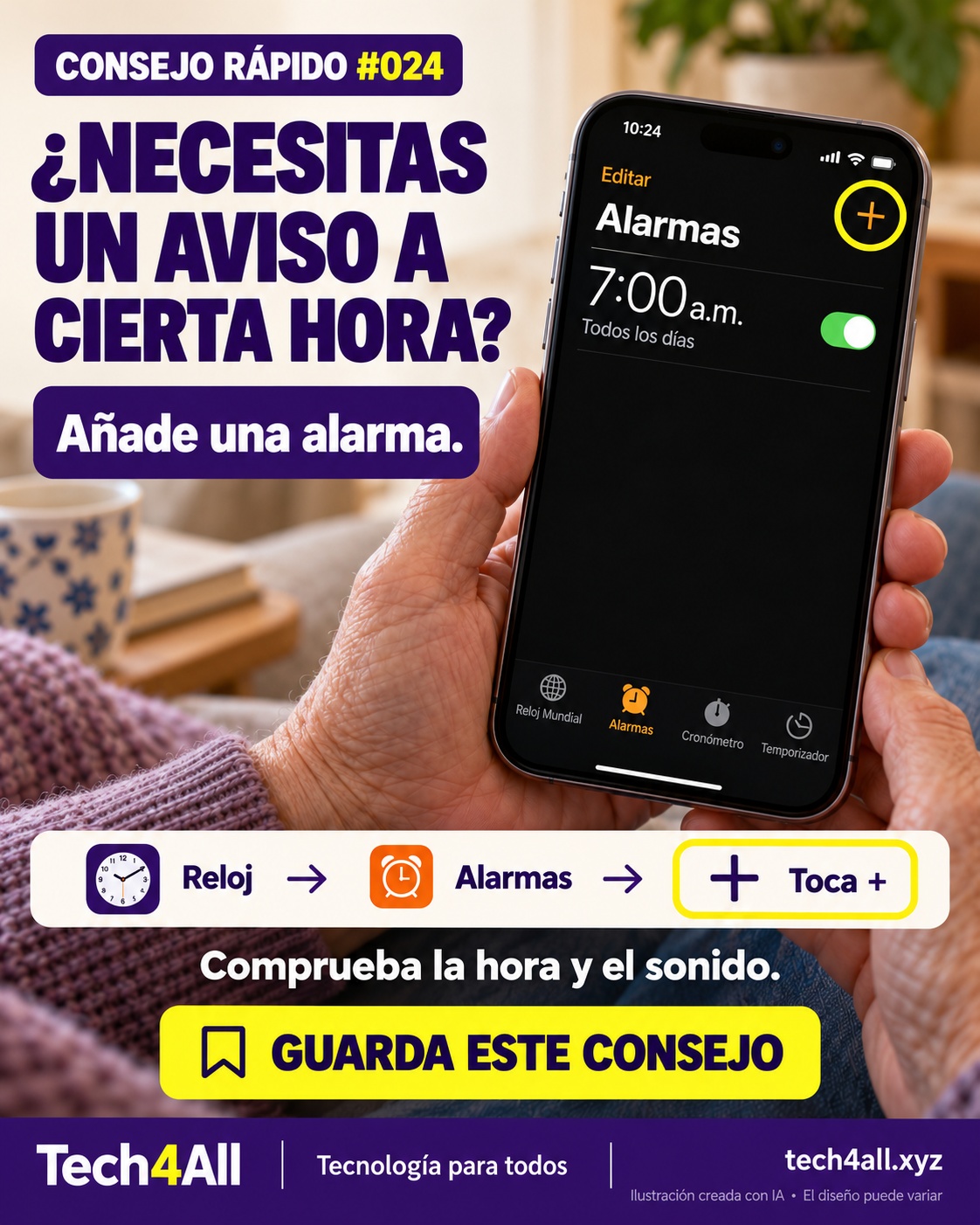
Abre Reloj, elige Alarmas y toca +. Ajusta la hora, elige un sonido y confirma con OK, Listo o Guardar, según la versión. Revisa a. m./p. m. si corresponde y el volumen de los avisos.

Añade una alarma — ilustración de iPhone creada con IA
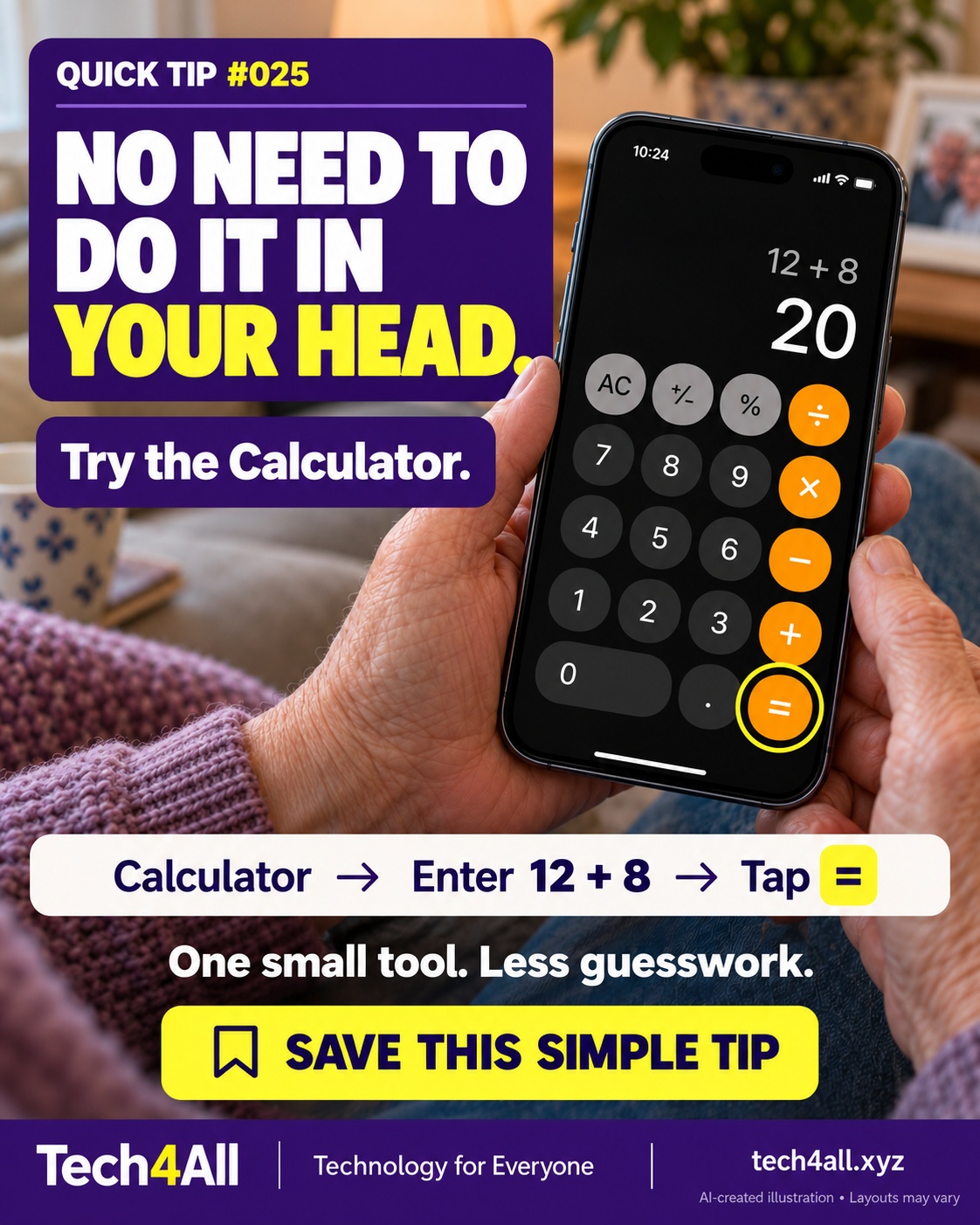
QT-025Use the basic calculator

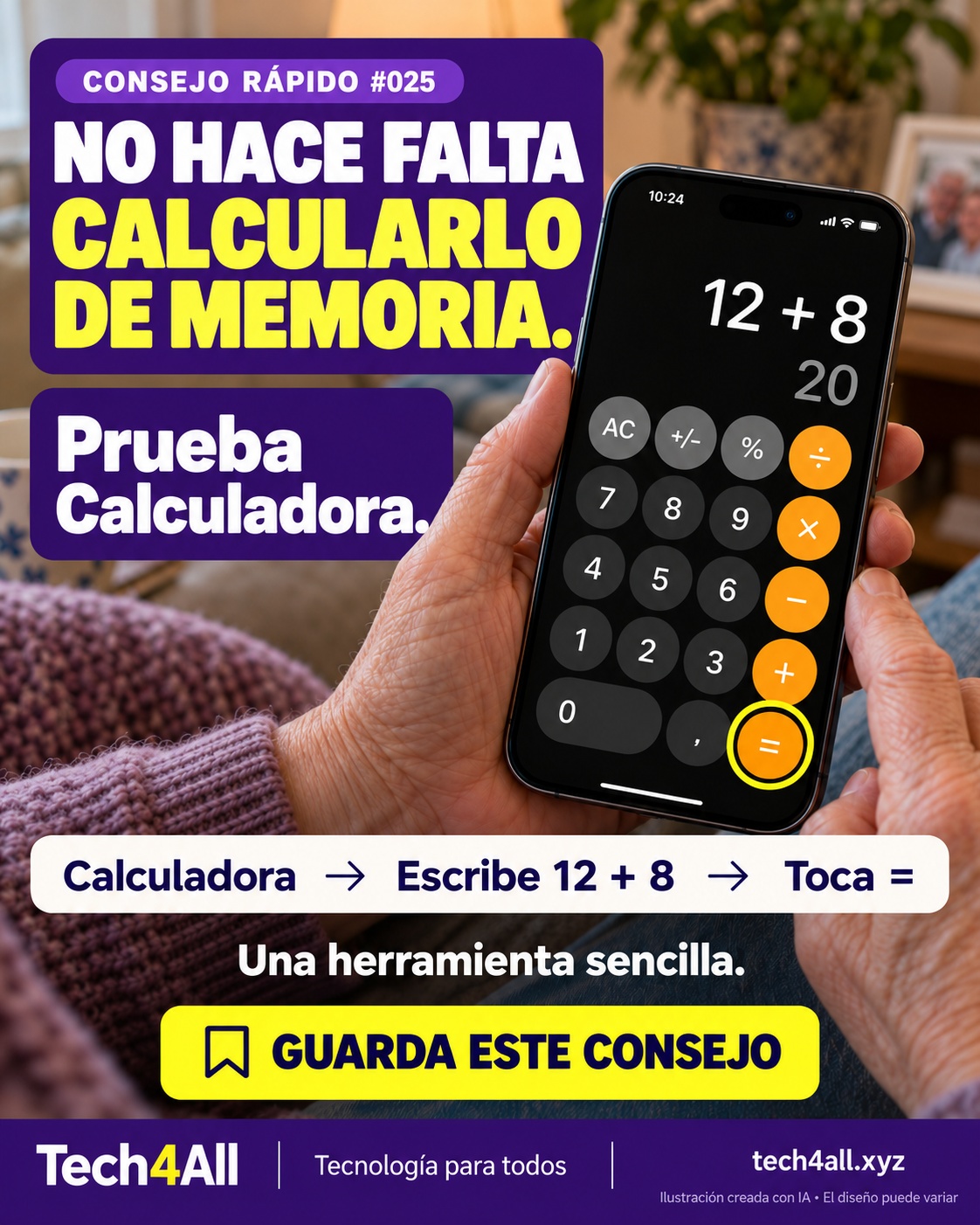
Open Calculator and try 12 + 8 =. The result is 20. Use Basic mode if you see another calculator mode, and check the numbers you entered.

Use the basic calculator — AI-created iPhone illustration

Abre Calculadora y prueba 12 + 8 =. El resultado es 20. Si aparece otro modo, cambia a Básica y revisa los números que escribiste.

Usa la calculadora básica — ilustración de iPhone creada con IA
QT-026Copy and paste a word

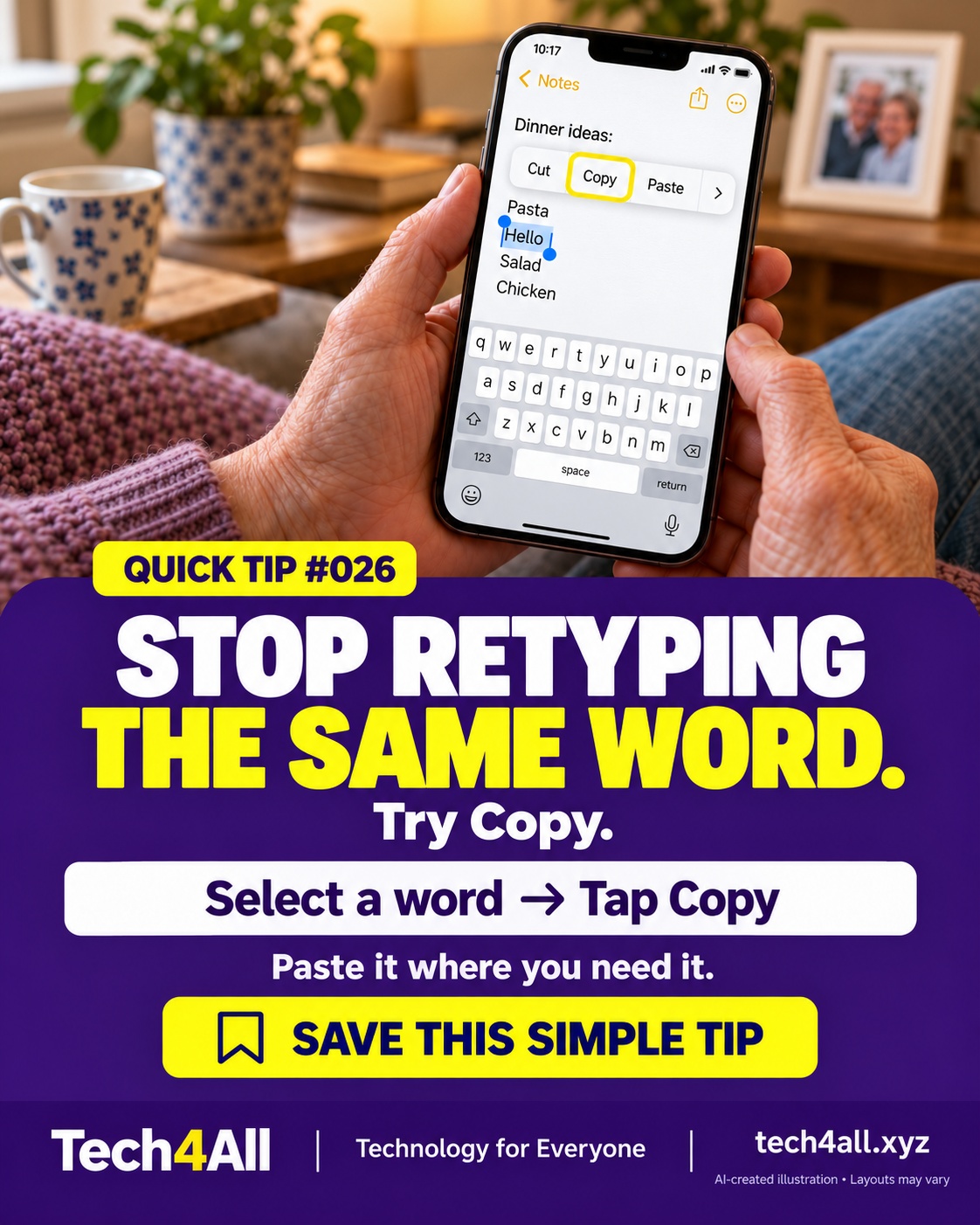
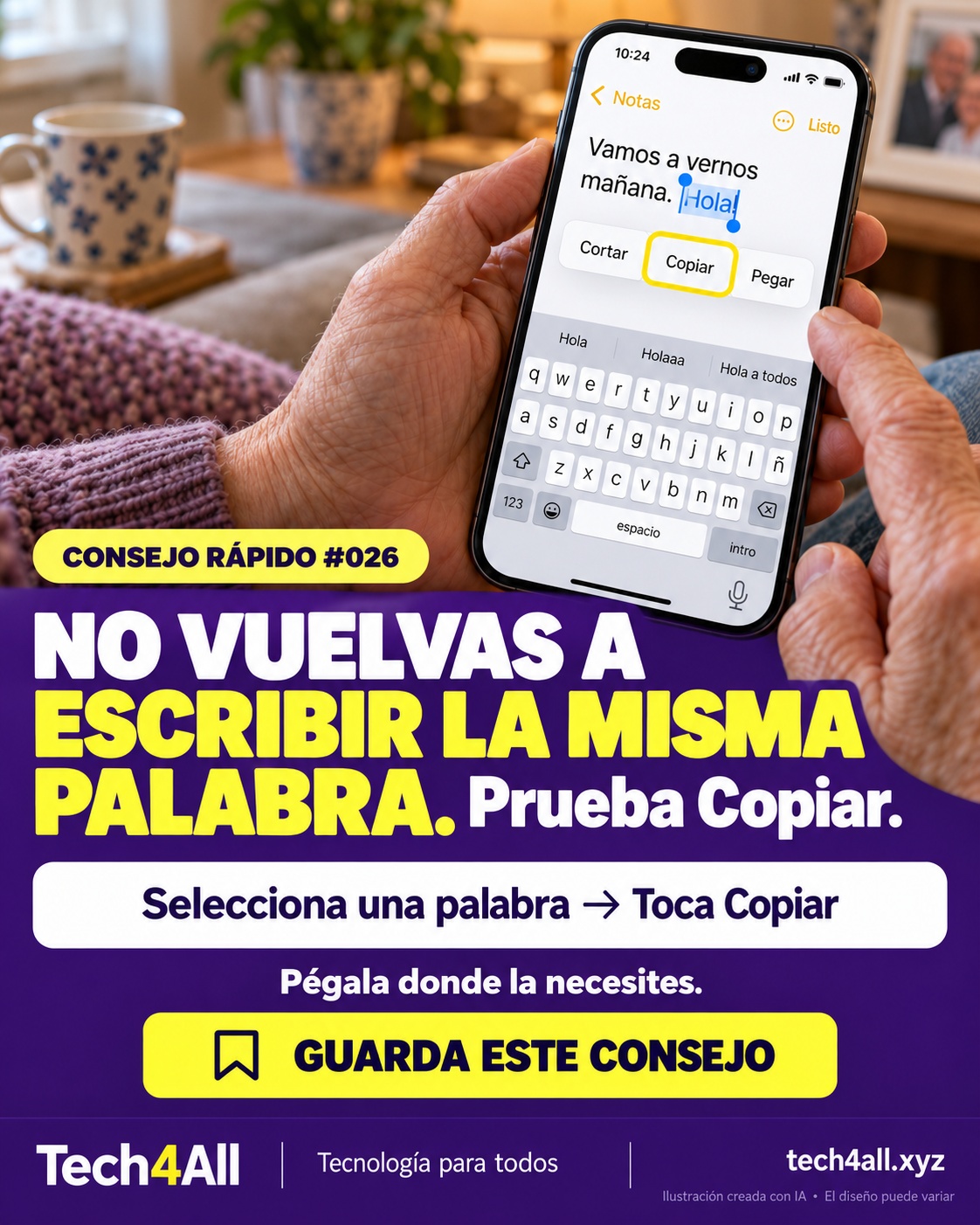
In an editable text field, double-tap a word to select it, then choose Copy from the editing menu. Tap another text field and choose Paste. Menu options vary by app.

Copy and paste a word — AI-created iPhone illustration

En un campo de texto editable, toca dos veces una palabra para seleccionarla y elige Copiar. Toca otro campo de texto y elige Pegar. Las opciones pueden variar según la app.

Copia y pega una palabra — ilustración de iPhone creada con IA
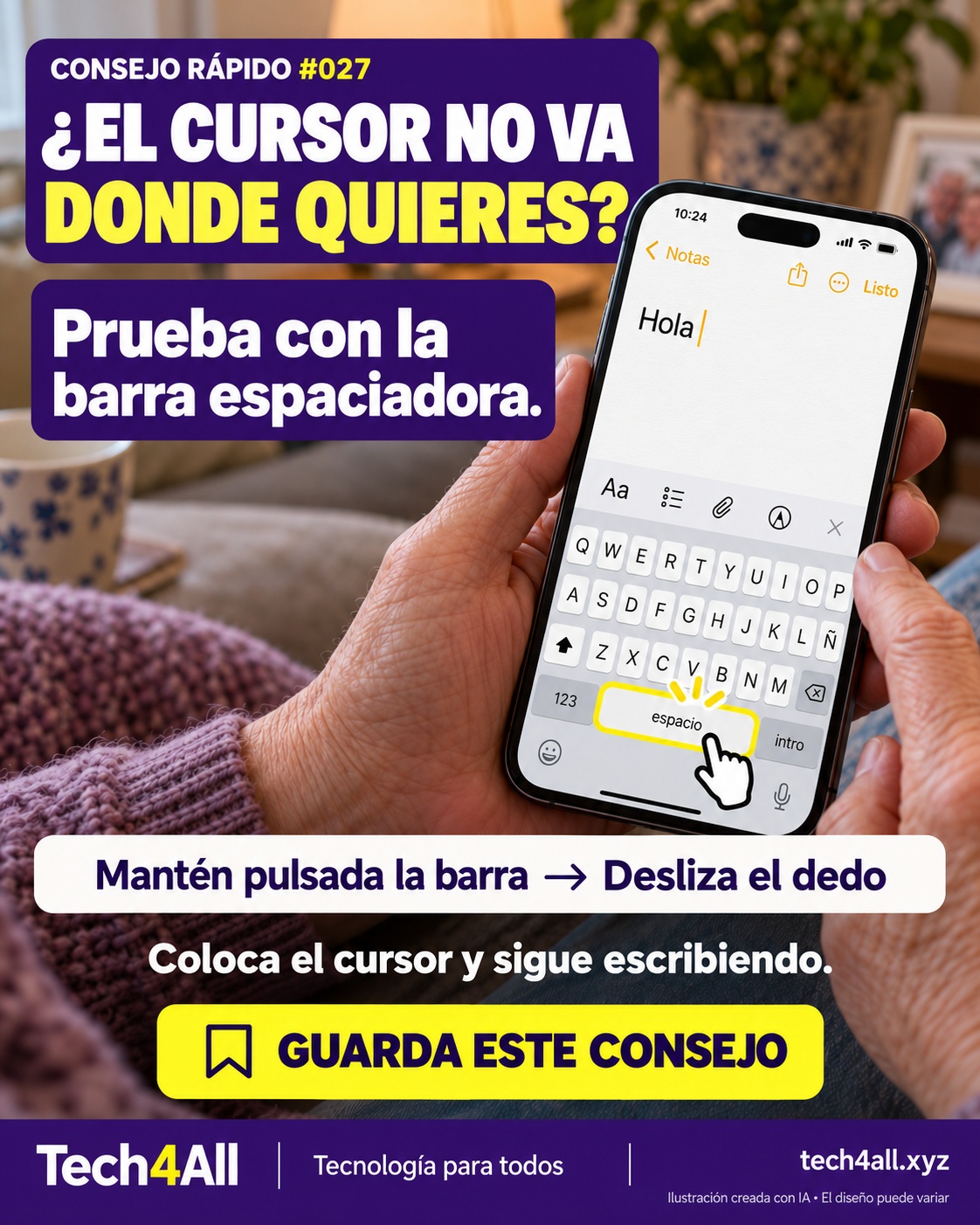
QT-027Move the typing cursor

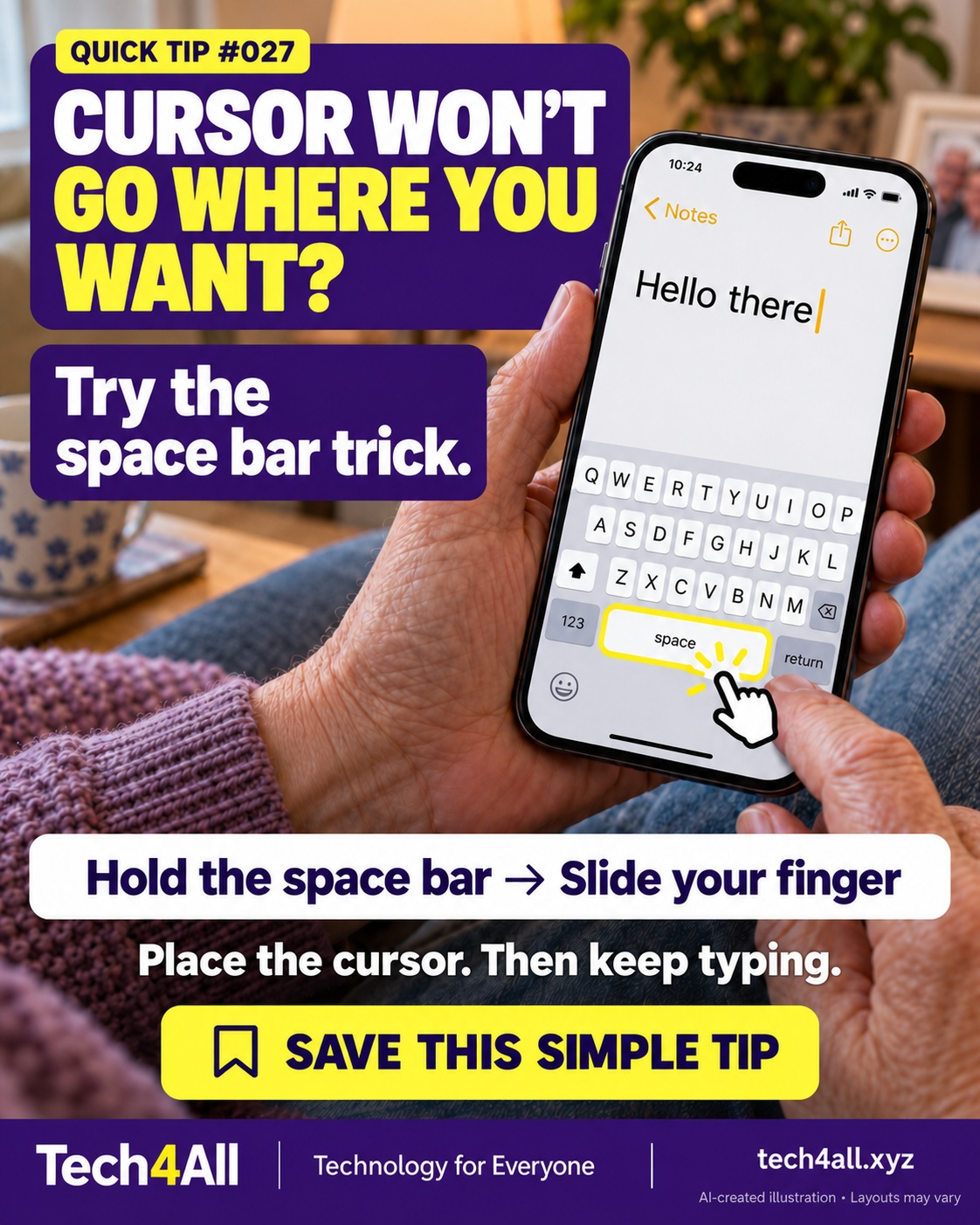
Touch and hold the keyboard's space bar until the key labels disappear, then slide your finger to move the cursor. Lift your finger and continue typing. Try it in a harmless note first.

Move the typing cursor — AI-created iPhone illustration

Mantén pulsada la barra espaciadora hasta que desaparezcan las letras del teclado. Desliza el dedo para mover el cursor, levántalo y sigue escribiendo. Prueba primero en una nota sencilla.

Mueve el cursor al escribir — ilustración de iPhone creada con IA
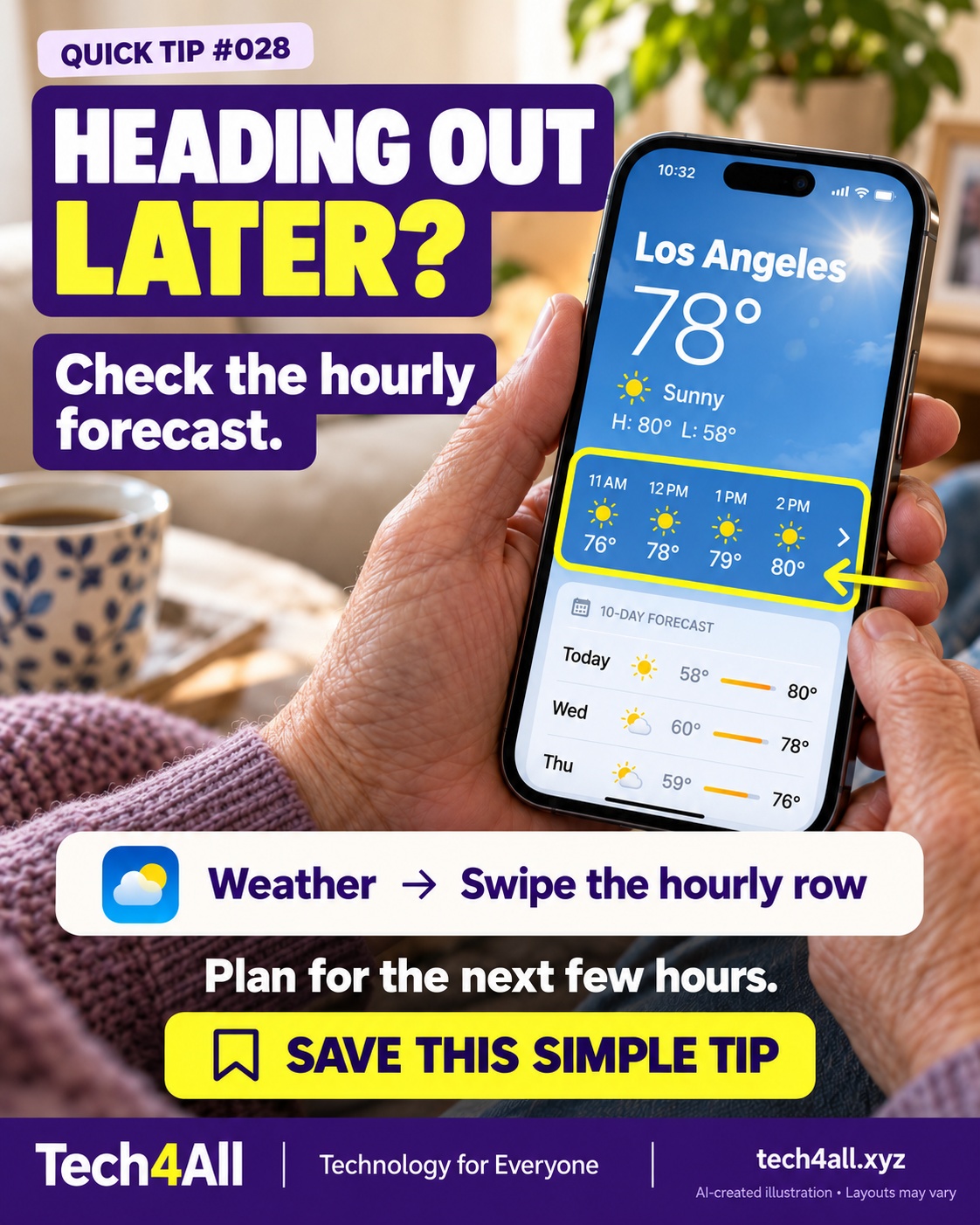
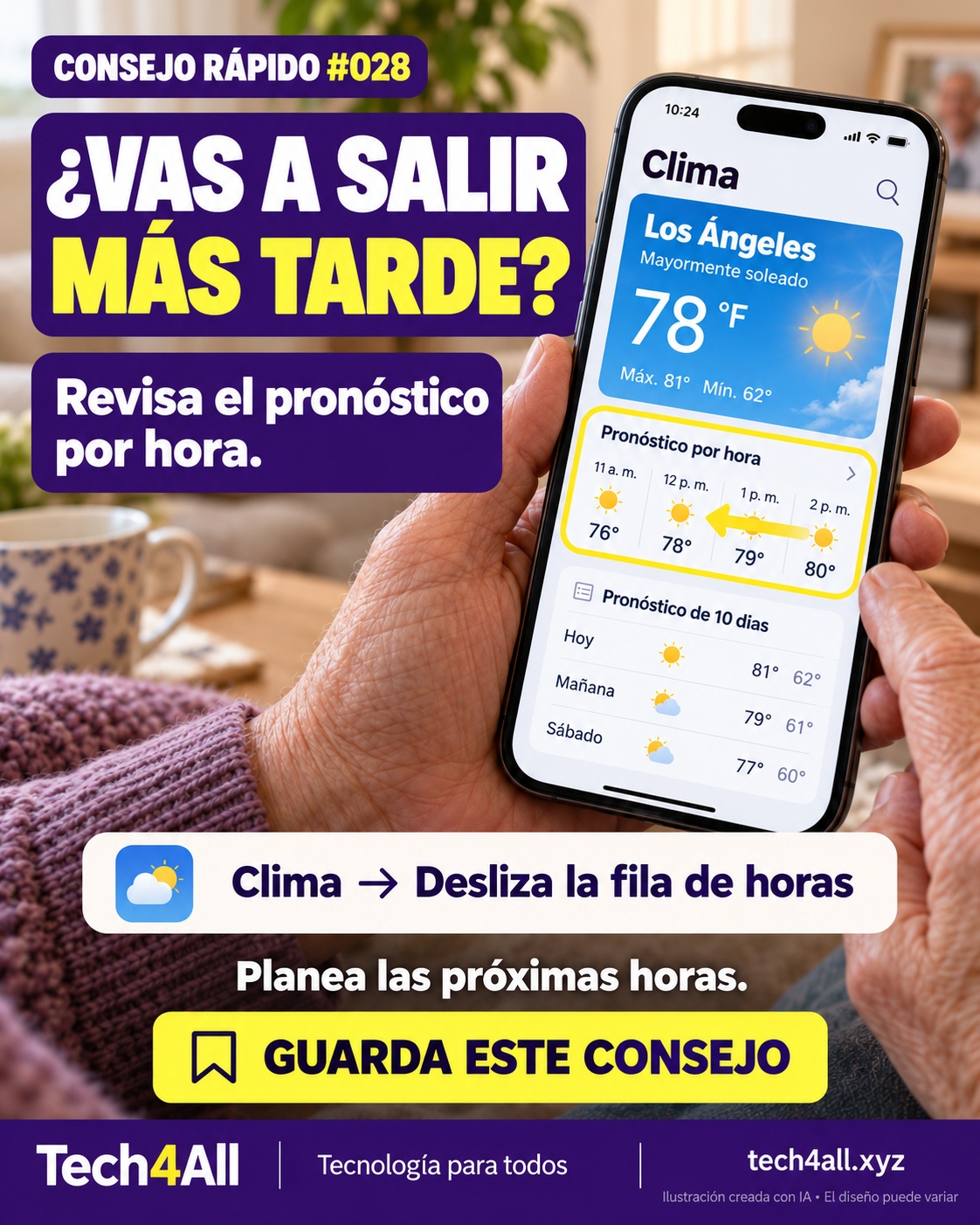
QT-028Check the hourly weather forecast

Open Weather, check the location and swipe the hourly forecast to see later hours. Forecasts can change; the values in this graphic are illustrative, not live weather.

Check the hourly weather forecast — AI-created iPhone illustration

Abre Clima, comprueba la ubicación y desliza el pronóstico por hora para ver las horas siguientes. El pronóstico puede cambiar; las cifras de la imagen son ilustrativas.

Revisa el pronóstico por hora — ilustración de iPhone creada con IA
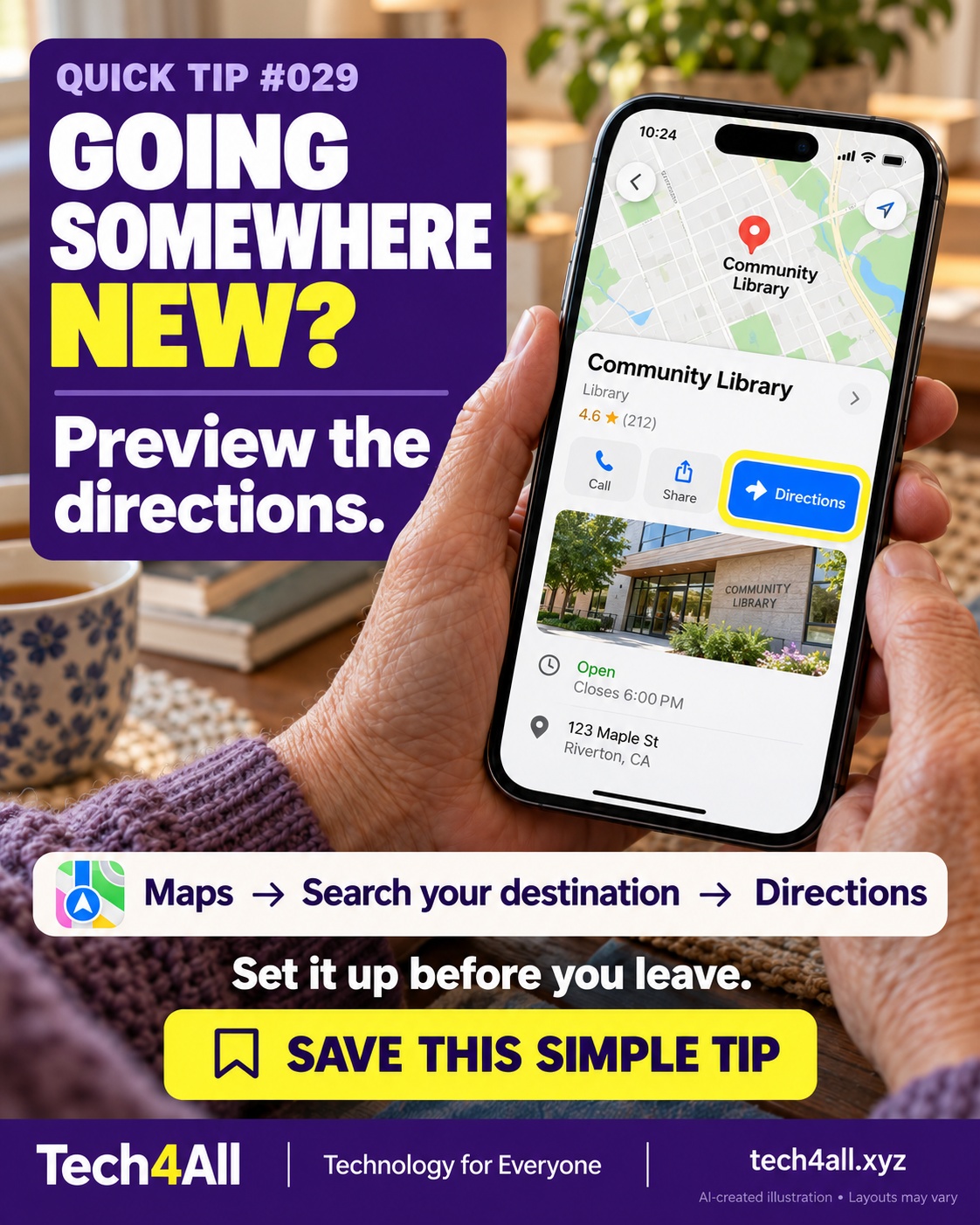
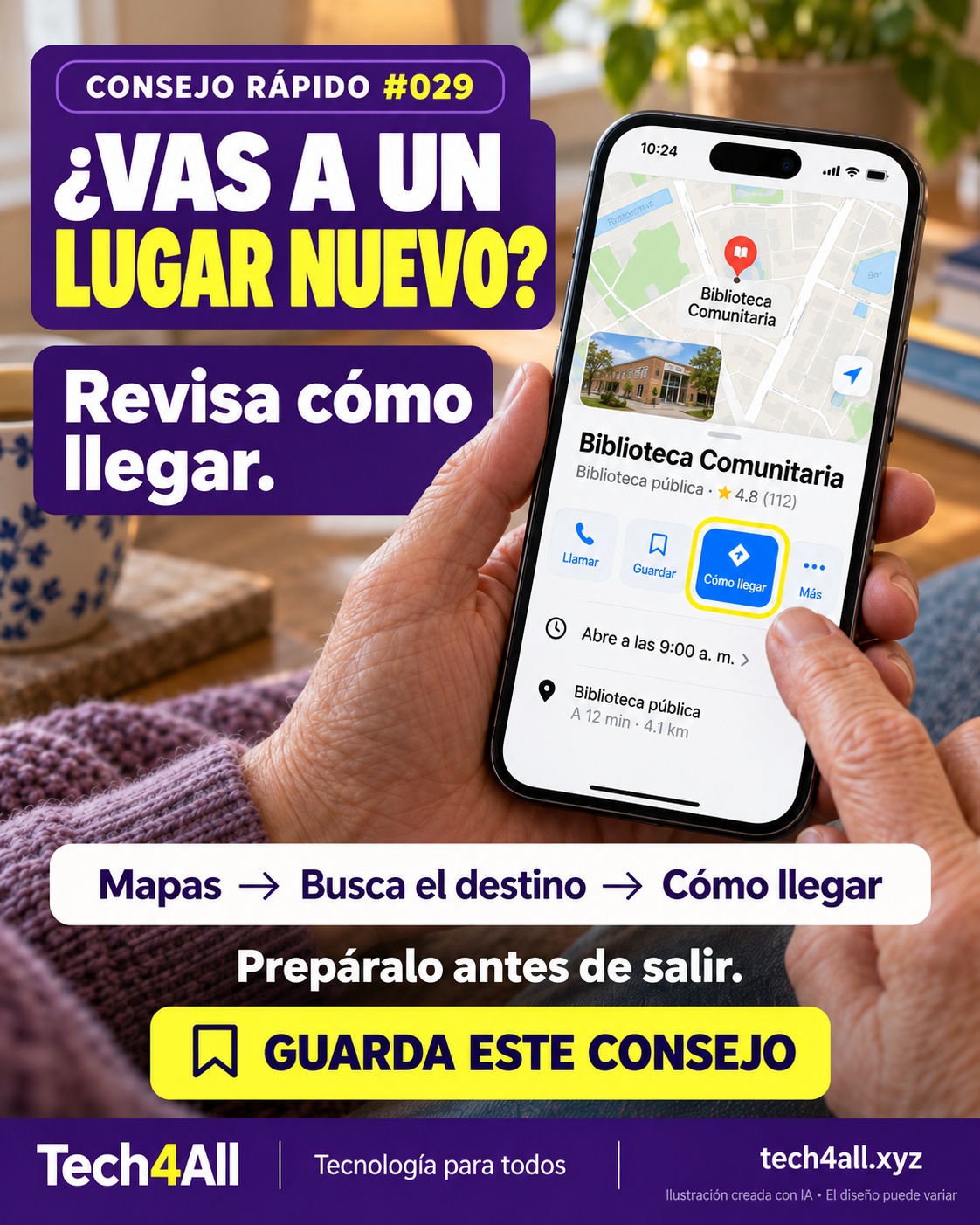
QT-029Preview directions in Maps

In Maps, search for your destination and tap Directions. Check the address and travel mode before choosing a route. Set everything up while safely parked or before leaving; follow road signs and conditions.

Preview directions in Maps — AI-created iPhone illustration

En Mapas, busca tu destino y toca Cómo llegar. Comprueba la dirección y el medio de transporte antes de elegir una ruta. Prepáralo antes de salir o con el auto estacionado de forma segura.

Revisa cómo llegar en Mapas — ilustración de iPhone creada con IA
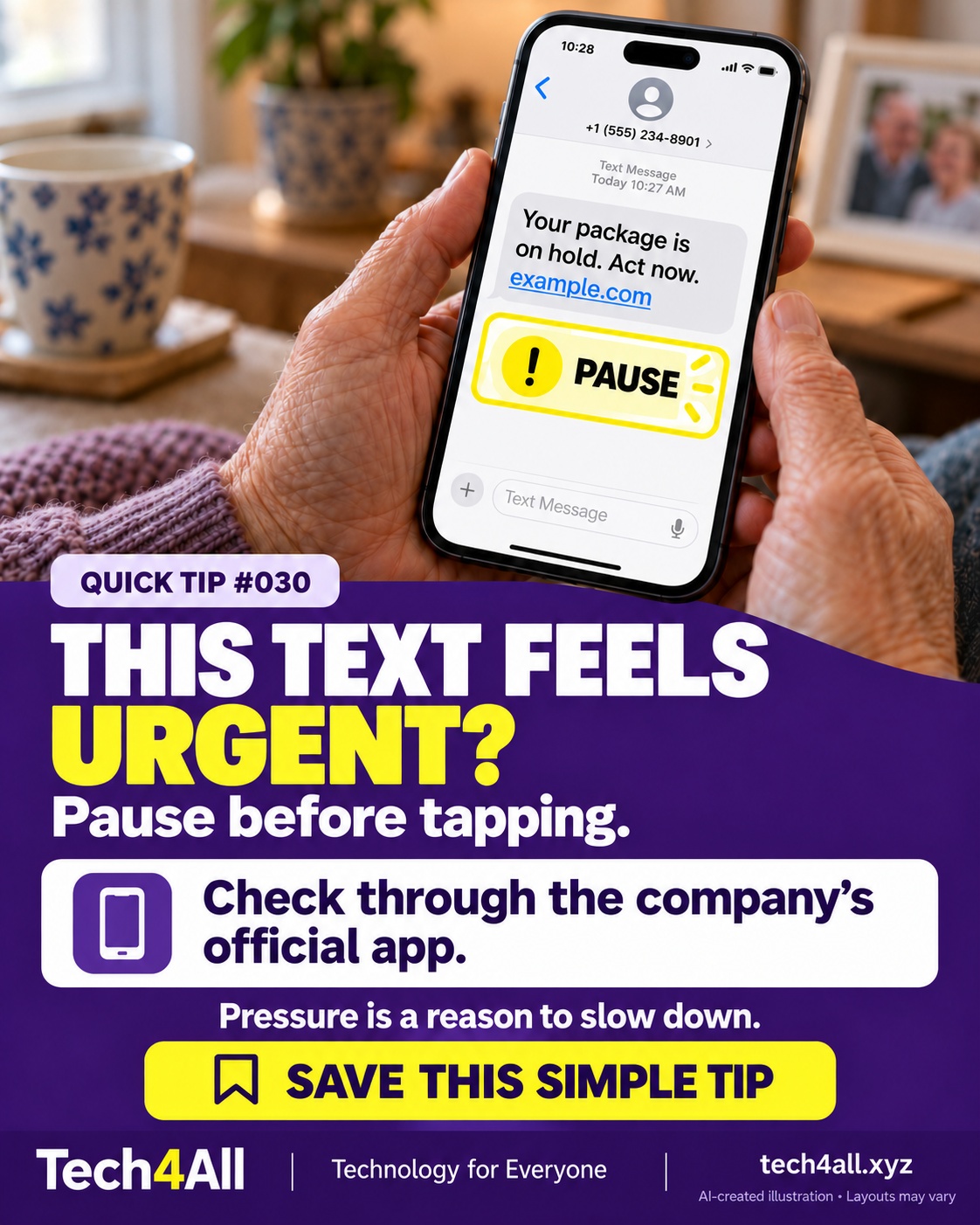
QT-030Check a suspicious text safely

Do not follow a link in an unexpected message that pressures you to act. Open the company's official app yourself or contact it using a number you already trust. Urgency is a warning sign, not proof by itself.

Check a suspicious text safely — AI-created iPhone illustration

No abras el enlace de un mensaje inesperado que te presione. Abre por tu cuenta la app oficial de la empresa o llama a un número que ya conoces. La urgencia es una señal de alerta, no una prueba definitiva.

Verifica un mensaje sospechoso — ilustración de iPhone creada con IA

Illustrations created with AI. Screens and labels may vary by iPhone and iOS version. Keep passwords, codes and private information to yourself.

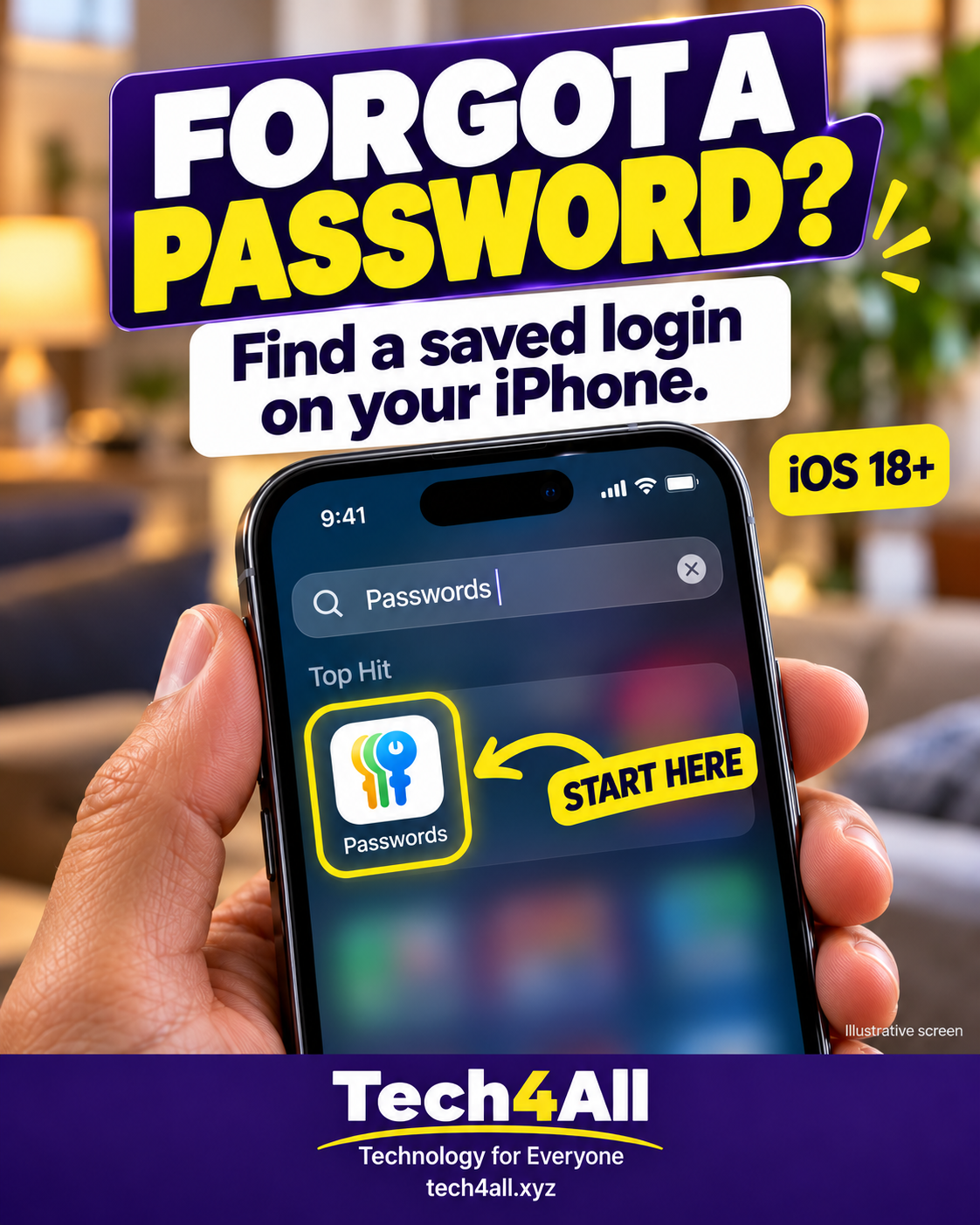
Forgot a password? Find a saved login on your iPhone.

For iOS 18 or later. On iOS 17 or earlier, open Settings → Passwords.

These approved photos and phone screens are AI-created teaching illustrations. Your screen may differ. Never share a password, verification code or account screenshot.

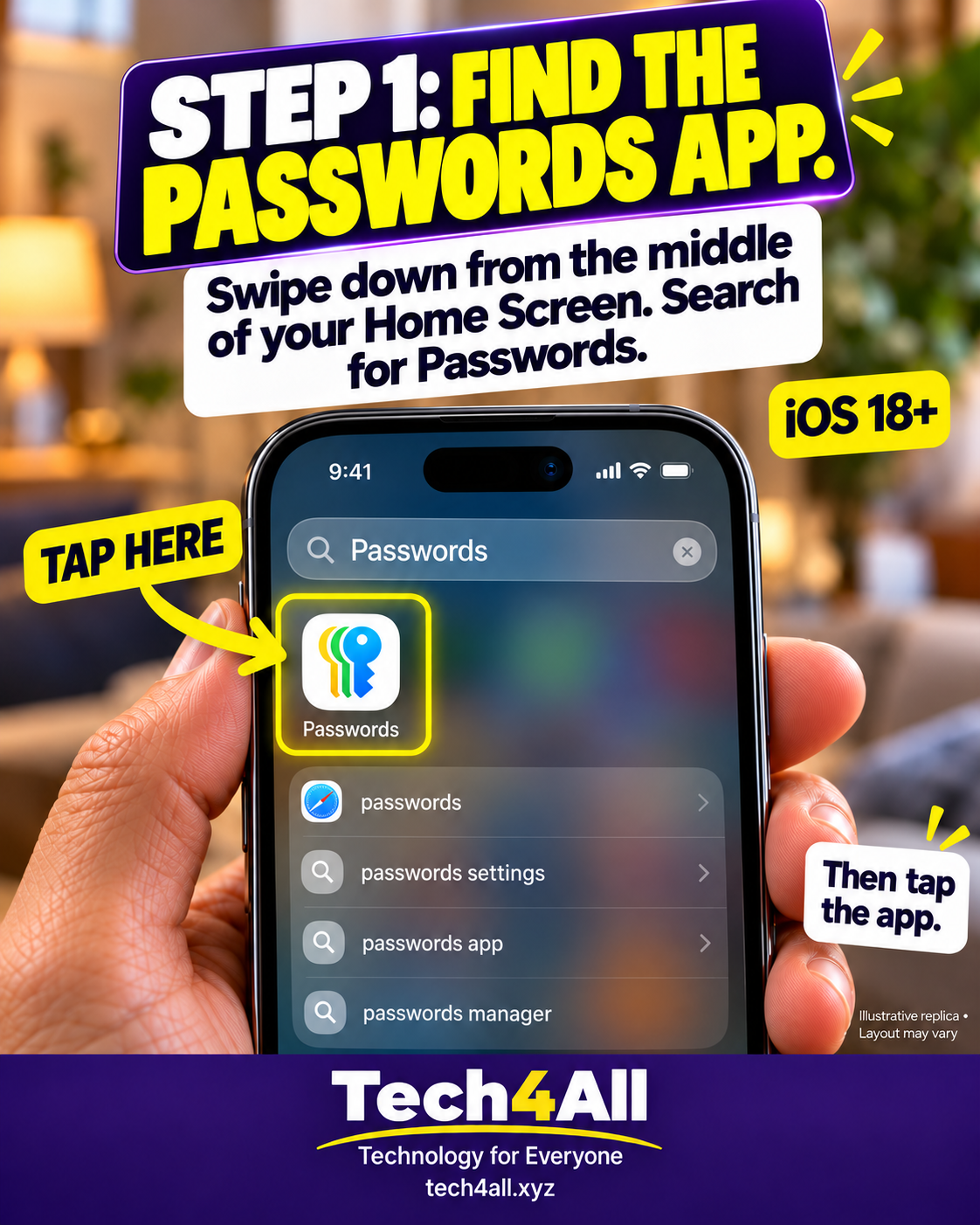
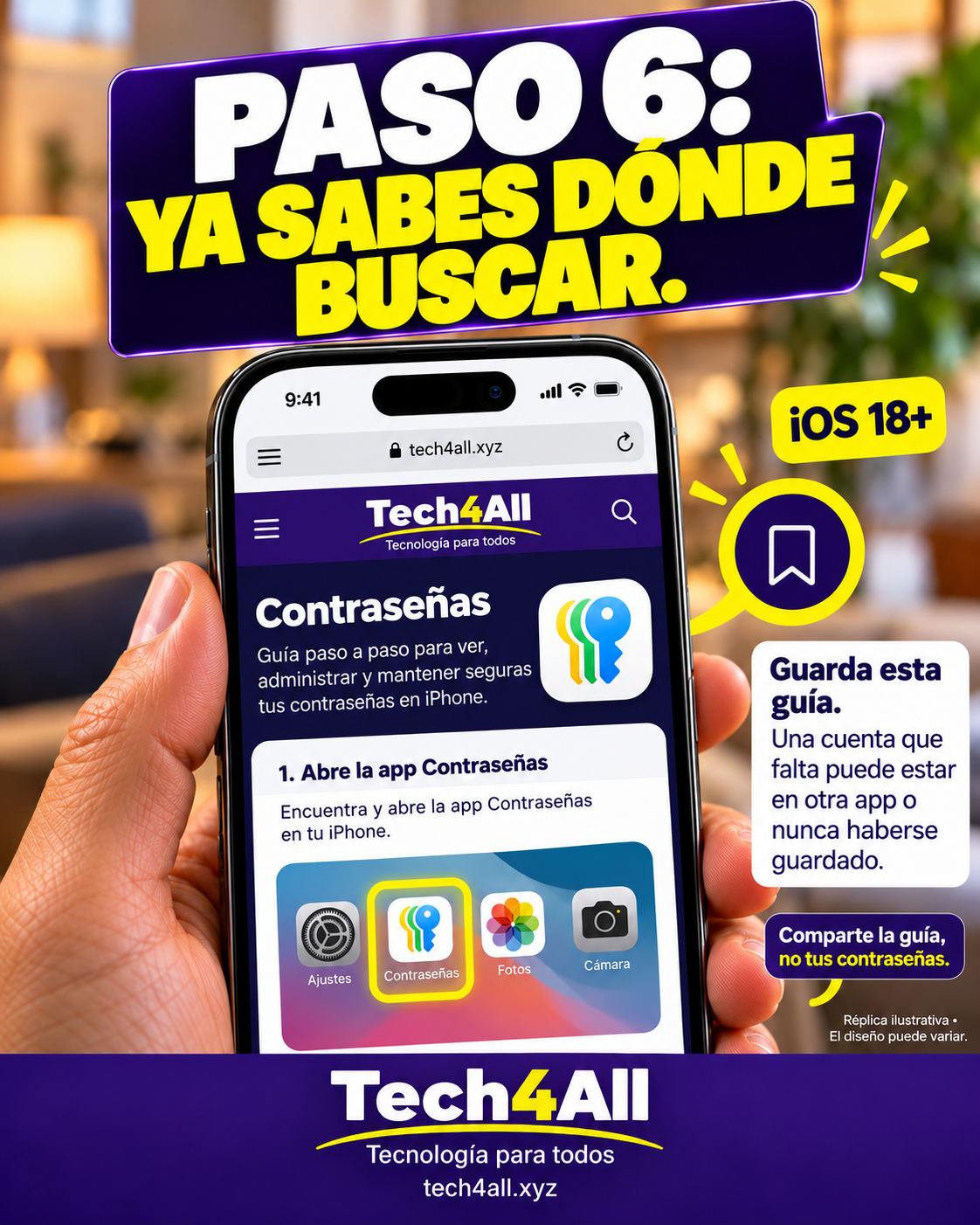
  1. Find the Passwords app. Swipe down from the middle of your Home Screen. Search for Passwords. Then tap the app.
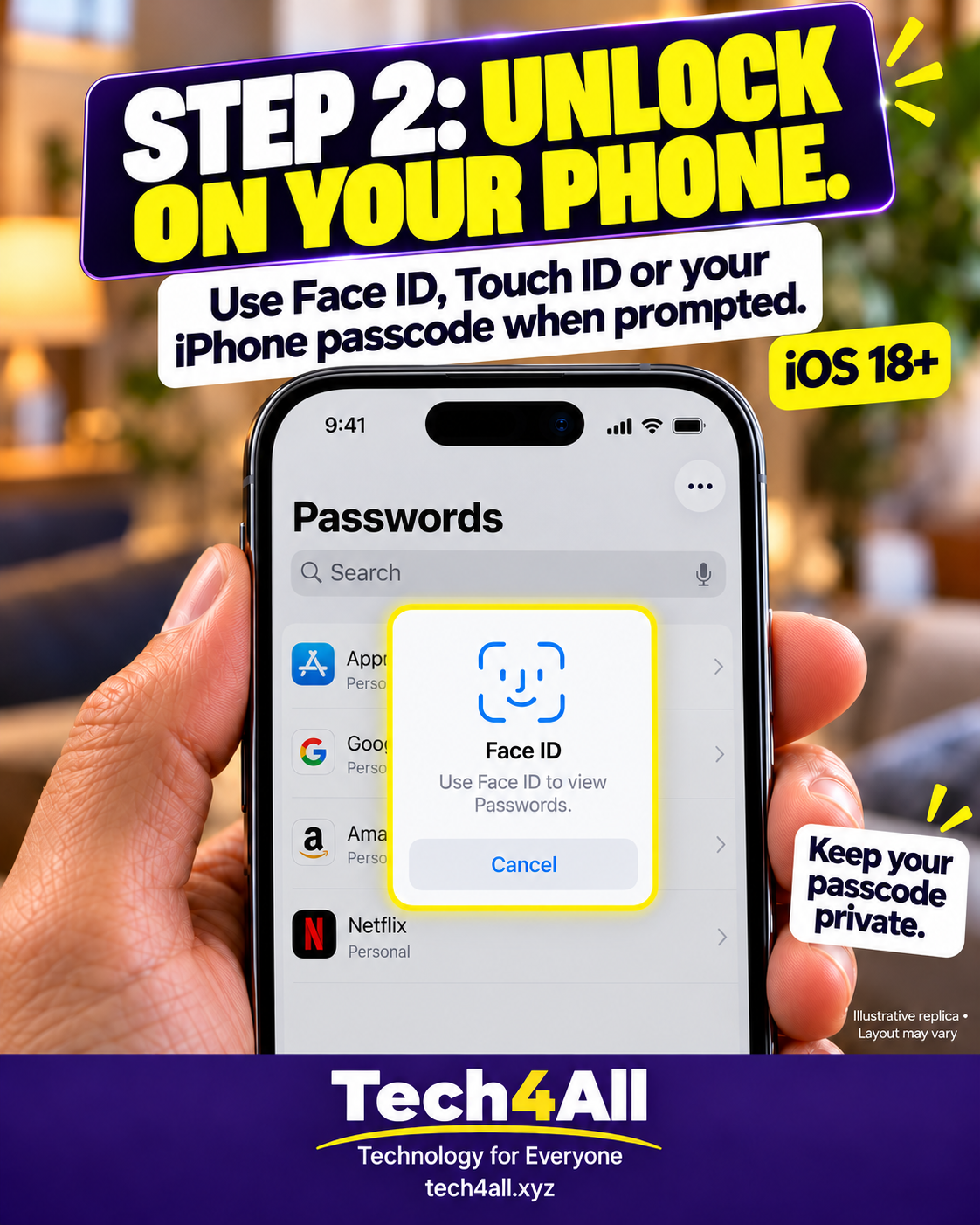
  2. Unlock on your phone. Use Face ID, Touch ID or your iPhone passcode when prompted. Keep your passcode private.
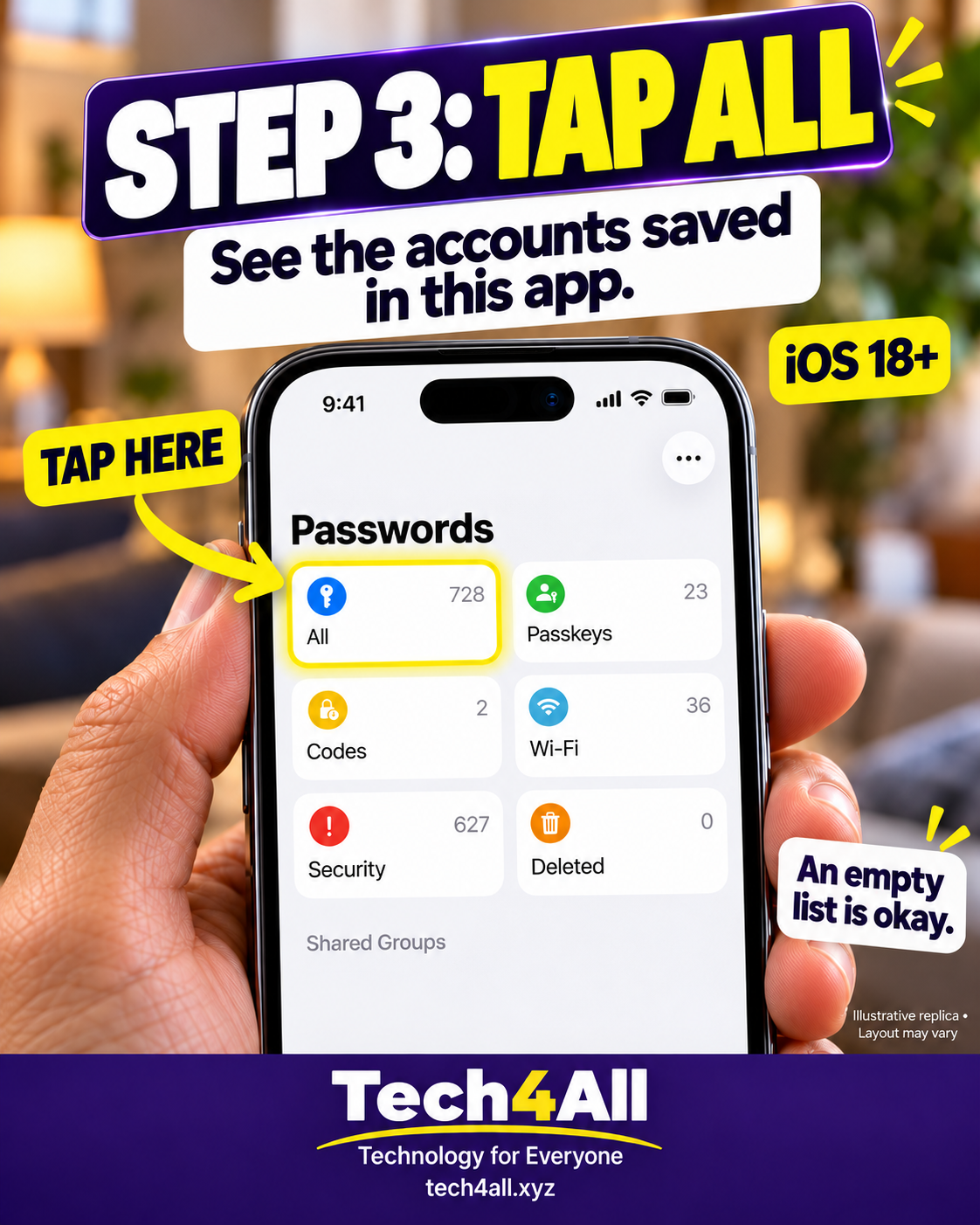
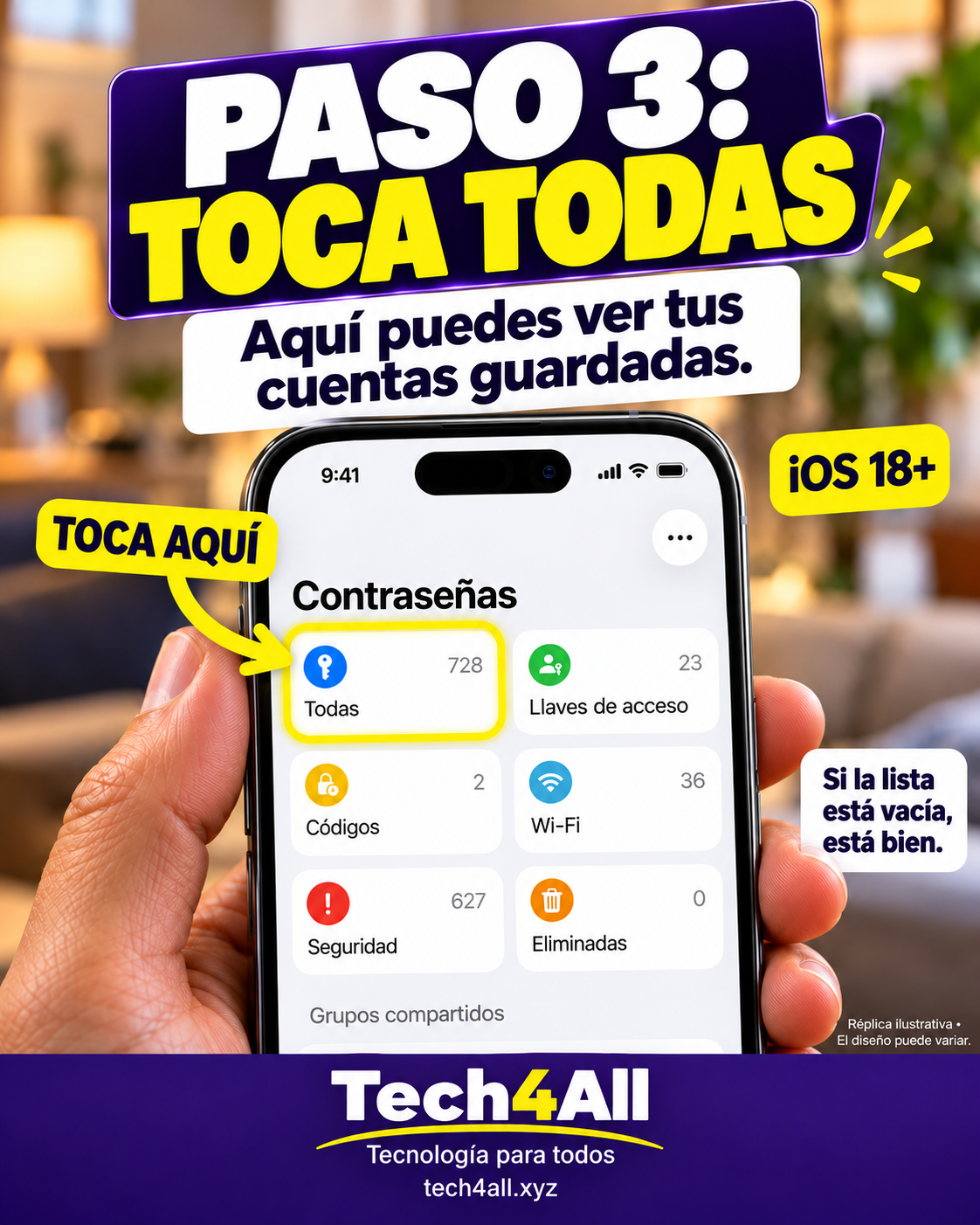
  3. Tap All. Look through the entries saved in the app. An empty list is okay.
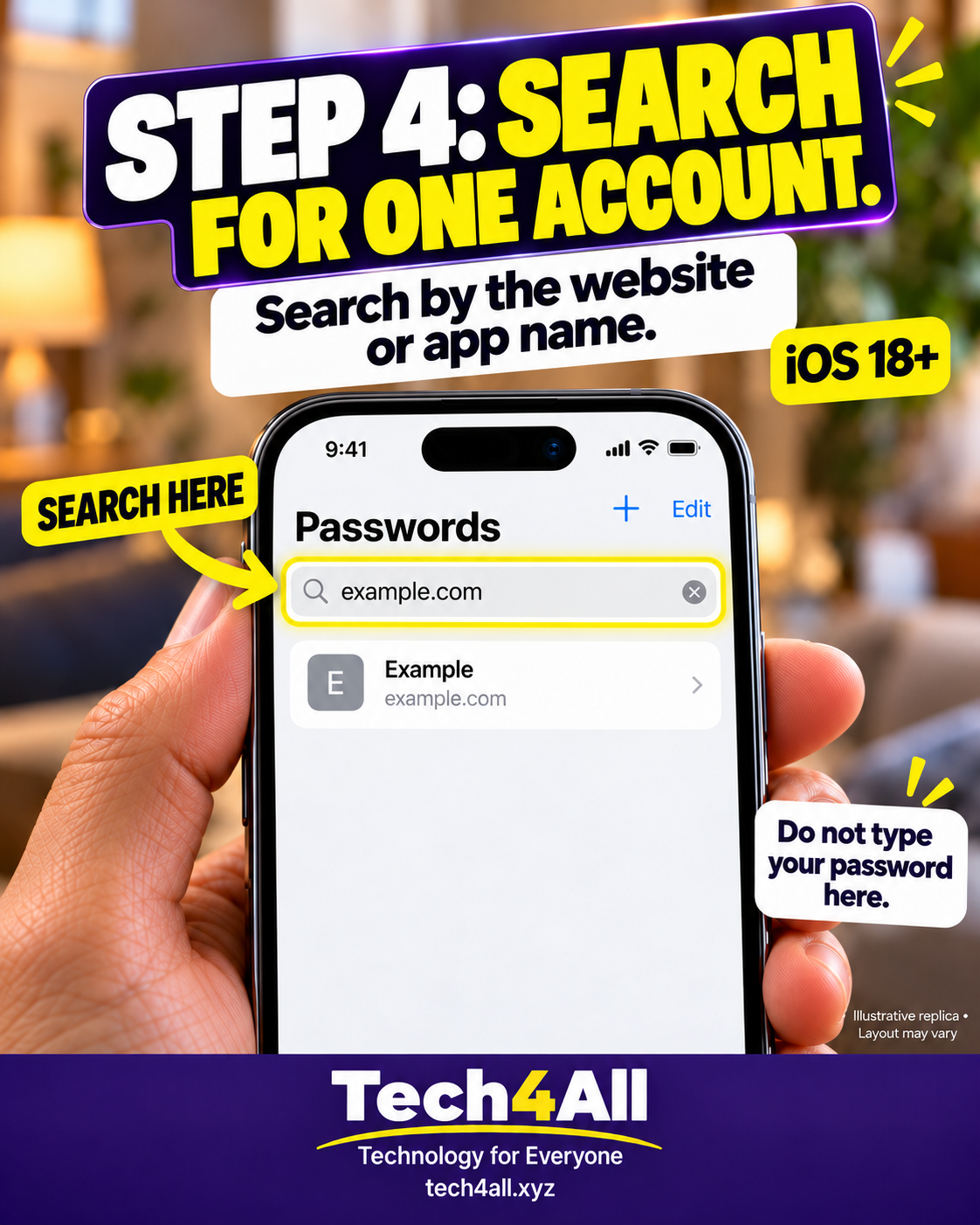
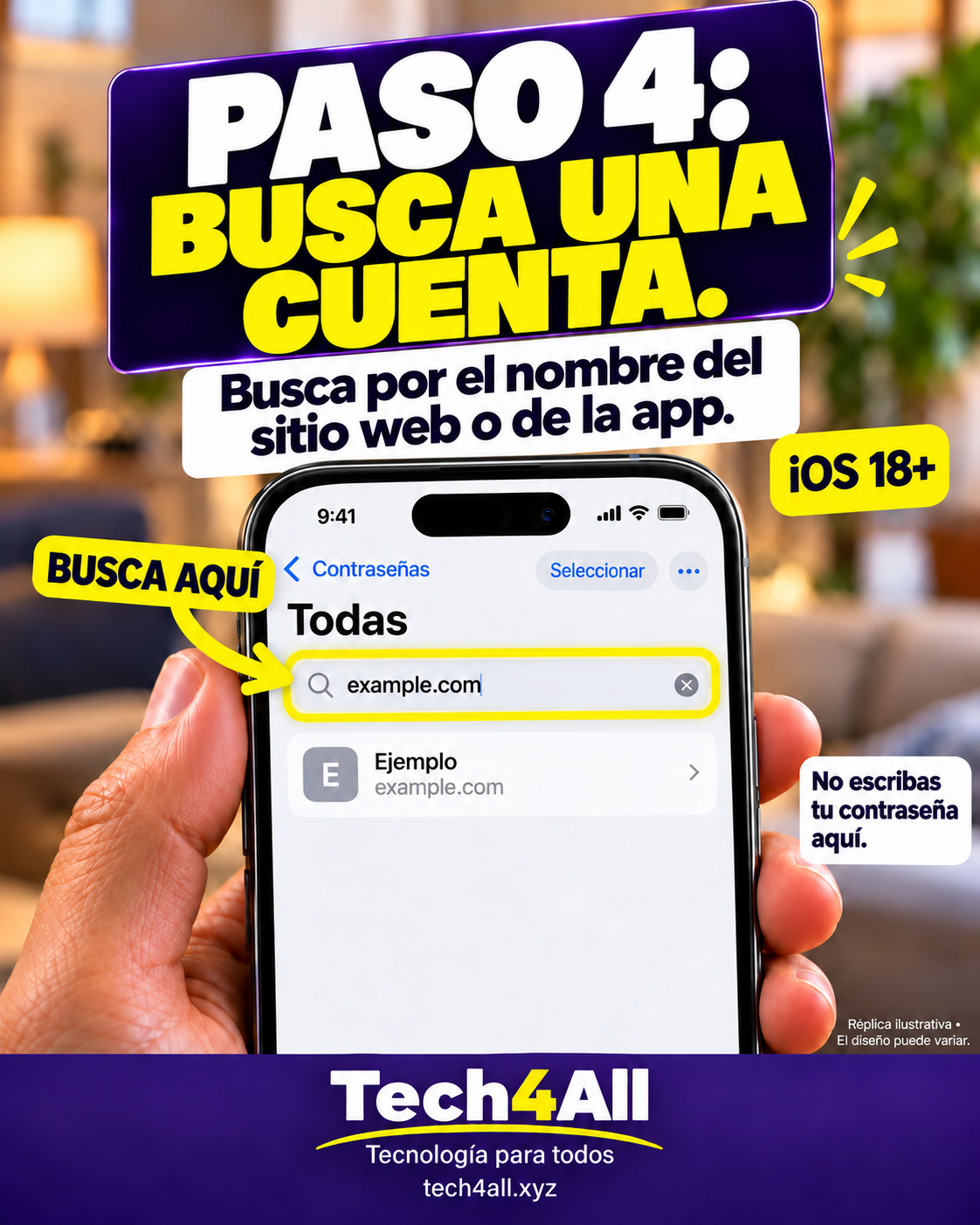
  4. Search for one account. Search by the website or app name. Do not type your password here.
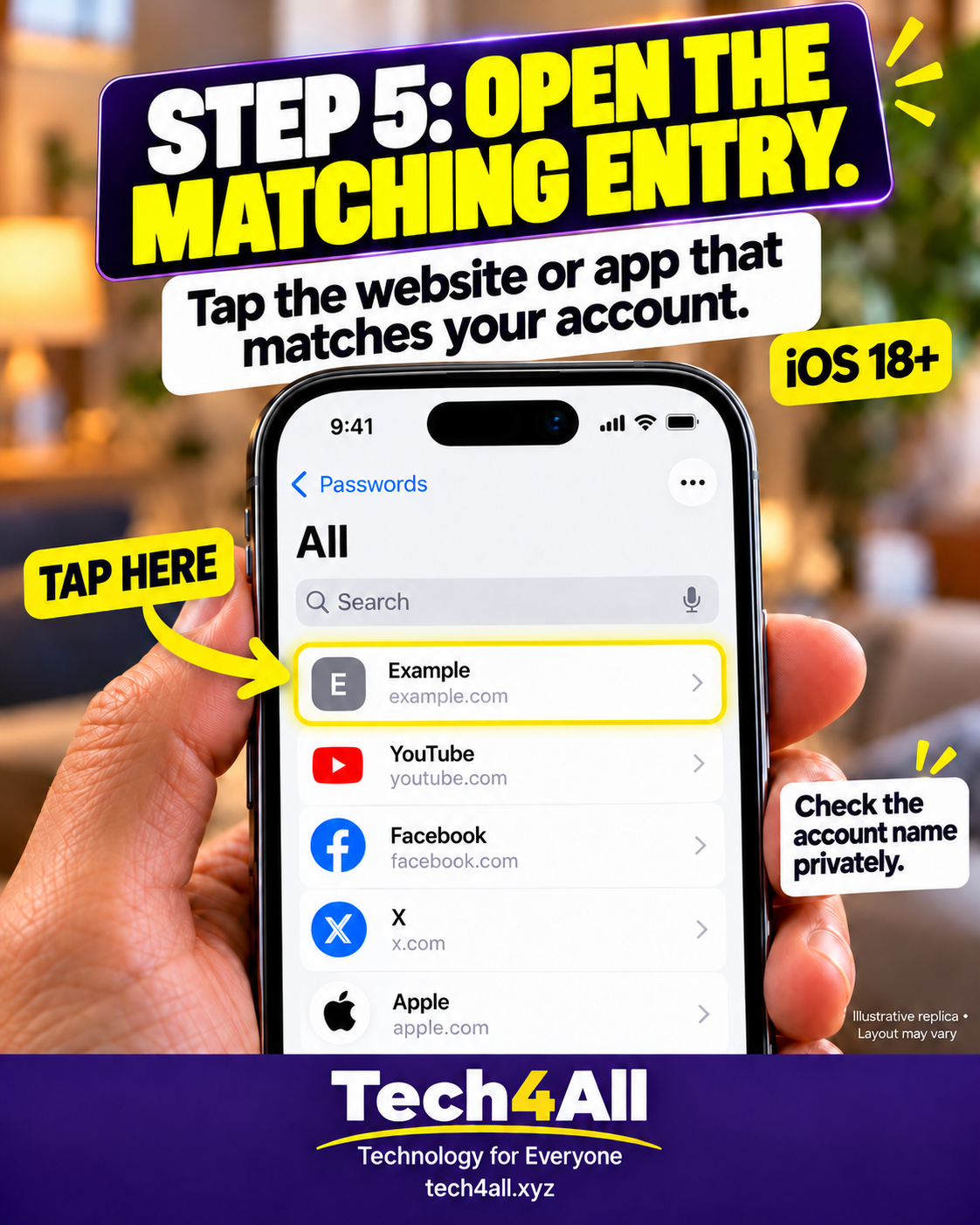
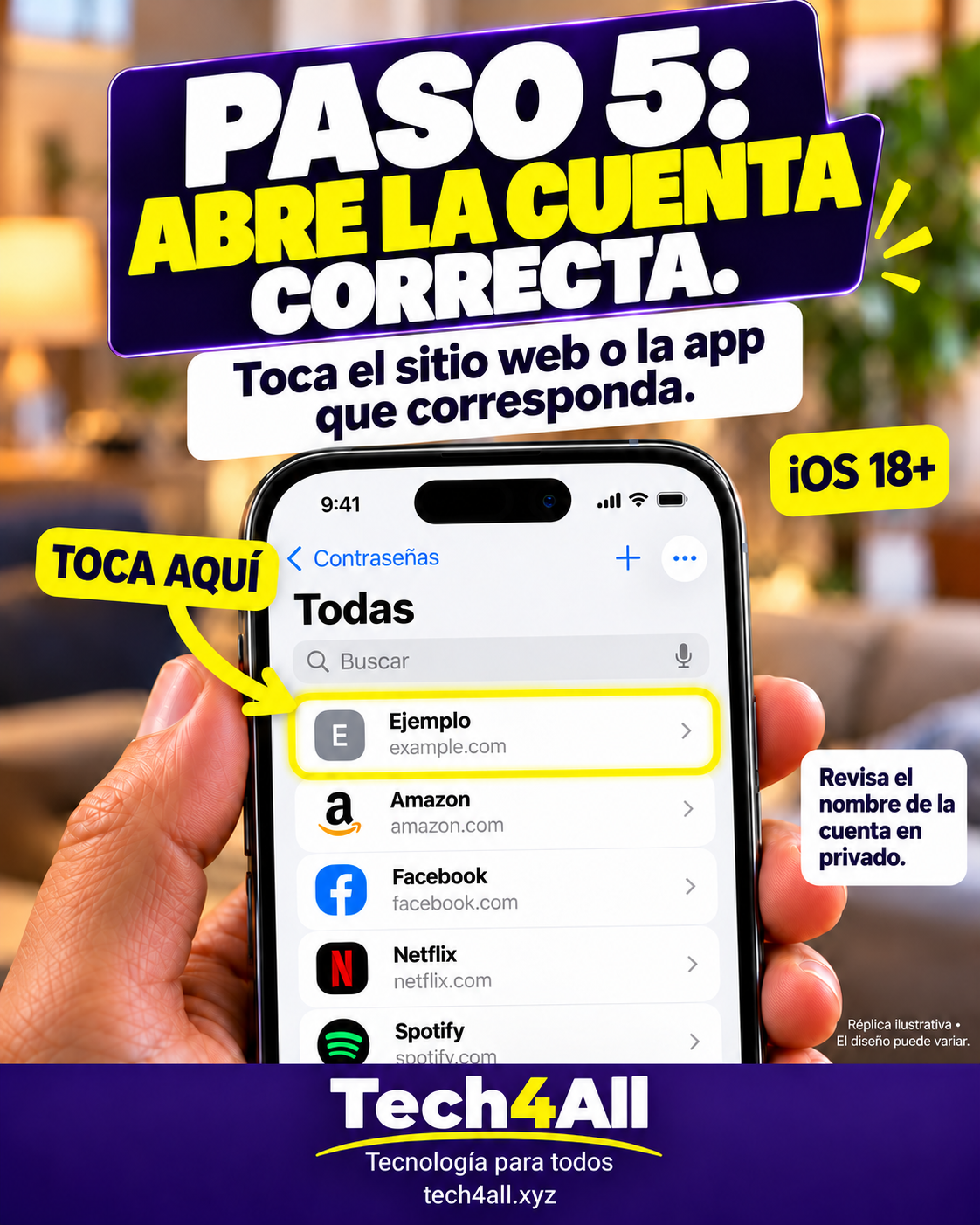
  5. Open the matching entry. Tap the website or app that matches your account. Check the account name privately.
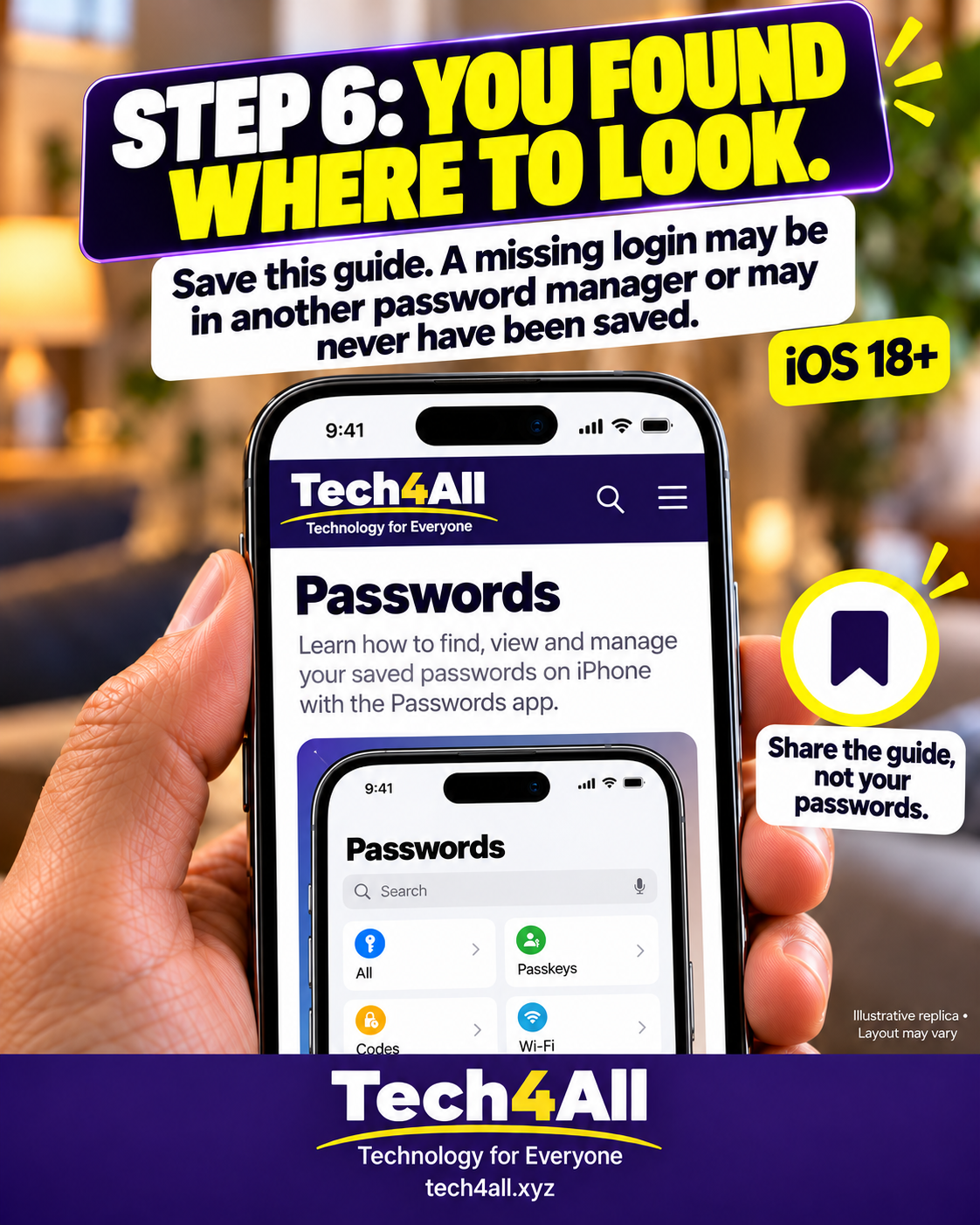
  6. You found where to look. Save this guide. A missing login may be in another password manager or may never have been saved. Share the guide, not your passwords.

Keep your login private. Search by the website or app name, not by your password.

One password, one account

Reusing one password across accounts can put several accounts at risk. Start with one important account. Use its official app or website to change the password, and let your password manager create and save a unique one. You do not have to fix every account today.

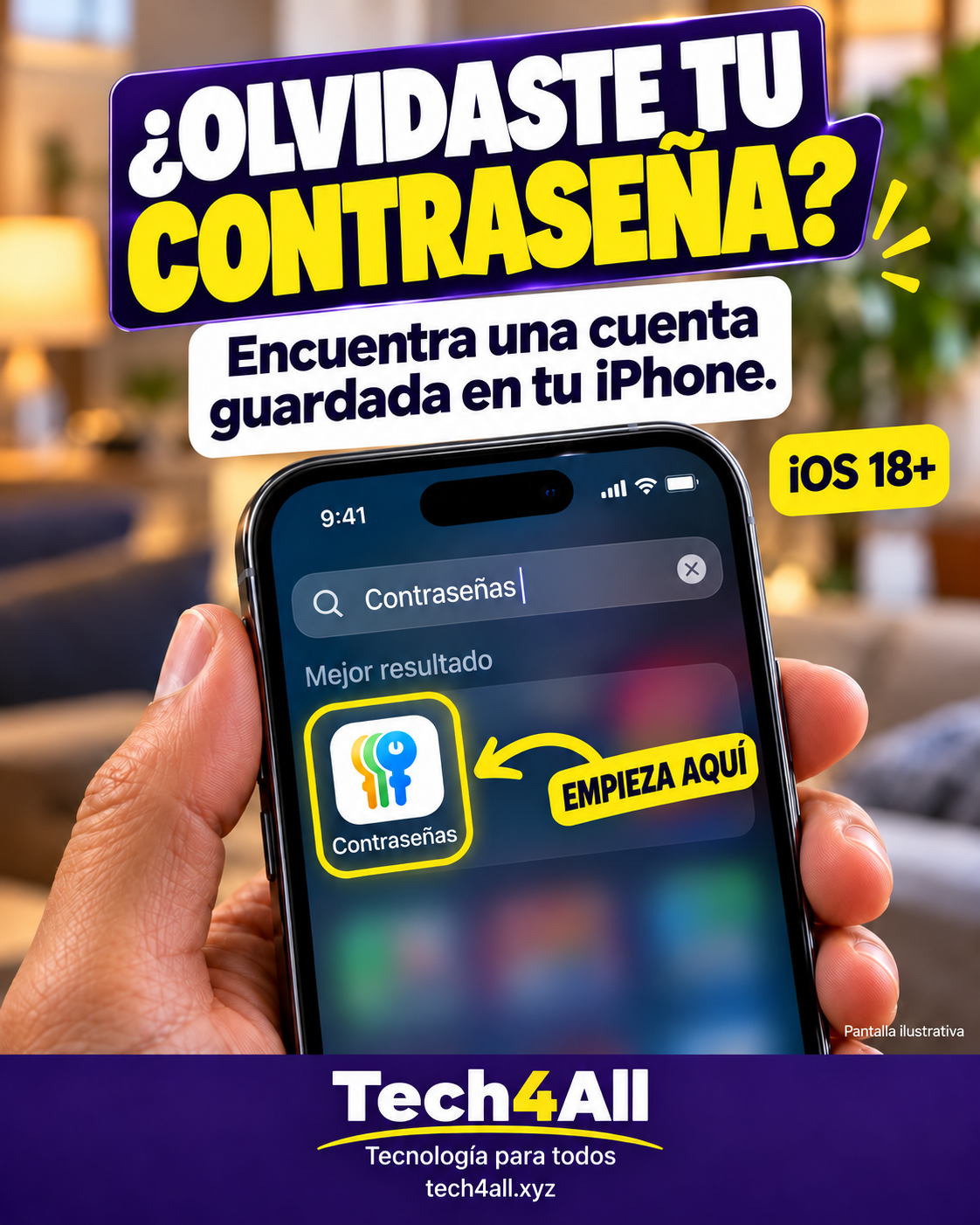
¿Olvidaste tu contraseña? Encuentra una cuenta guardada en tu iPhone.

Para iOS 18 o posterior. En iOS 17 o anterior, abre Ajustes → Contraseñas.

Estas fotos y pantallas aprobadas son ilustraciones educativas creadas con IA. Tu pantalla puede ser diferente. Nunca compartas contraseñas, códigos de verificación ni capturas de tus cuentas.

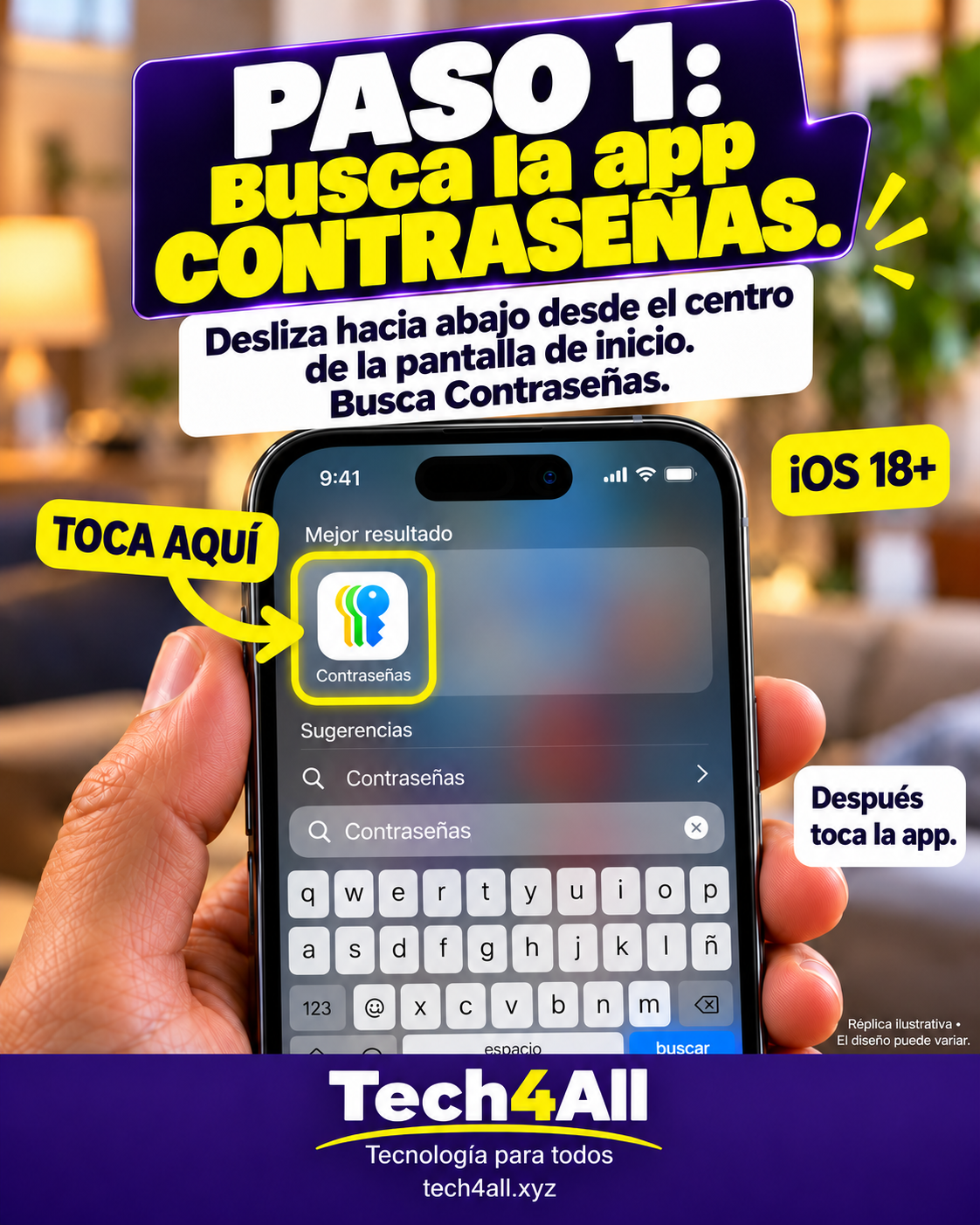
  1. Busca la app Contraseñas. Desliza hacia abajo desde el centro de la pantalla de inicio. Busca Contraseñas. Después toca la app.
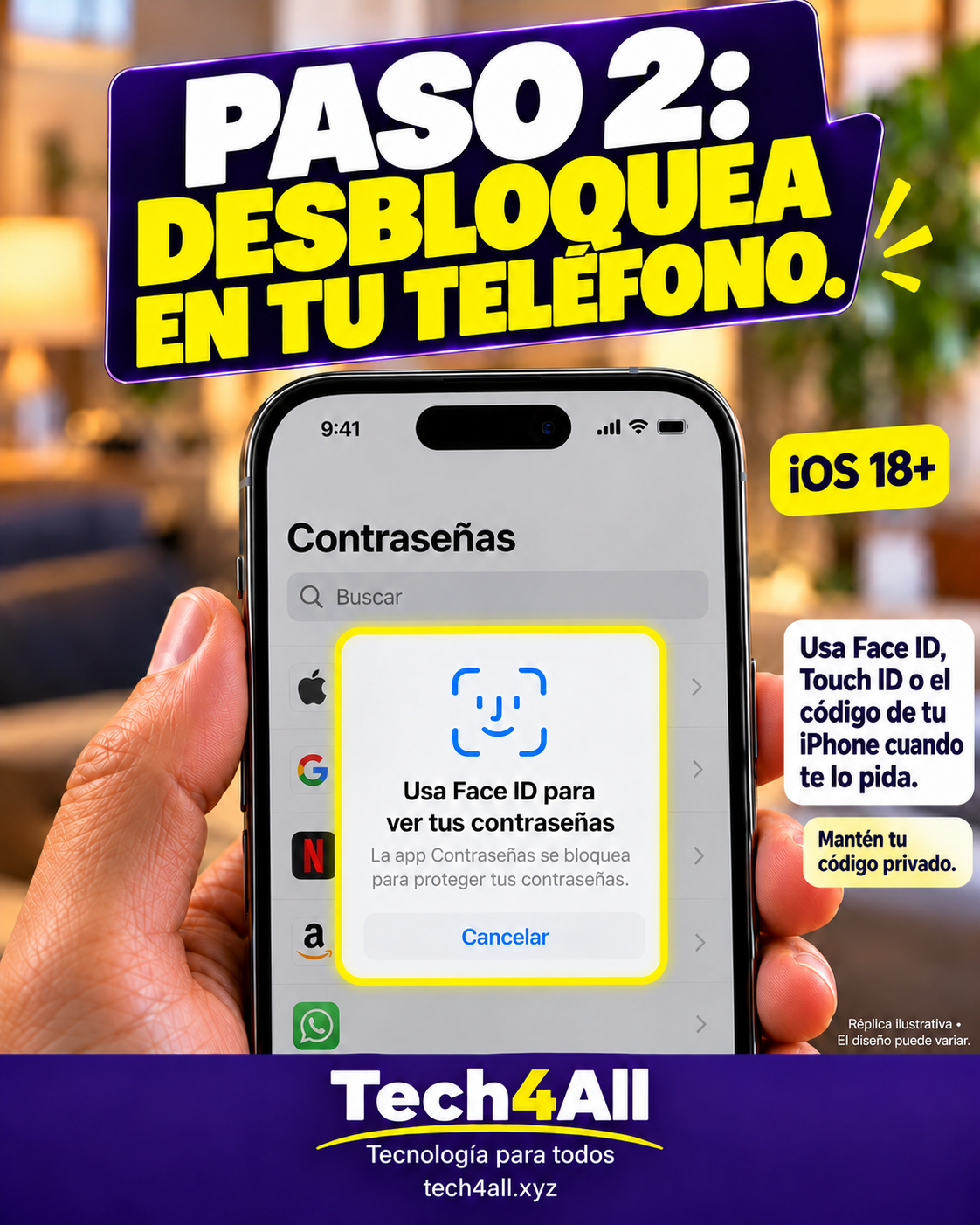
  2. Desbloquea en tu teléfono. Usa Face ID, Touch ID o el código de tu iPhone cuando te lo pida. Mantén tu código privado.
  3. Toca Todas. Revisa las cuentas guardadas en la app. Si no hay cuentas, está bien.
  4. Busca una cuenta. Busca por el nombre del sitio web o de la app. No escribas tu contraseña aquí.
  5. Abre la cuenta correcta. Toca el sitio web o la app que corresponda. Revisa el nombre de la cuenta en privado.
  6. Ya sabes dónde buscar. Guarda esta guía. Una cuenta que falta puede estar en otra app o nunca haberse guardado. Comparte la guía, no tus contraseñas.

Mantén tus datos de acceso privados. Busca por el nombre del sitio o de la app, no por tu contraseña.

Una contraseña, una cuenta

Reutilizar una contraseña en varias cuentas puede ponerlas en riesgo. Empieza con una cuenta importante. Usa su app o sitio oficial para cambiar la contraseña y deja que tu gestor cree y guarde una diferente. No tienes que arreglar todas tus cuentas hoy.

Get a free tech tip every week

One simple tech tip, delivered to your inbox every week. No spam, no confusing language — just one thing that makes your digital life a little easier.

Ready to feel confident with technology?

Ask Harold, our AI tech helper, is available anytime — friendly, patient, and ready to help. No signup needed.

Ask Harold 💬
Harold

Harold

Your simple AI tech helper