Help for me
Learn to use your phone, tablet or everyday technology with patient guidance.
Patient one-on-one help with your phone, tablet or computer in Alhambra and nearby communities, including Monterey Park and San Gabriel. Learn one useful thing at your pace. Every question is welcome.
Book In-Home Tech Help60 minutes · $75 · Saturday & Sunday. Choose a time, tell us what you need, and pay securely through Stripe on Calendly.
In-home help in Alhambra and nearby communities. If you are unsure whether we can visit your address, email Harold before paying.
Need help arranging a visit? →For a special request or help arranging a visit, choose an option below. These forms do not reserve a time or collect payment.
You enter passwords and codes privately on your device. Book your in-home visit using Calendly above. For a special request, use the forms below.
Choose a topic, then tap a tip. You can stay on this page while you explore.
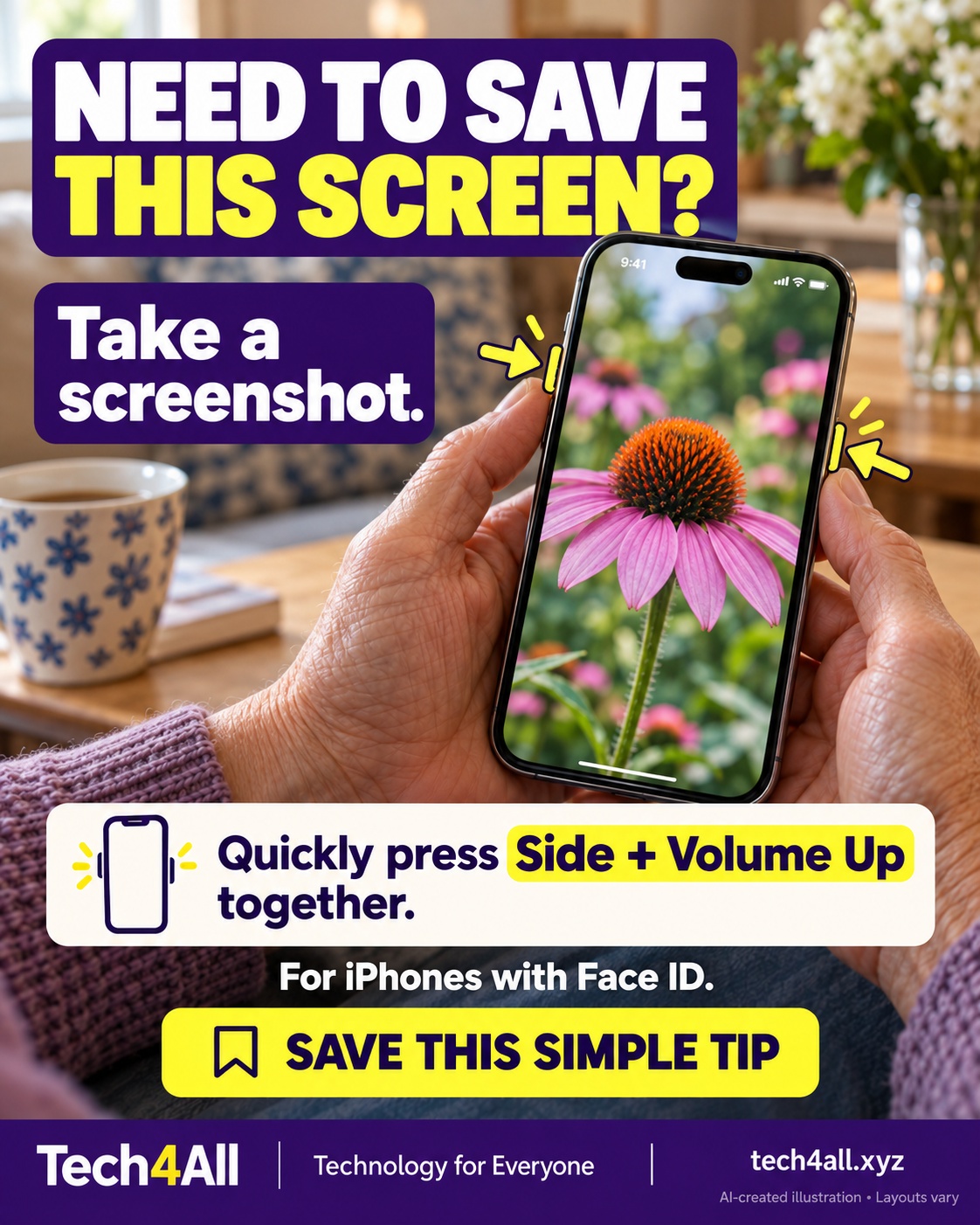
On an iPhone with Face ID, quickly press and release the Side button and Volume Up at the same time. Try it on a harmless screen first. Keep private information out of anything you share.
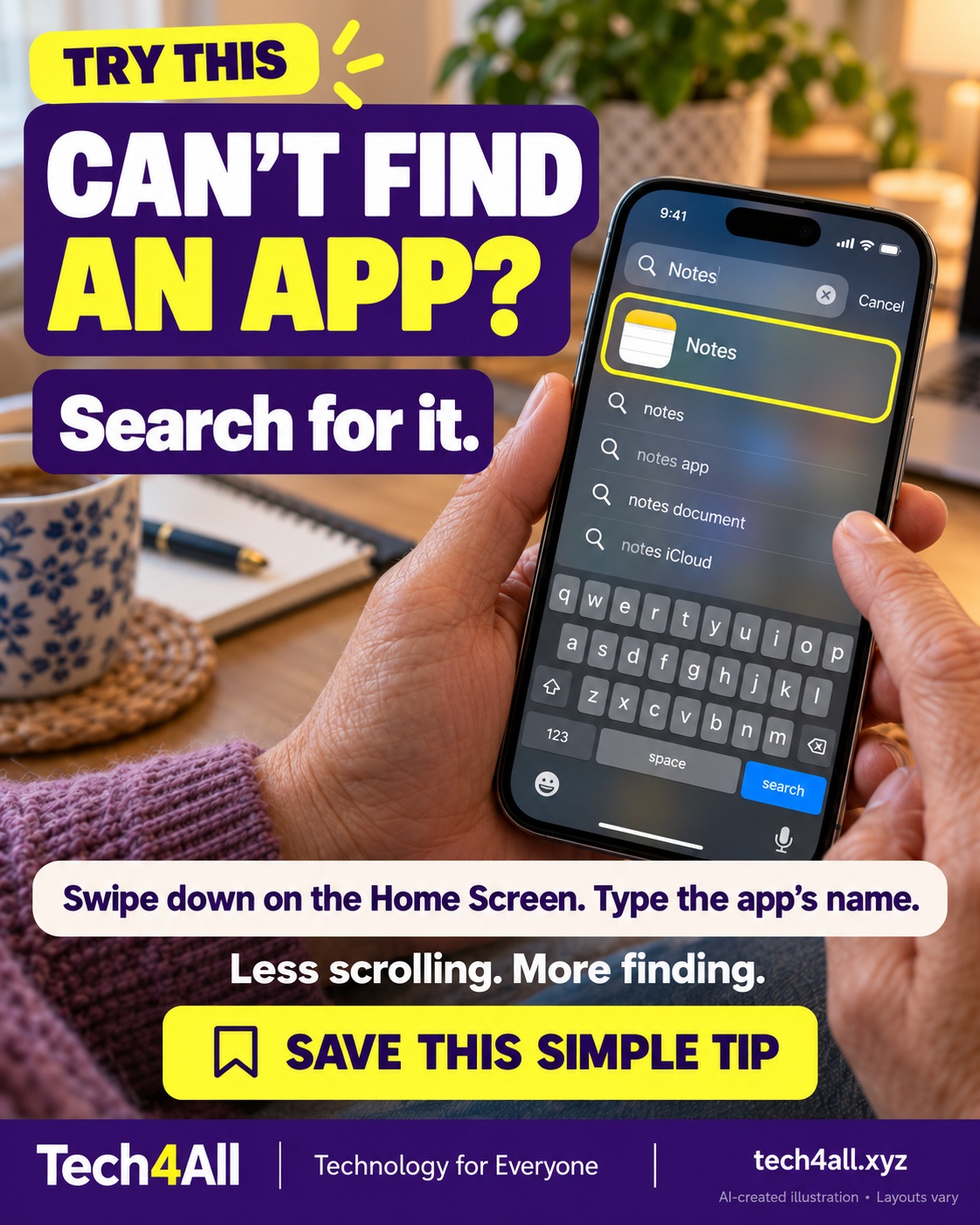
Swipe down from the middle of your iPhone Home Screen, type an app’s name, and tap its result. Try searching for Notes. It is a handy way to find an app without remembering its folder.
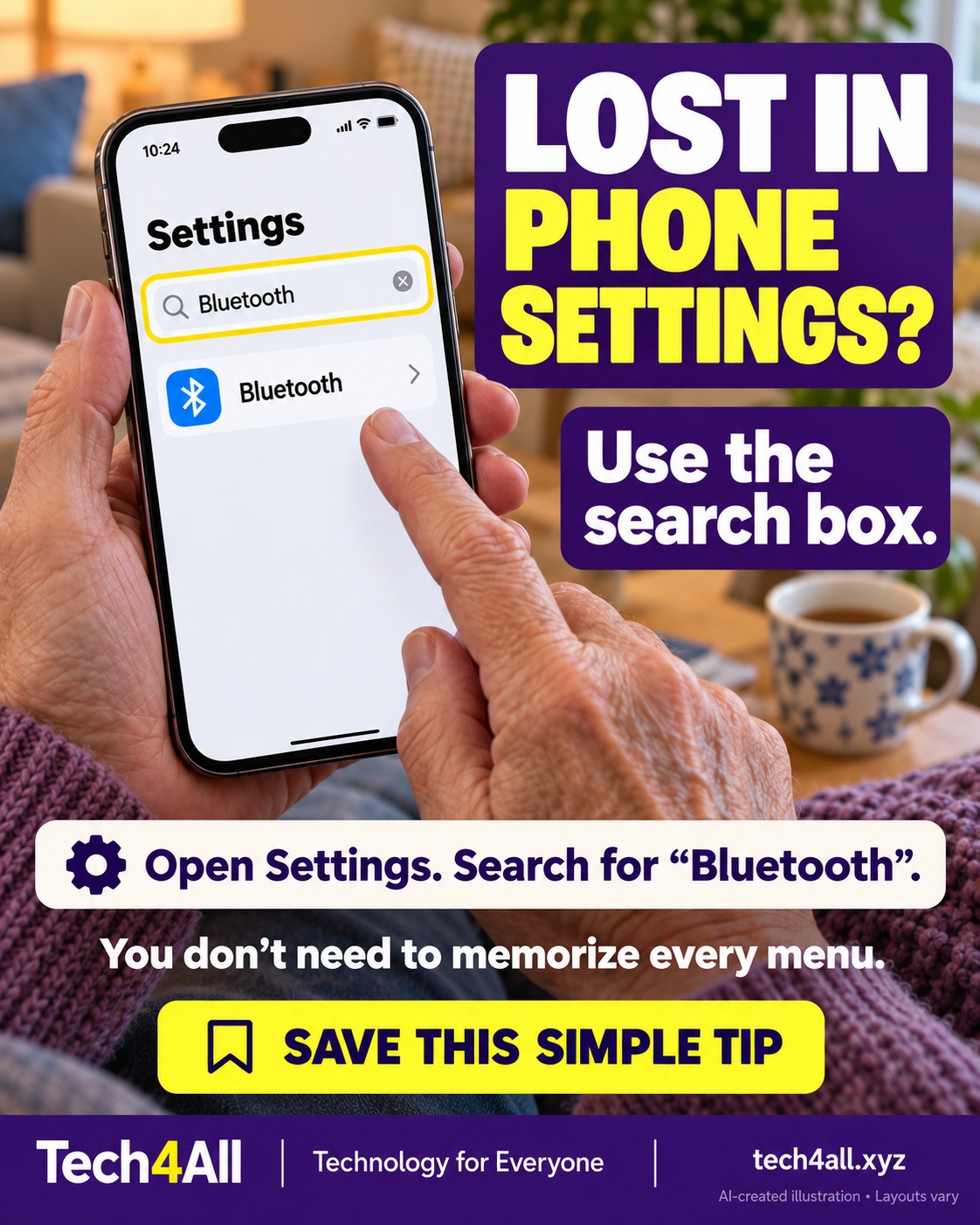
Open Settings and tap its search field. Type Bluetooth, then tap the matching setting. The search box may be in a different place depending on your iOS version.
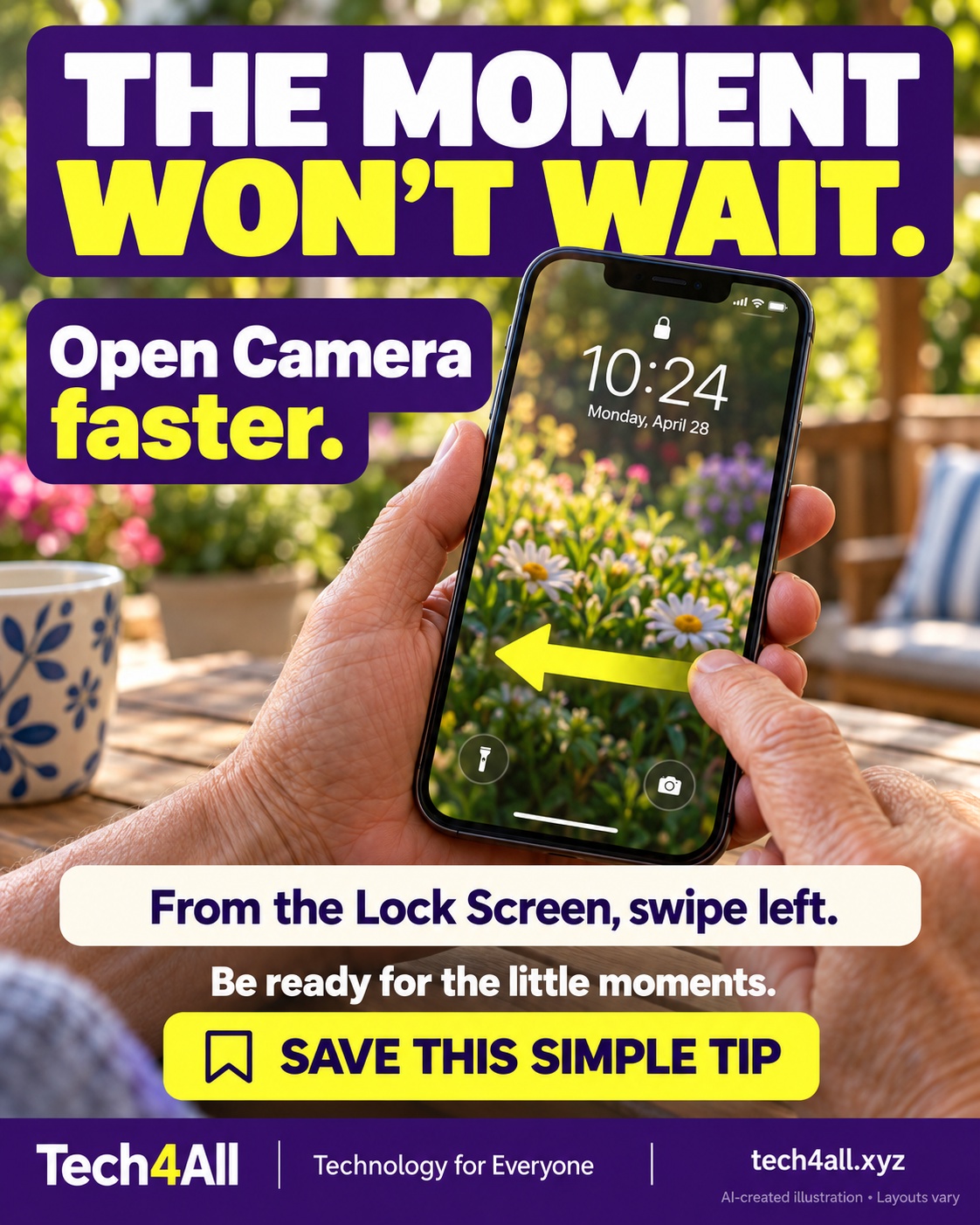
From your iPhone Lock Screen, swipe left to open Camera. Practice once so the gesture feels familiar before the next photo opportunity.
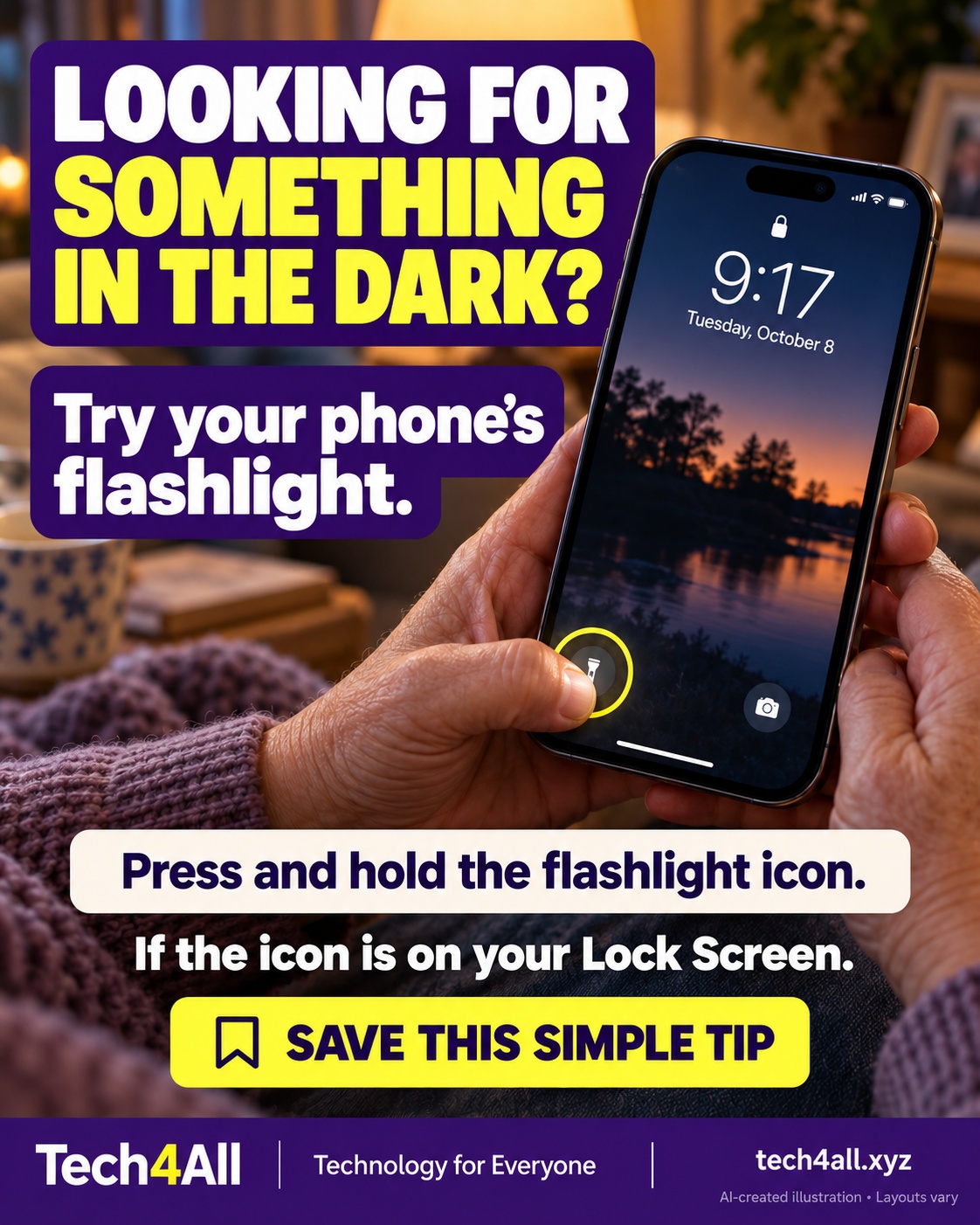
If your iPhone Lock Screen has a flashlight button, press and hold it to turn the light on. Press and hold again to turn it off. Lock Screen controls can be customized, so your buttons may differ.
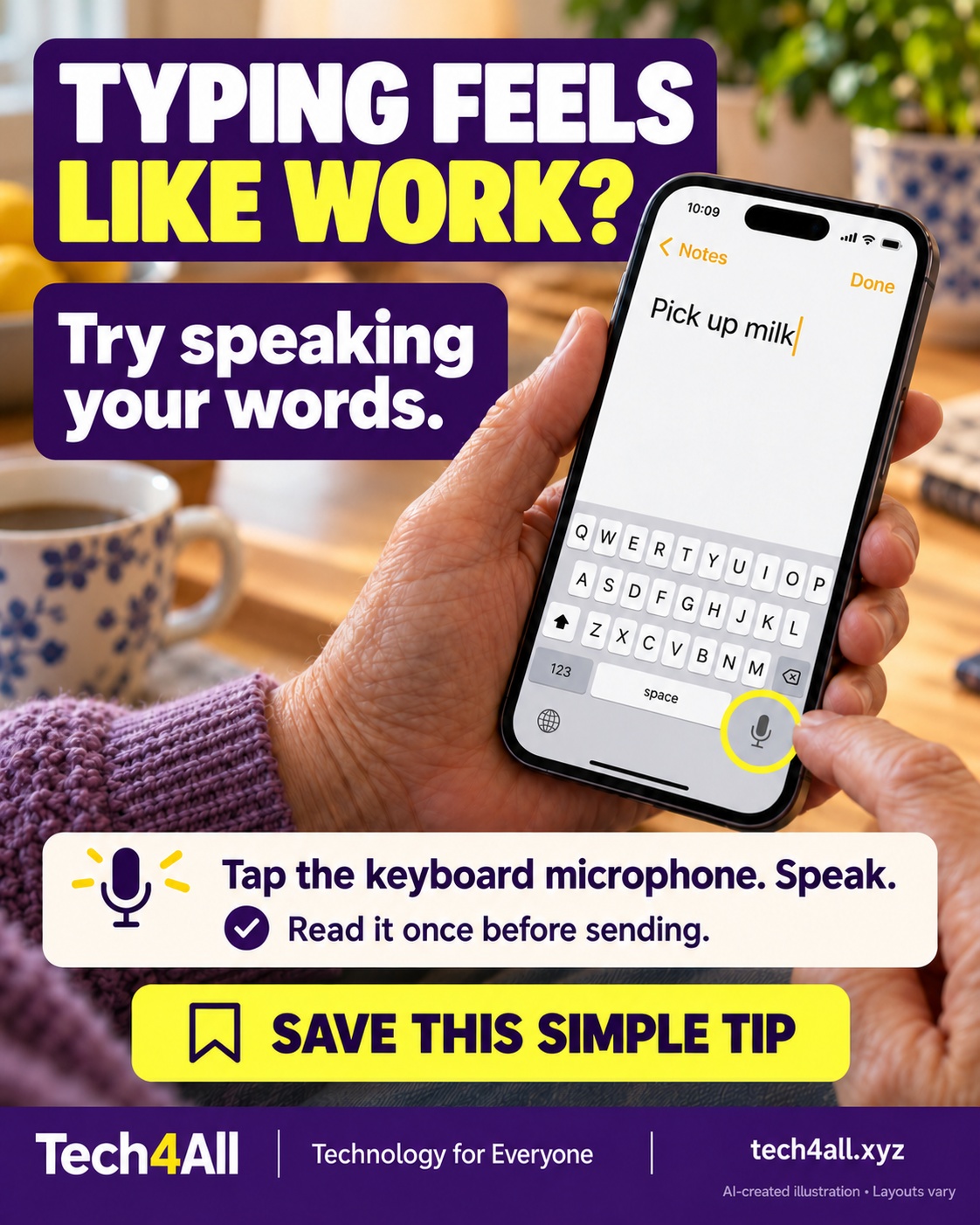
Tap a text field so the keyboard appears, then tap the keyboard’s Dictation microphone and speak. Review the words before sending or saving. Dictation must be enabled and availability varies by language and region.
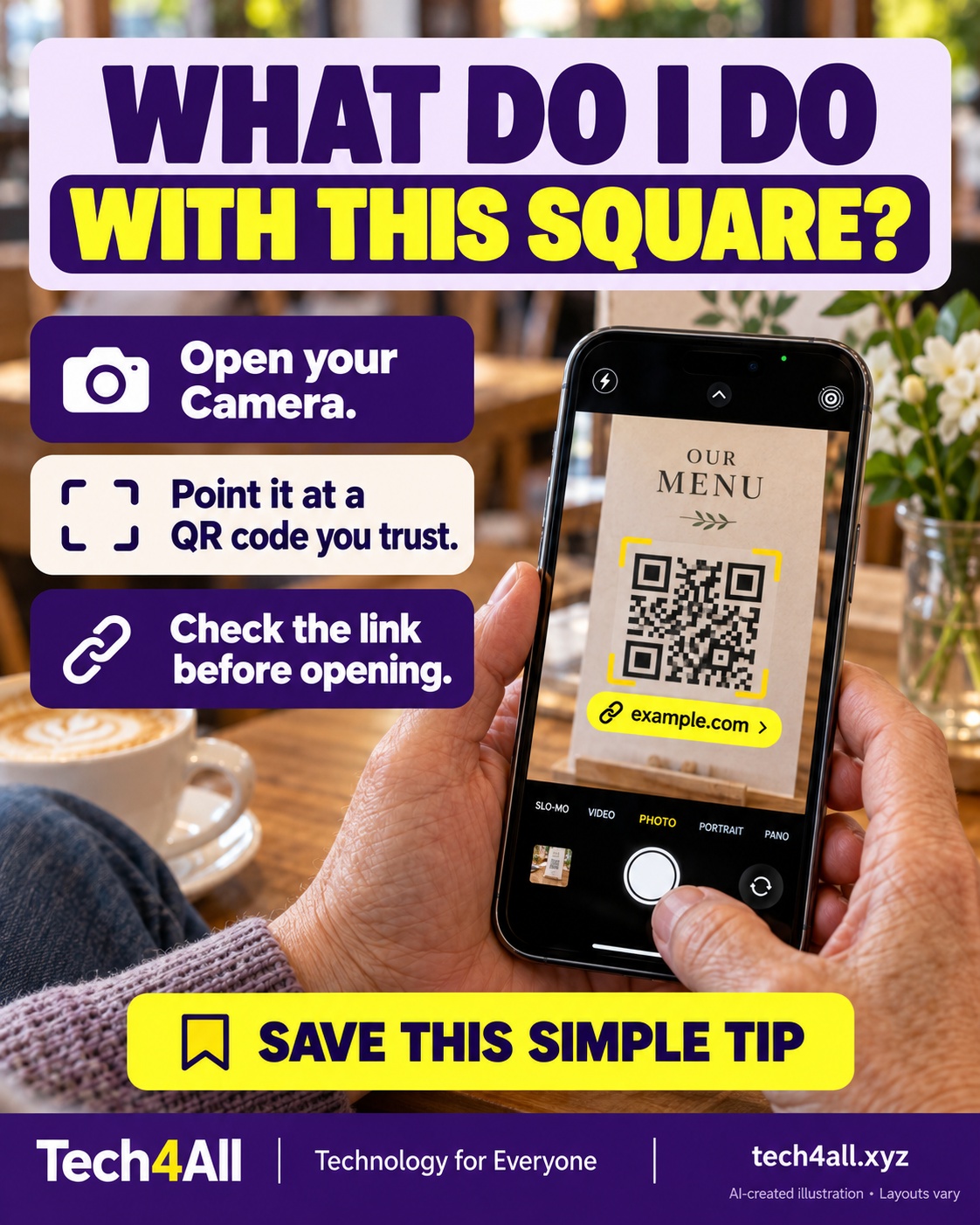
Open Camera and point it at a QR code from a source you trust. When a link appears, check it before tapping. Scanning a code does not prove the website is safe.
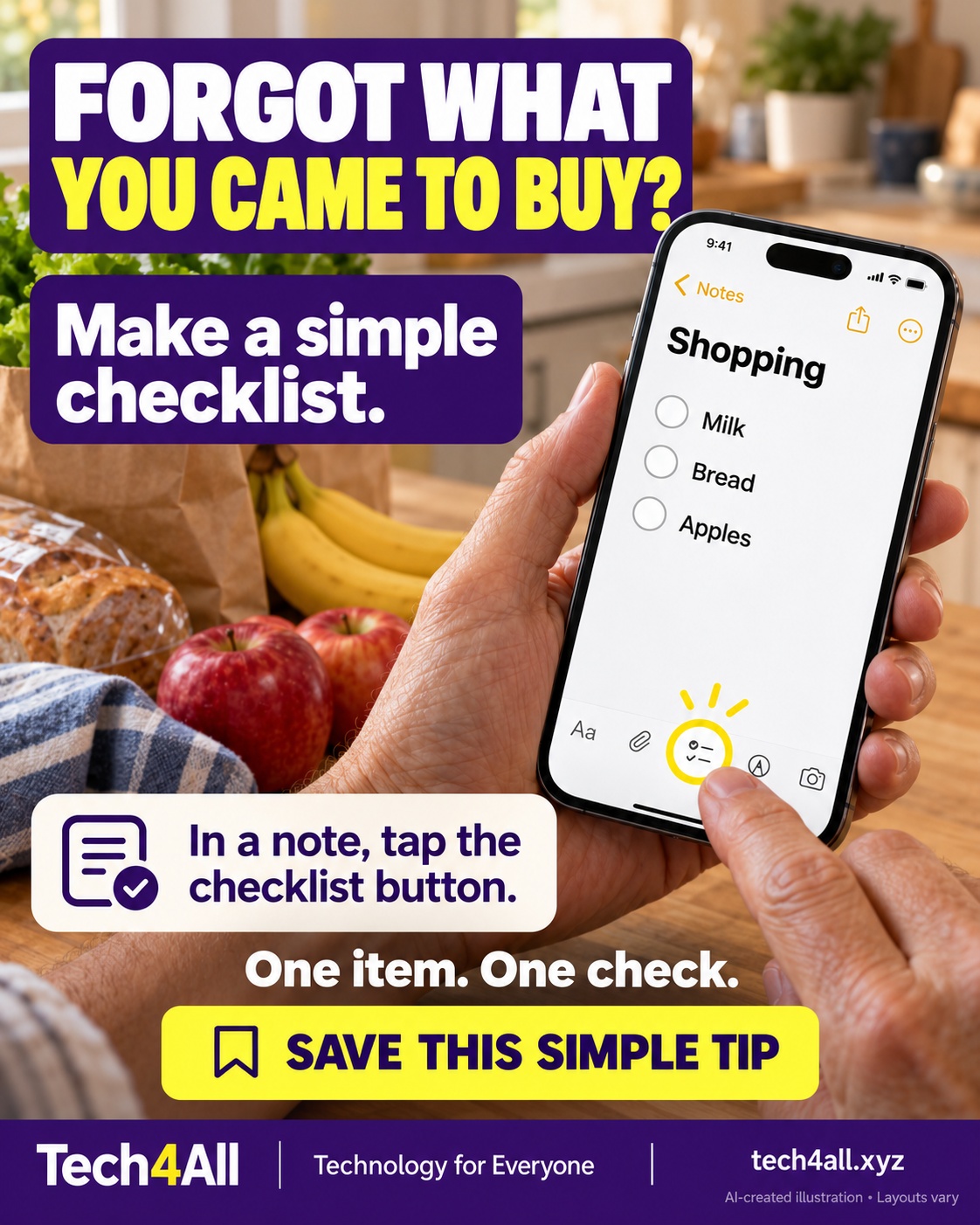
Open a note in Notes and tap the checklist button. Add a short shopping list, then tap each circle as you finish an item. Start with three things and keep it simple.
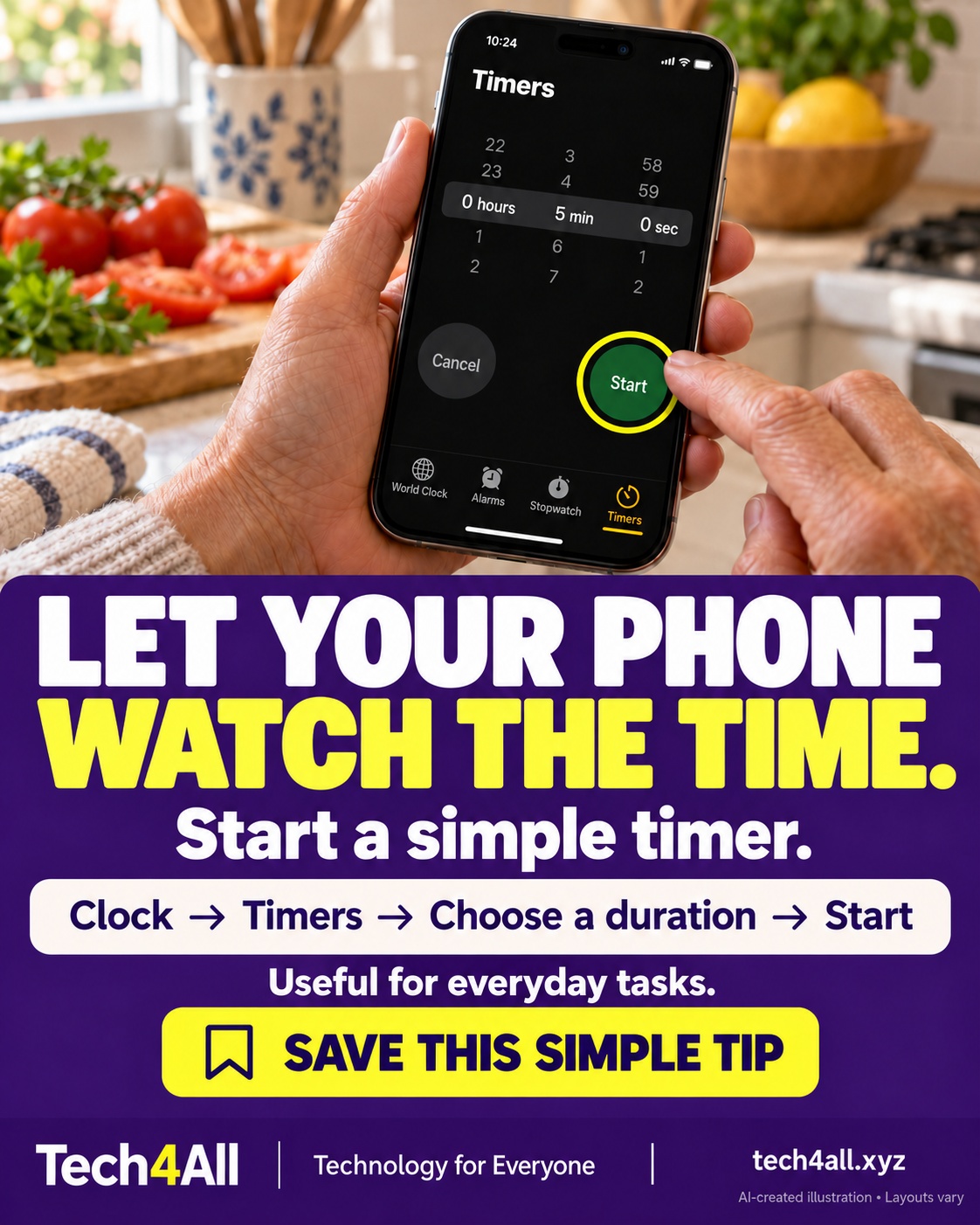
Open Clock, choose Timers, set a duration and tap Start. Try a five-minute timer for a small everyday task. Check the timer sound so you know what to listen for.
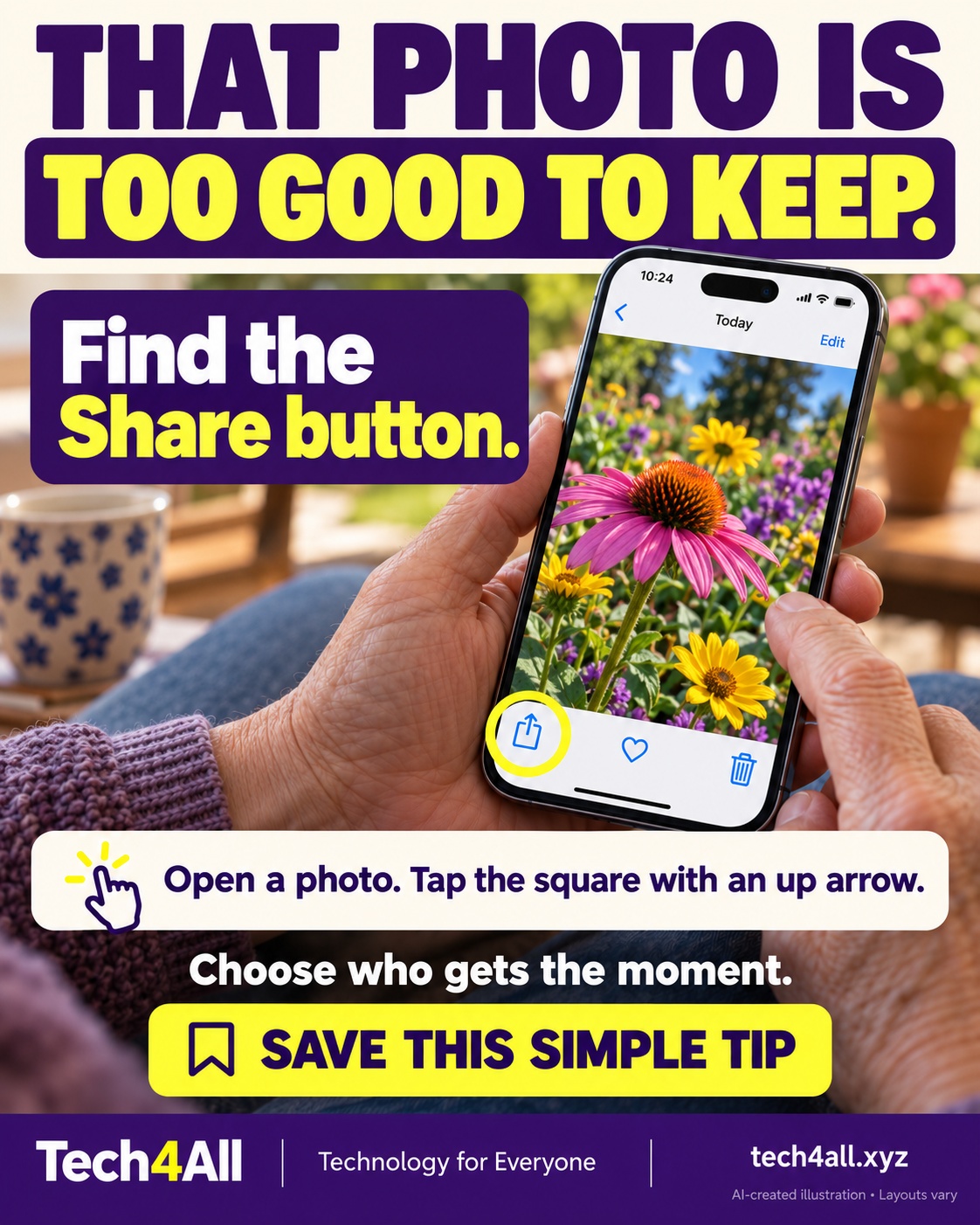
Open a photo in Photos and tap Share—the square with an upward arrow. Choose how to share it and check the recipient before sending. Take a moment to notice any private details in the photo.
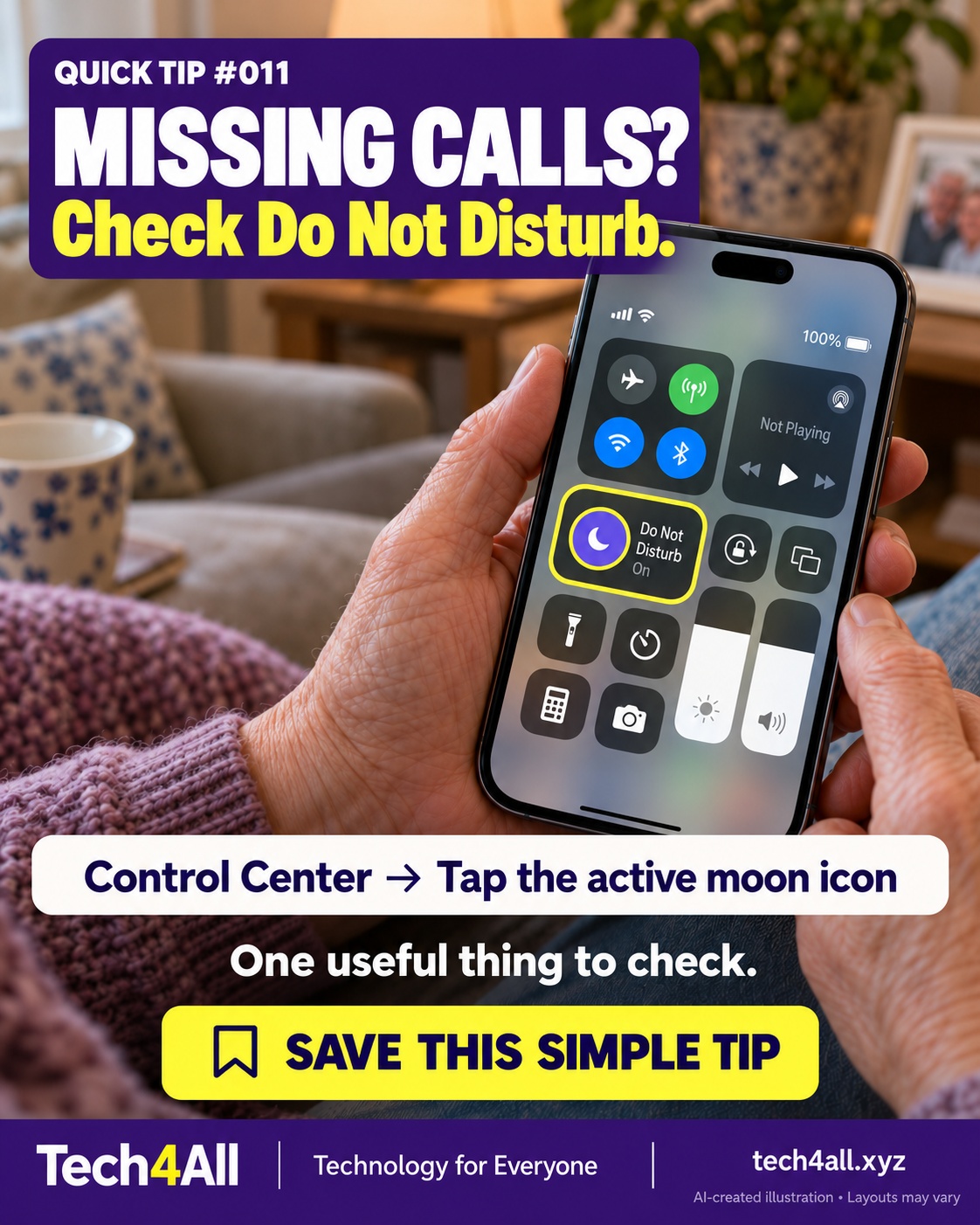
Open Control Center and tap the active Do Not Disturb moon icon to turn it off. On Face ID iPhones, swipe down from the top-right; on Home-button models, swipe up from the bottom. This is one possible cause of missed alerts, not a complete diagnosis.
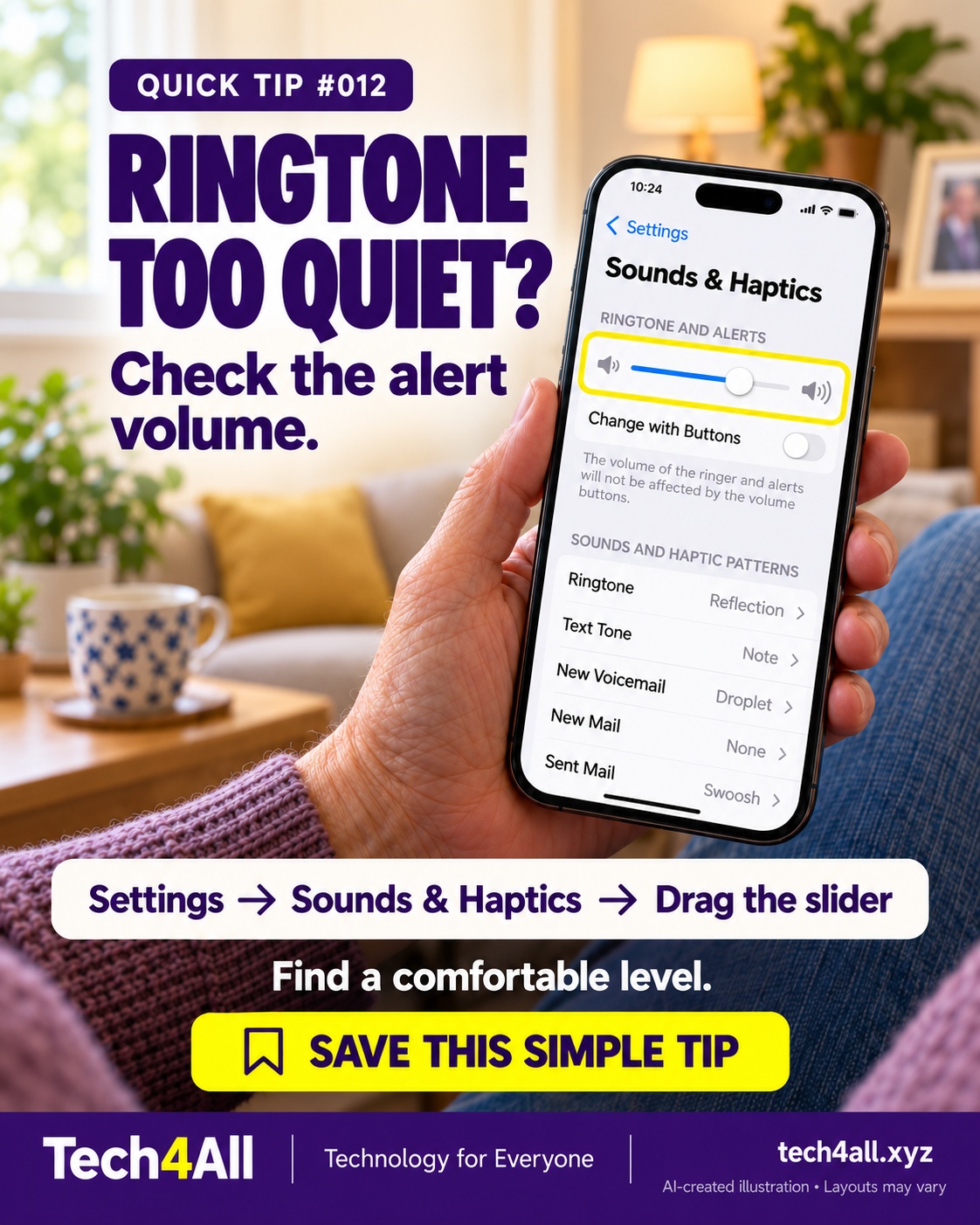
In Settings, open Sounds & Haptics and adjust the Ringtone and Alerts slider. Listen to the preview at a comfortable level. Also check Silent mode and Focus if calls still do not ring.
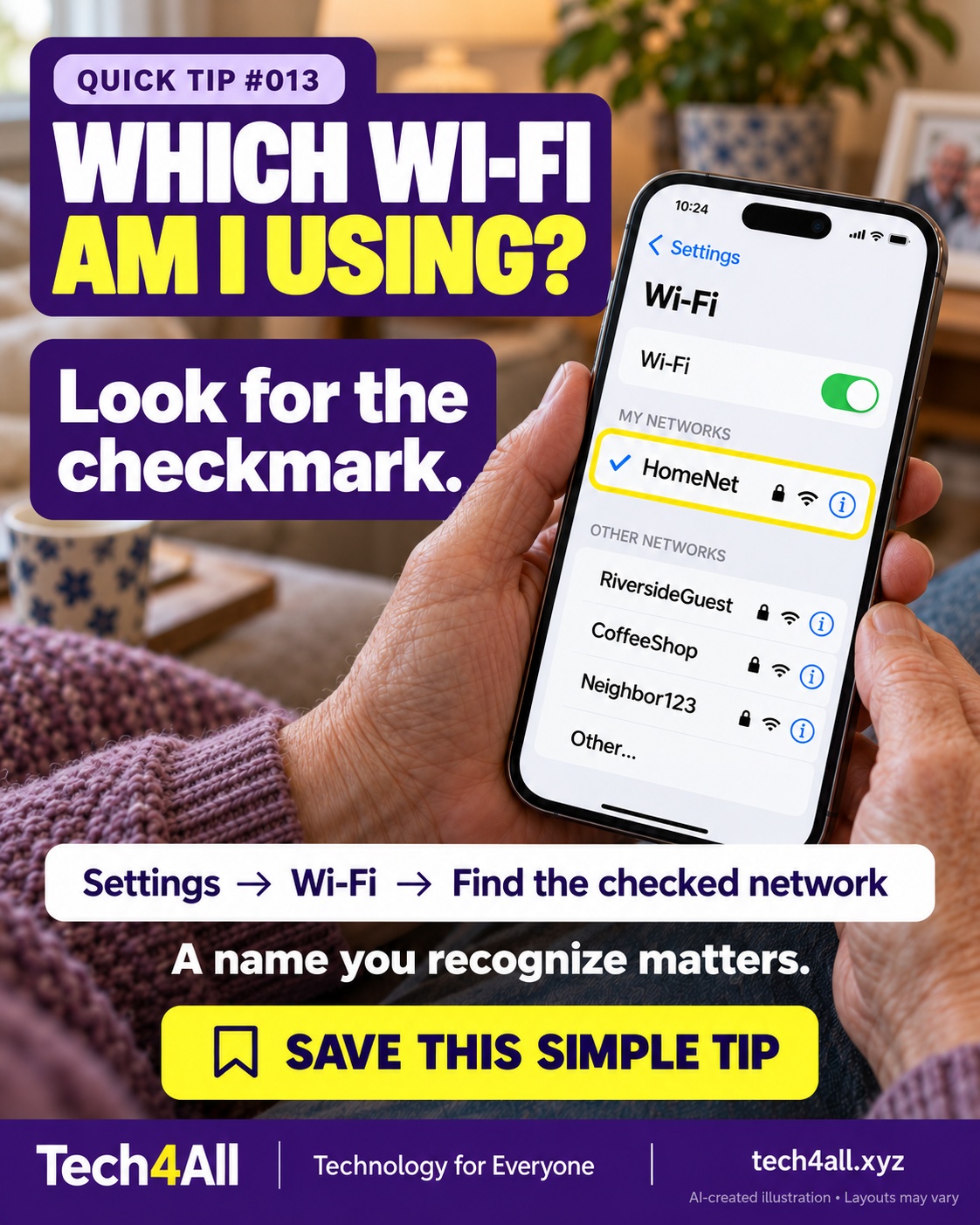
Open Settings, then Wi-Fi. A blue checkmark identifies your connected network. Check that it is the network you intended to use; a checkmark alone does not prove a network is trustworthy.
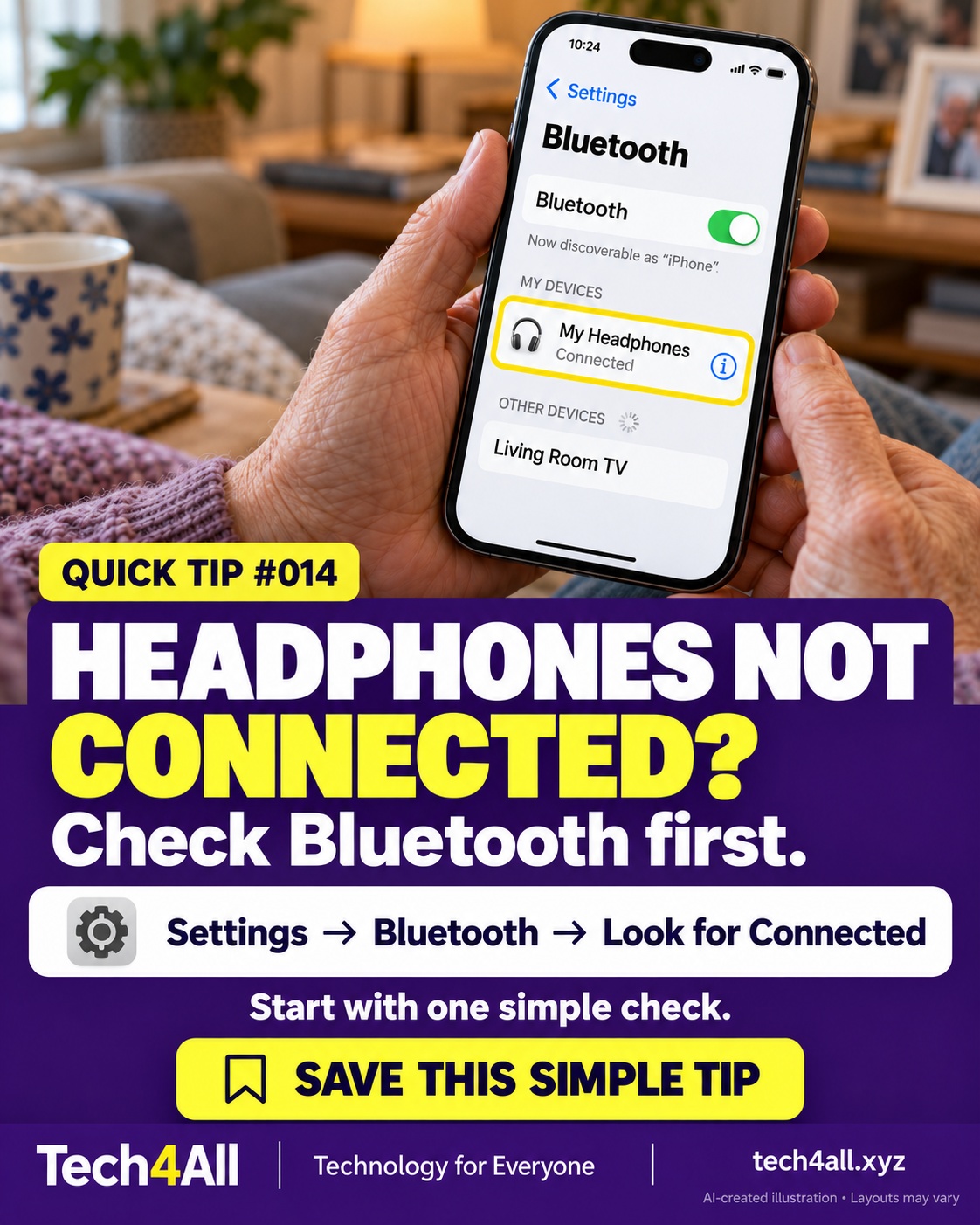
Open Settings and Bluetooth to check your headphones' connection status. If they are not connected, make sure they are charged and nearby, and follow their pairing instructions. The graphic illustrates a connected example.
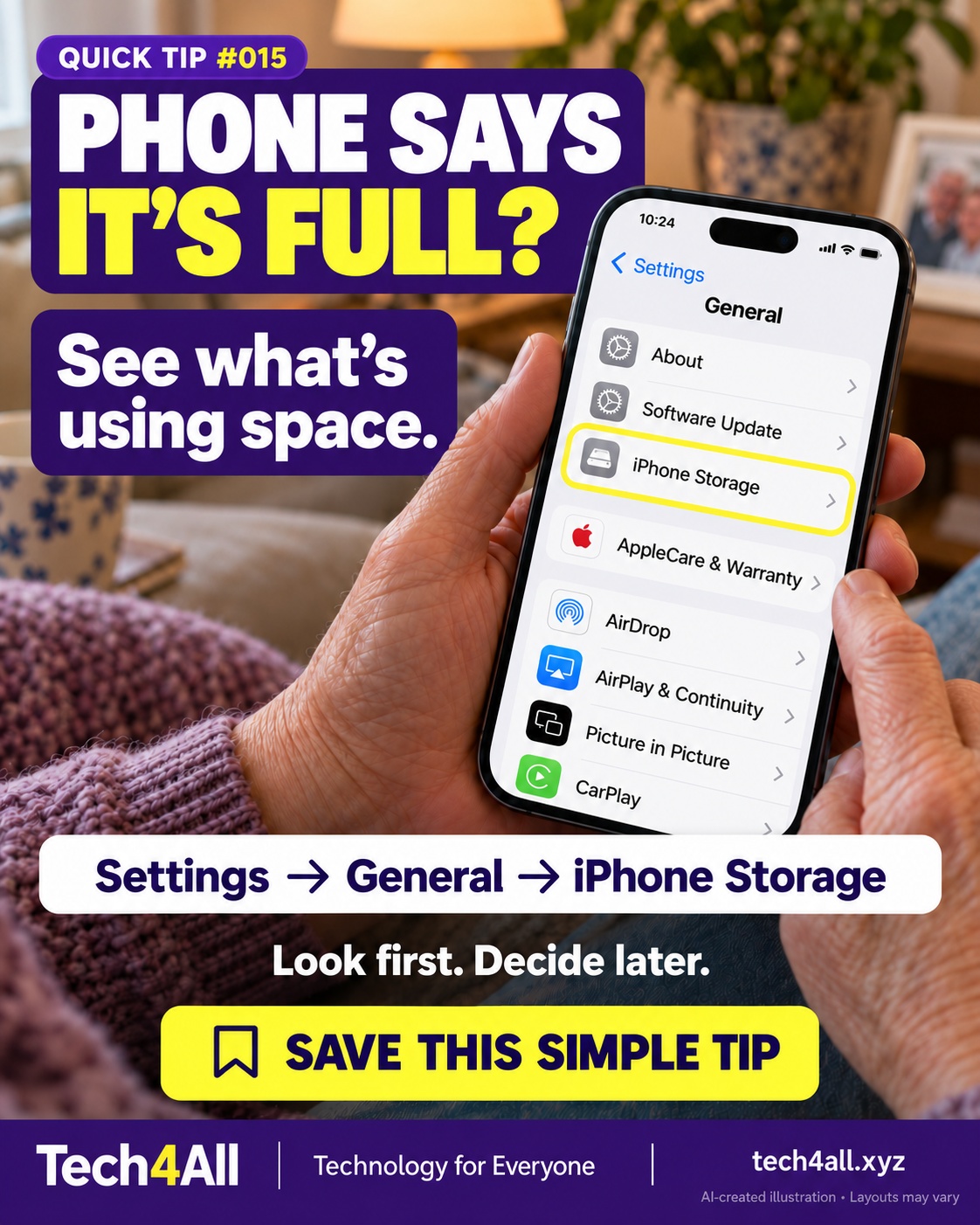
Open Settings, General, then iPhone Storage to see how device space is used. Review the recommendations before deleting anything. Device storage and iCloud storage are different.
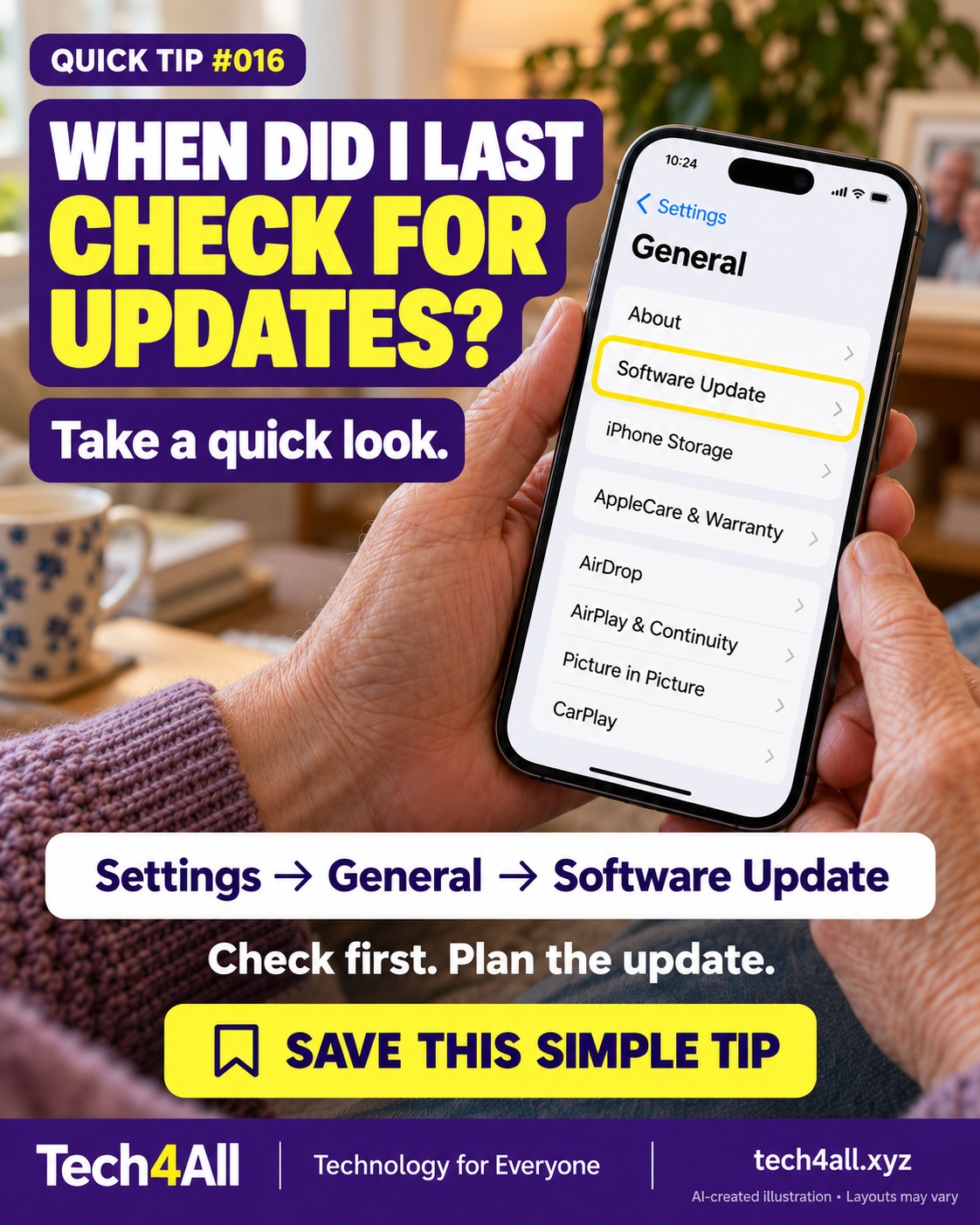
Open Settings, General, then Software Update to check what your iPhone offers. Before installing, back up your phone and follow Apple's power, network and space requirements. This tip is about checking, not installing immediately.
Open Magnifier, point your iPhone camera at nearby print and drag the zoom slider. Try a menu or product label in good light.
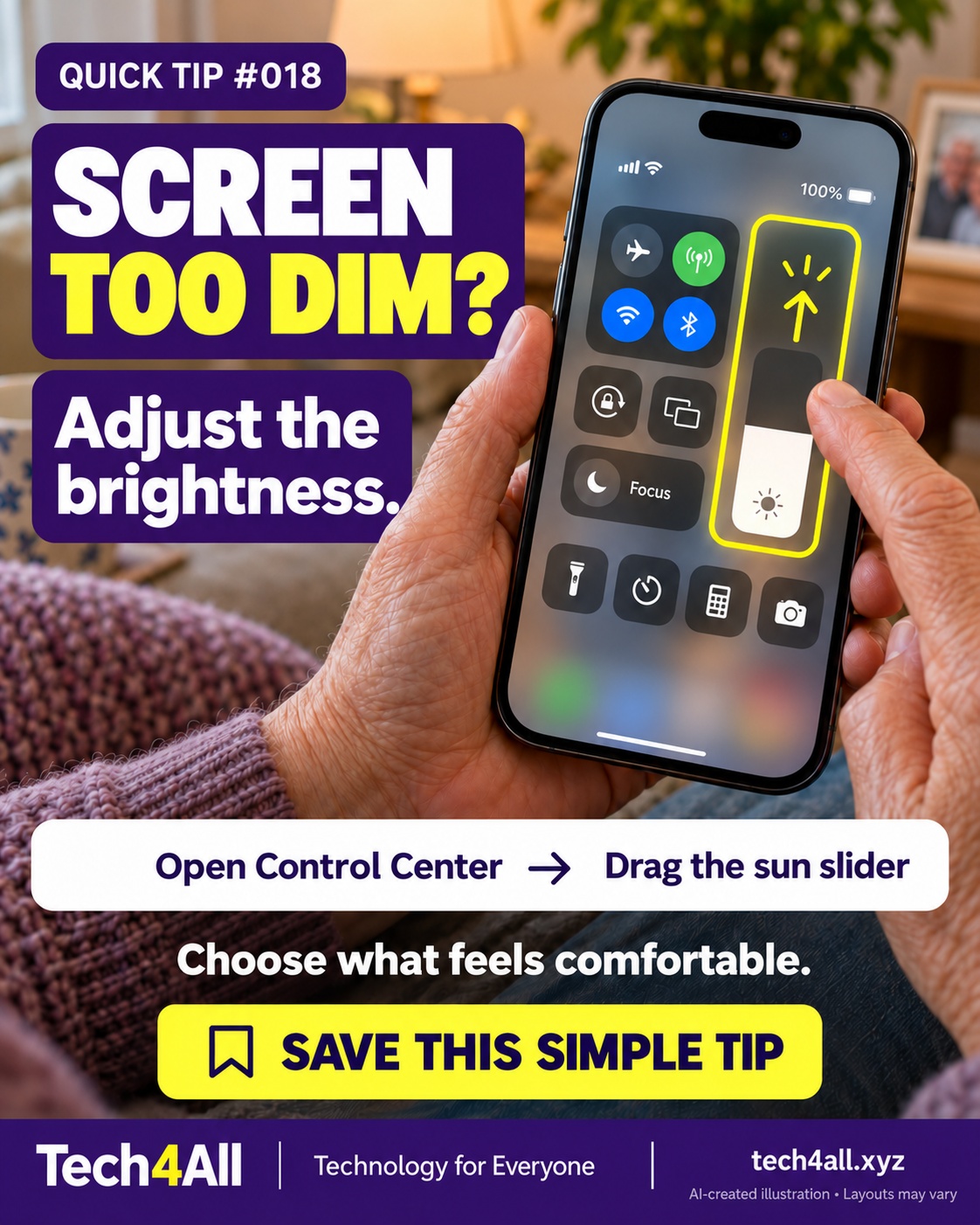
Open Control Center and drag the brightness control marked with a sun. On Face ID models, open it from the top-right corner; on Home-button models, swipe up from the bottom. Adjust to a comfortable level.
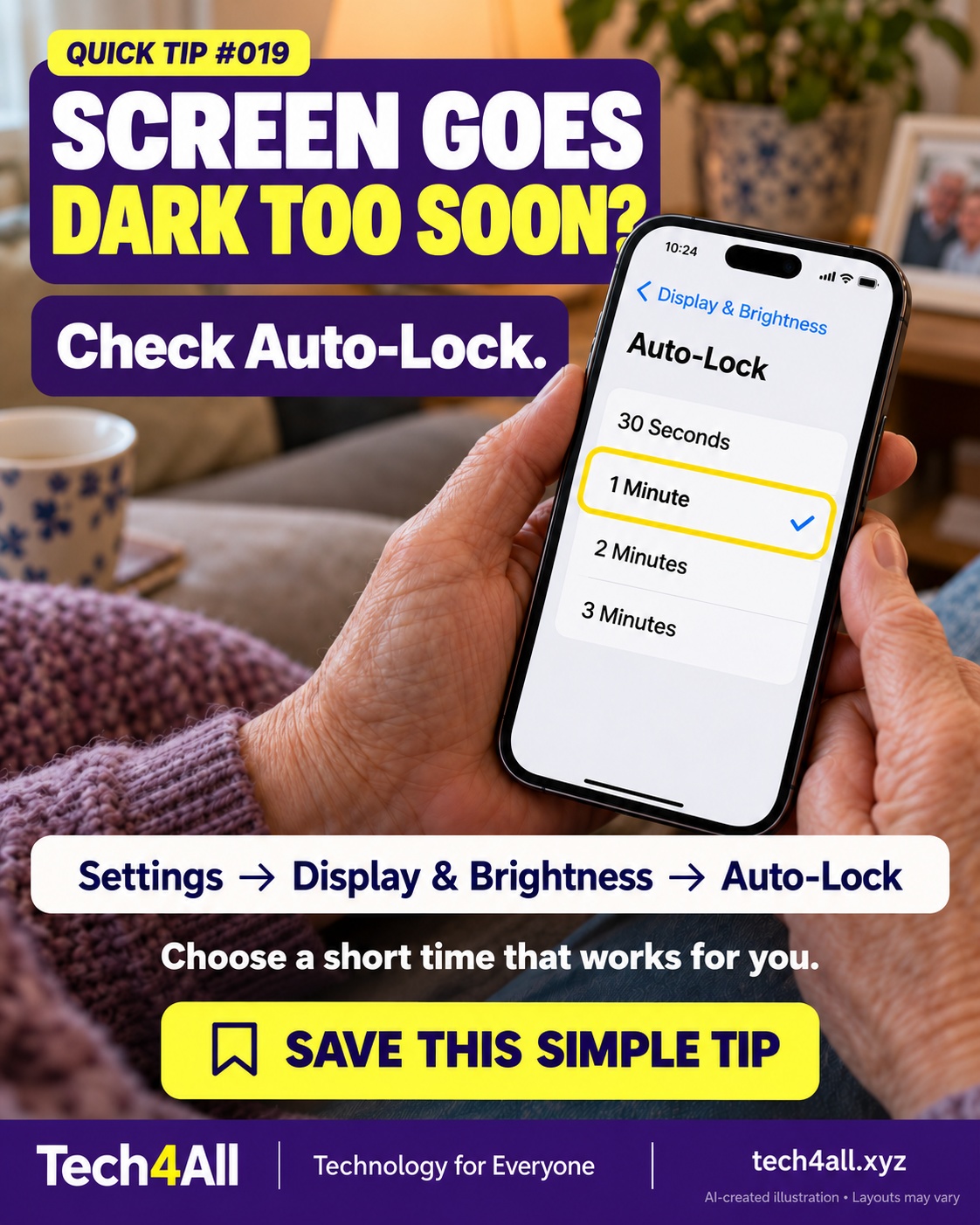
In Settings, open Display & Brightness and Auto-Lock to review the delay. Choose a short interval that gives you enough time. Some devices or power settings restrict the options; lock the phone with its Side button when you finish.
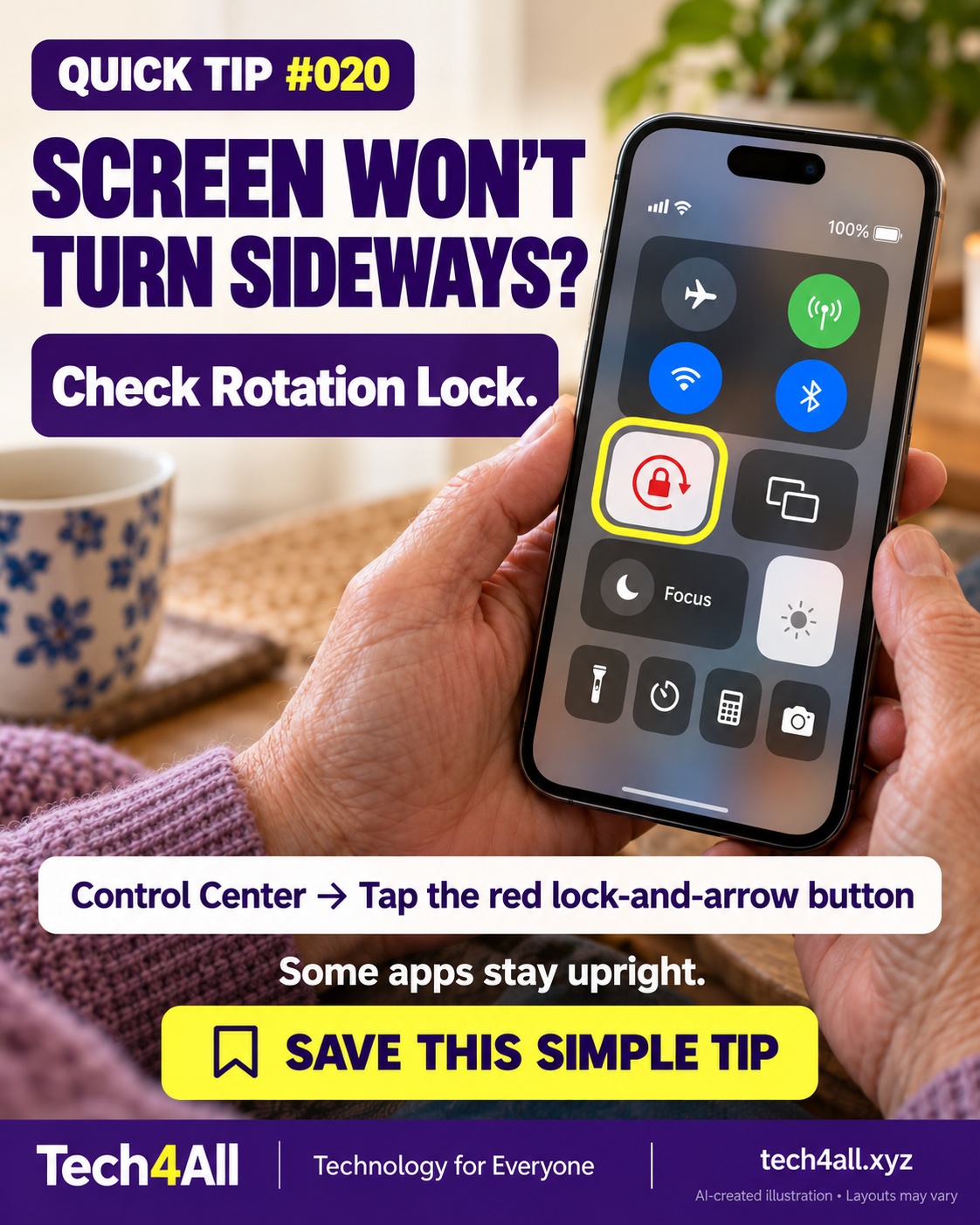
If the Rotation Lock control is red, tap it in Control Center to unlock rotation, then turn your phone sideways. Some apps do not support rotation. If the control is missing, it can be added to Control Center.
Open a photo in Photos and spread two fingers apart to zoom in. Pinch them together to zoom back out. Viewing a closer detail does not require saving an edit.
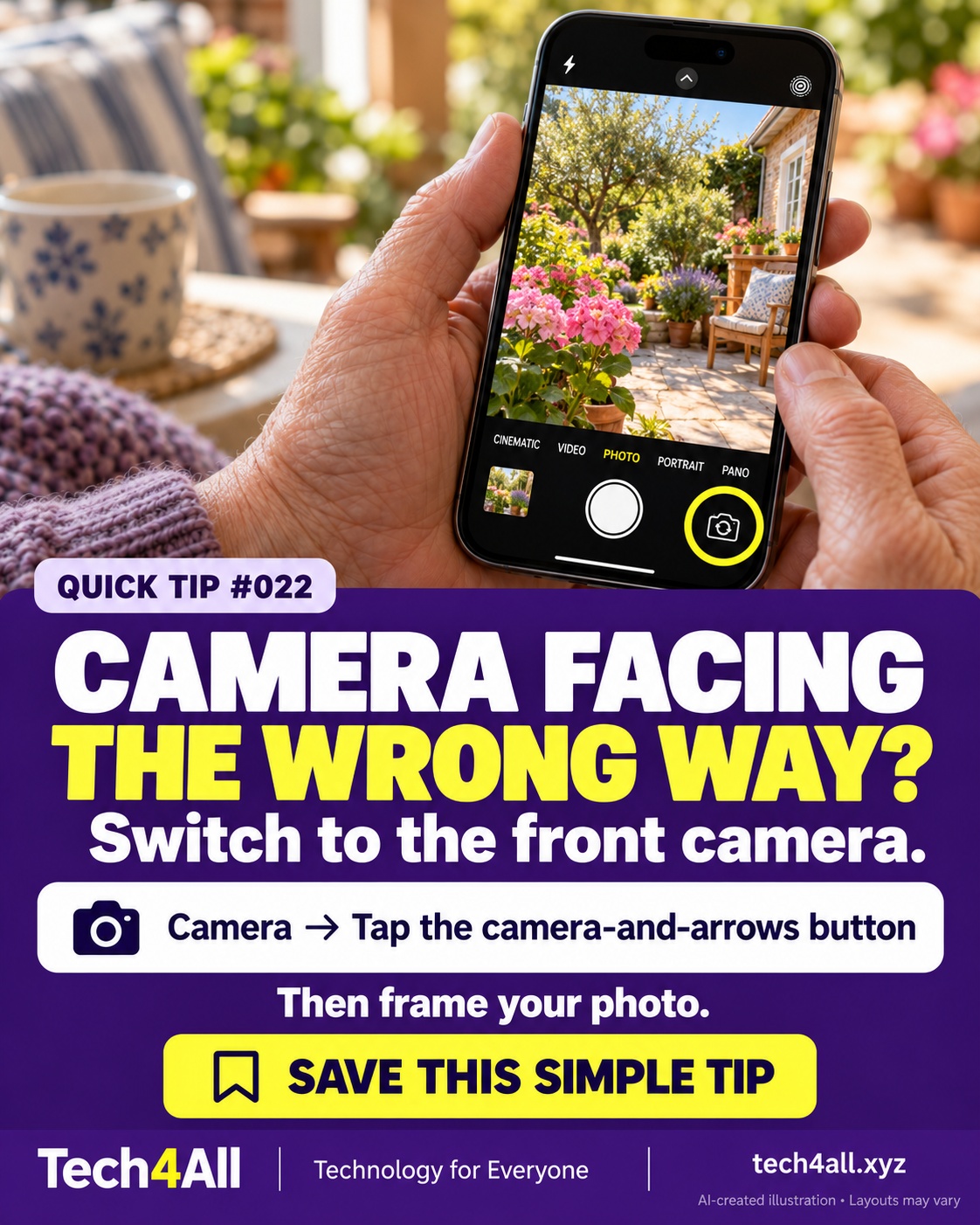
Open Camera and tap the camera-switch button to use the front-facing camera. Hold the phone comfortably and check your framing before taking a photo.
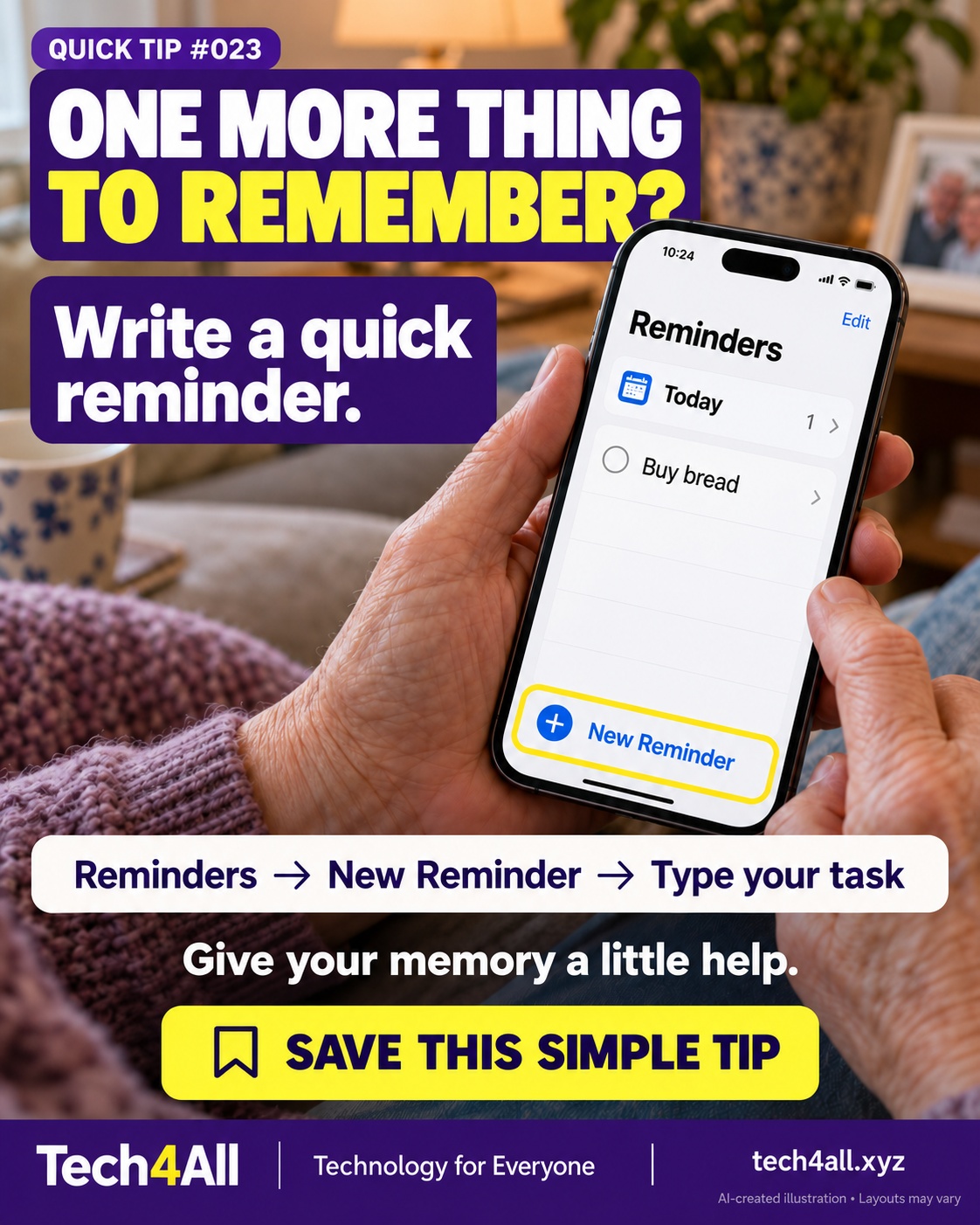
Open Reminders, tap New Reminder and enter a task. Set a date and time if you want a timed notification, and check that notifications are allowed. Start with one small task.
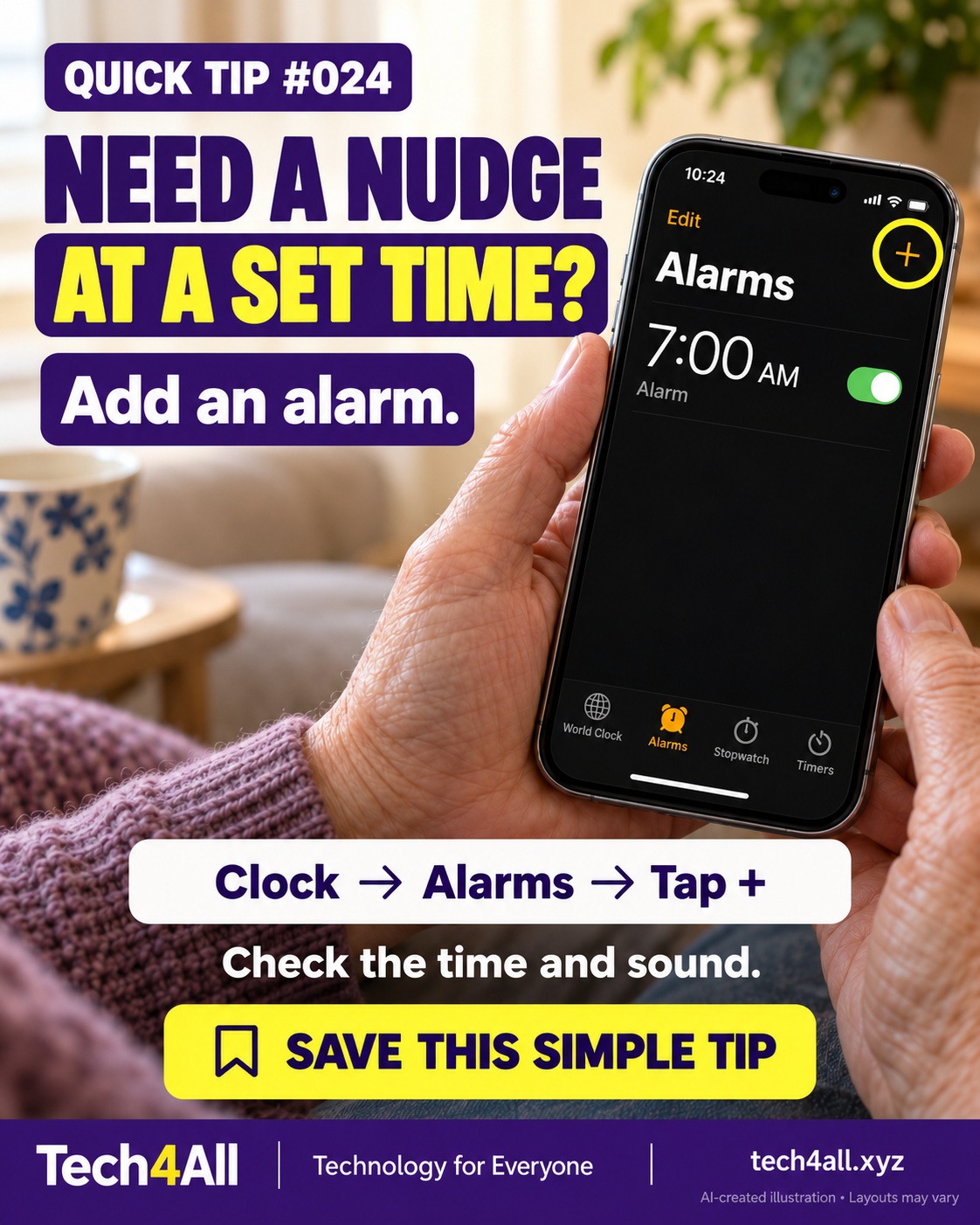
Open Clock, choose Alarms and tap +. Set the time, choose a sound, and confirm with Done or Save, depending on your version. Double-check AM/PM where applicable and the alert volume.
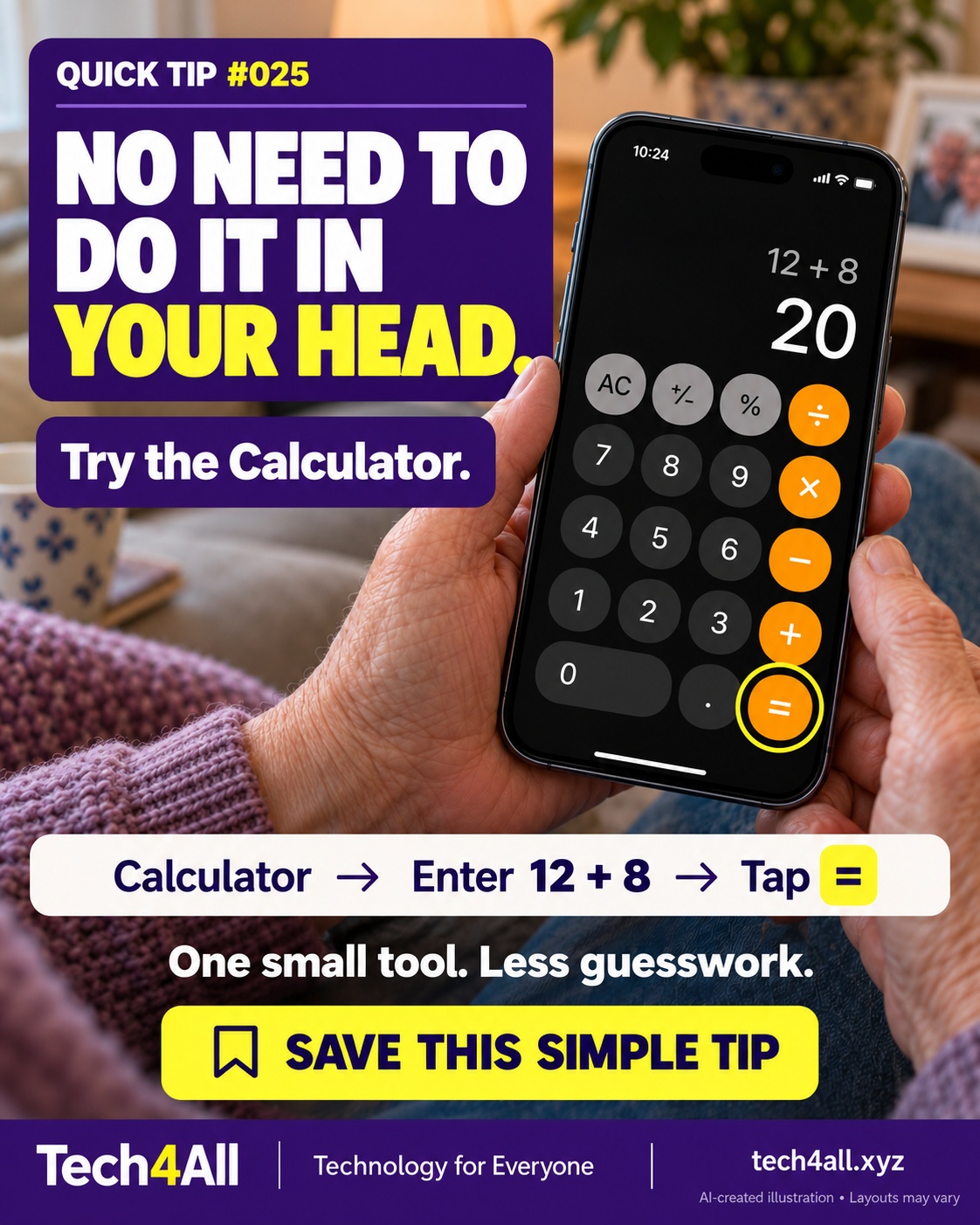
Open Calculator and try 12 + 8 =. The result is 20. Use Basic mode if you see another calculator mode, and check the numbers you entered.
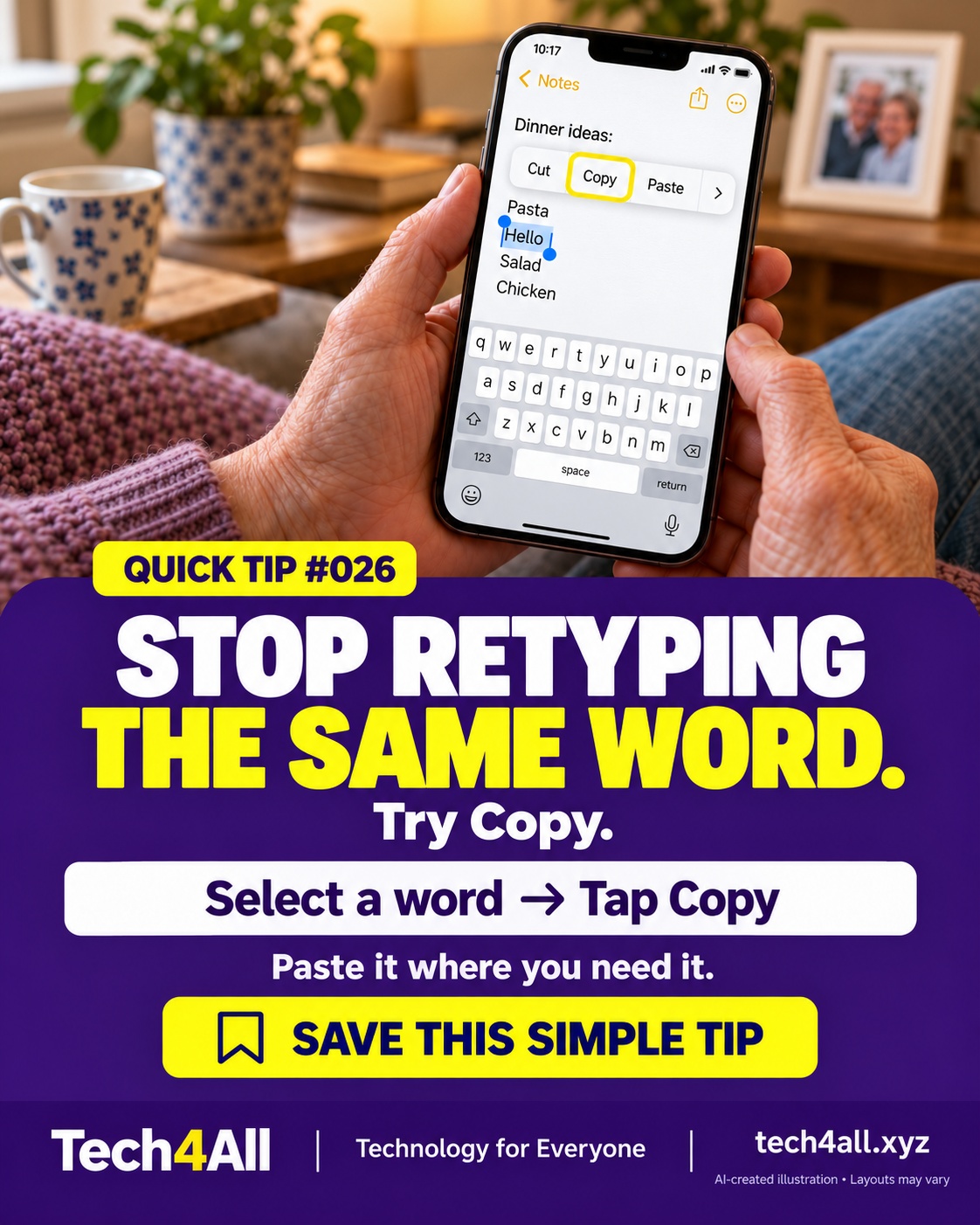
In an editable text field, double-tap a word to select it, then choose Copy from the editing menu. Tap another text field and choose Paste. Menu options vary by app.
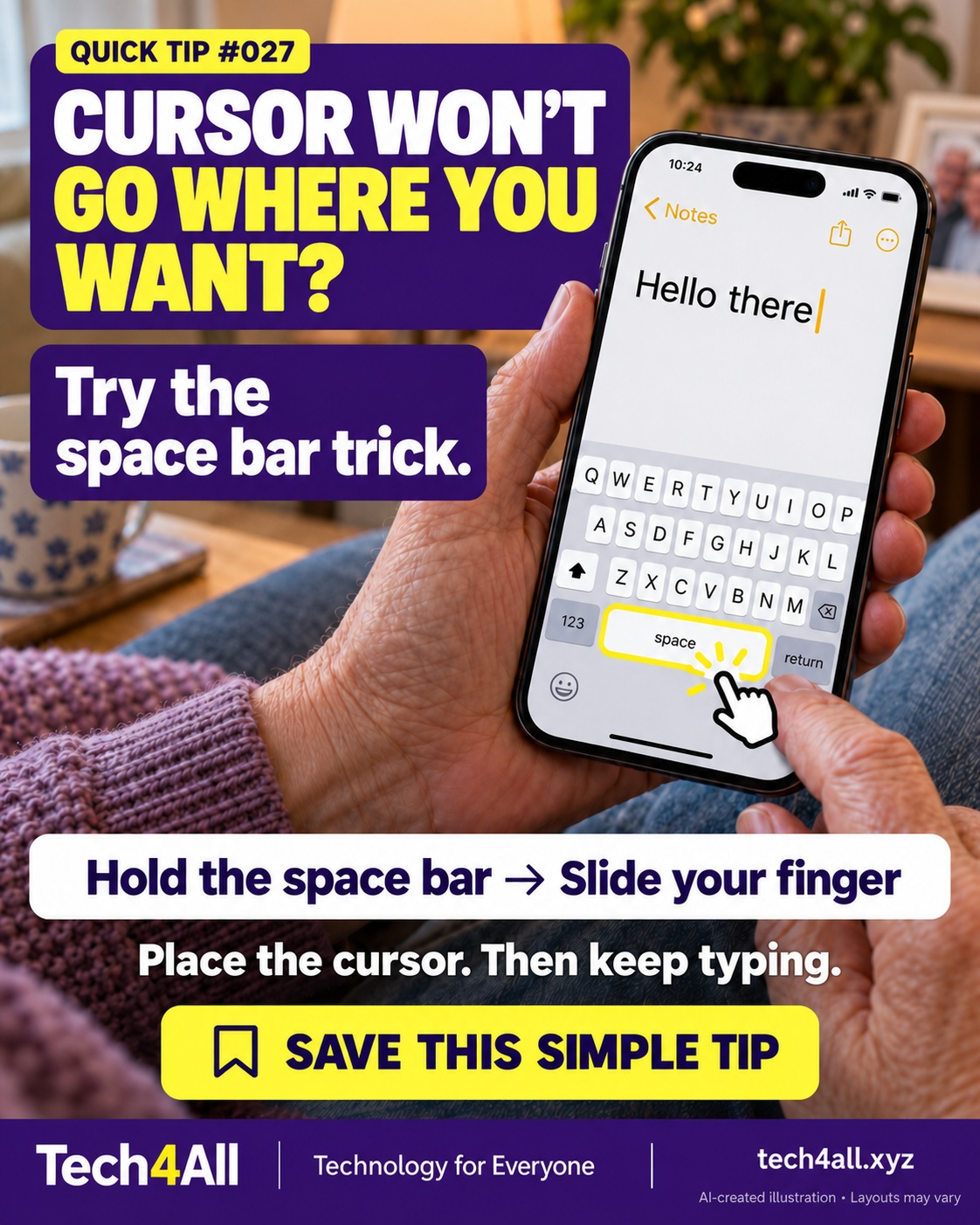
Touch and hold the keyboard's space bar until the key labels disappear, then slide your finger to move the cursor. Lift your finger and continue typing. Try it in a harmless note first.
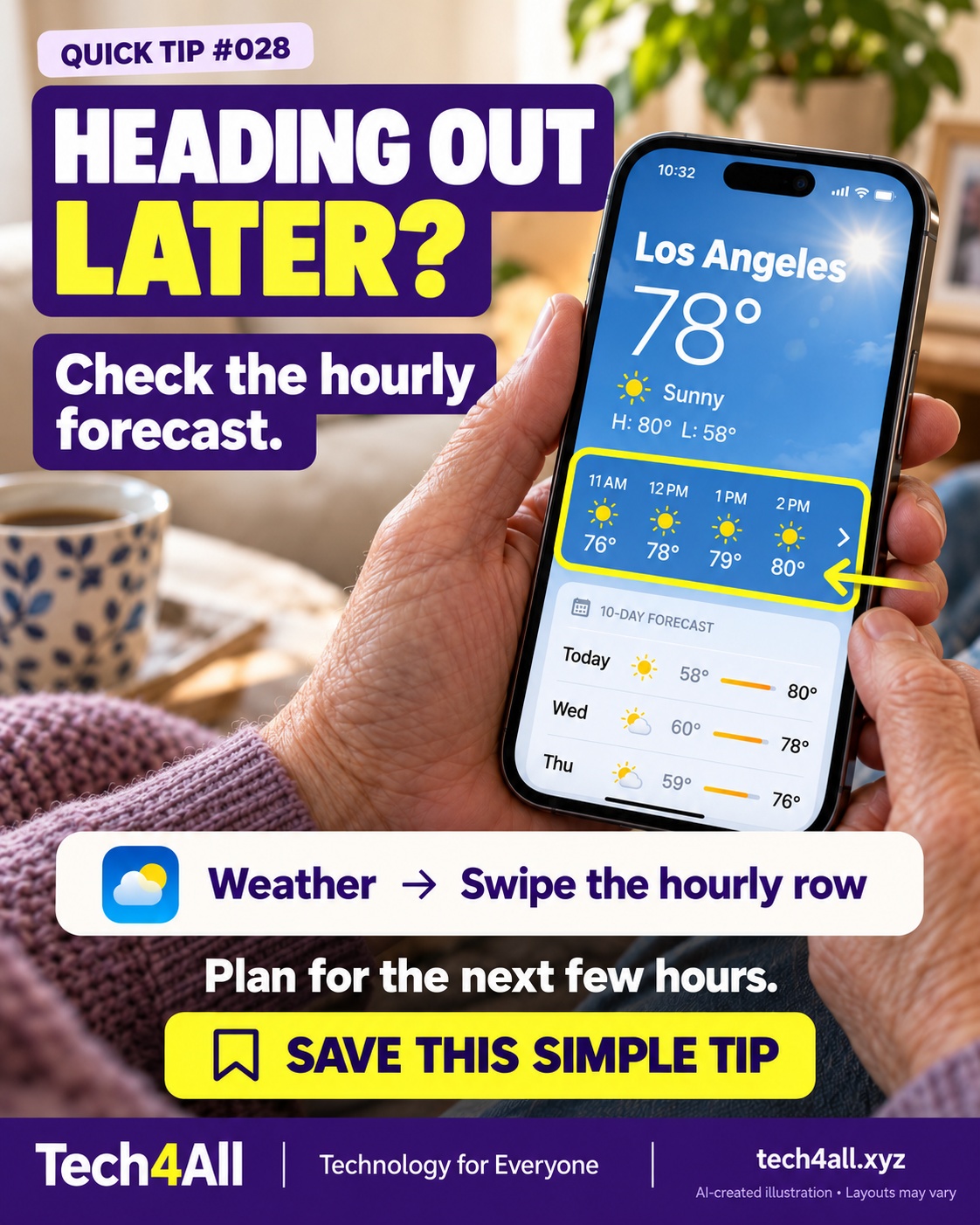
Open Weather, check the location and swipe the hourly forecast to see later hours. Forecasts can change; the values in this graphic are illustrative, not live weather.
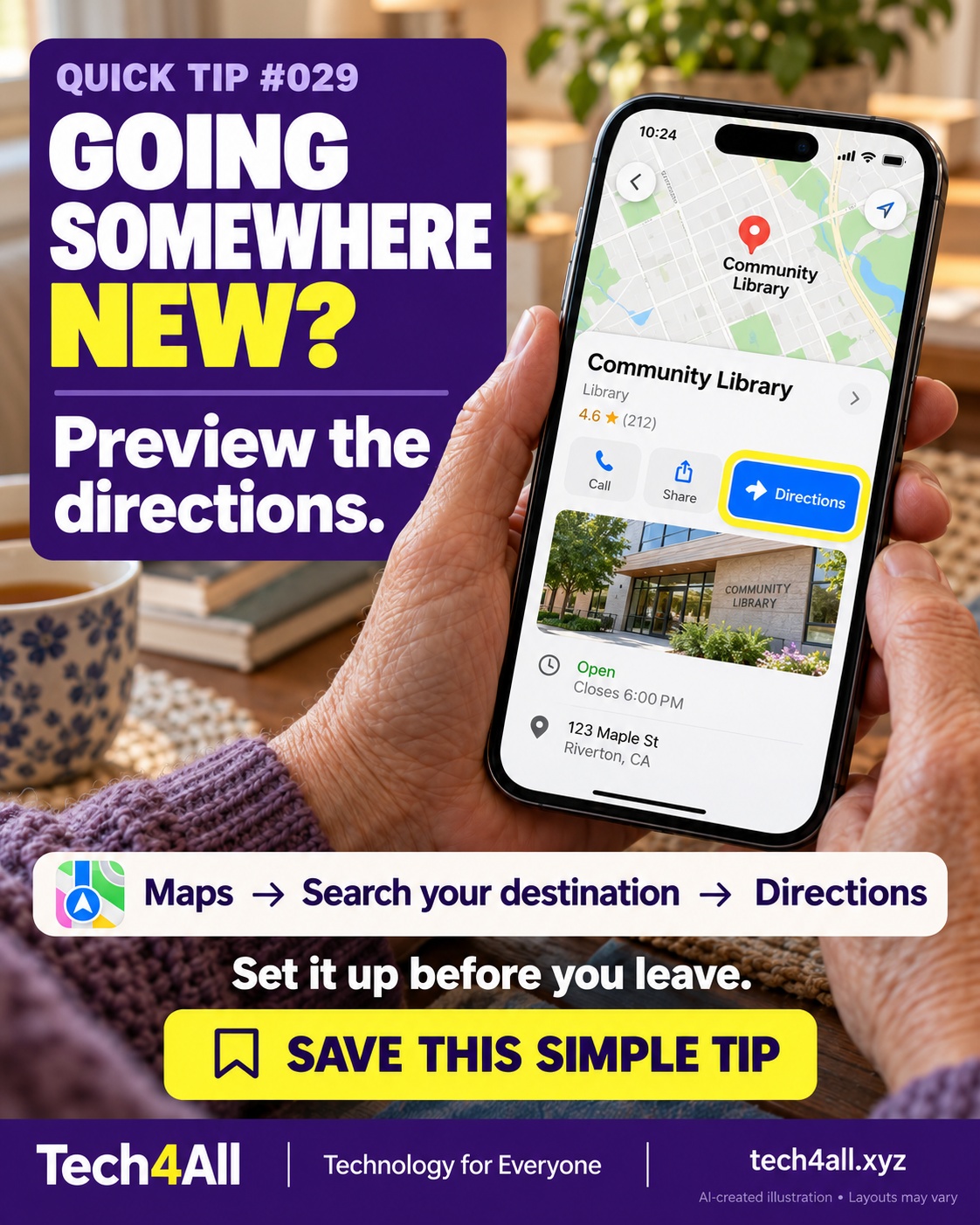
In Maps, search for your destination and tap Directions. Check the address and travel mode before choosing a route. Set everything up while safely parked or before leaving; follow road signs and conditions.
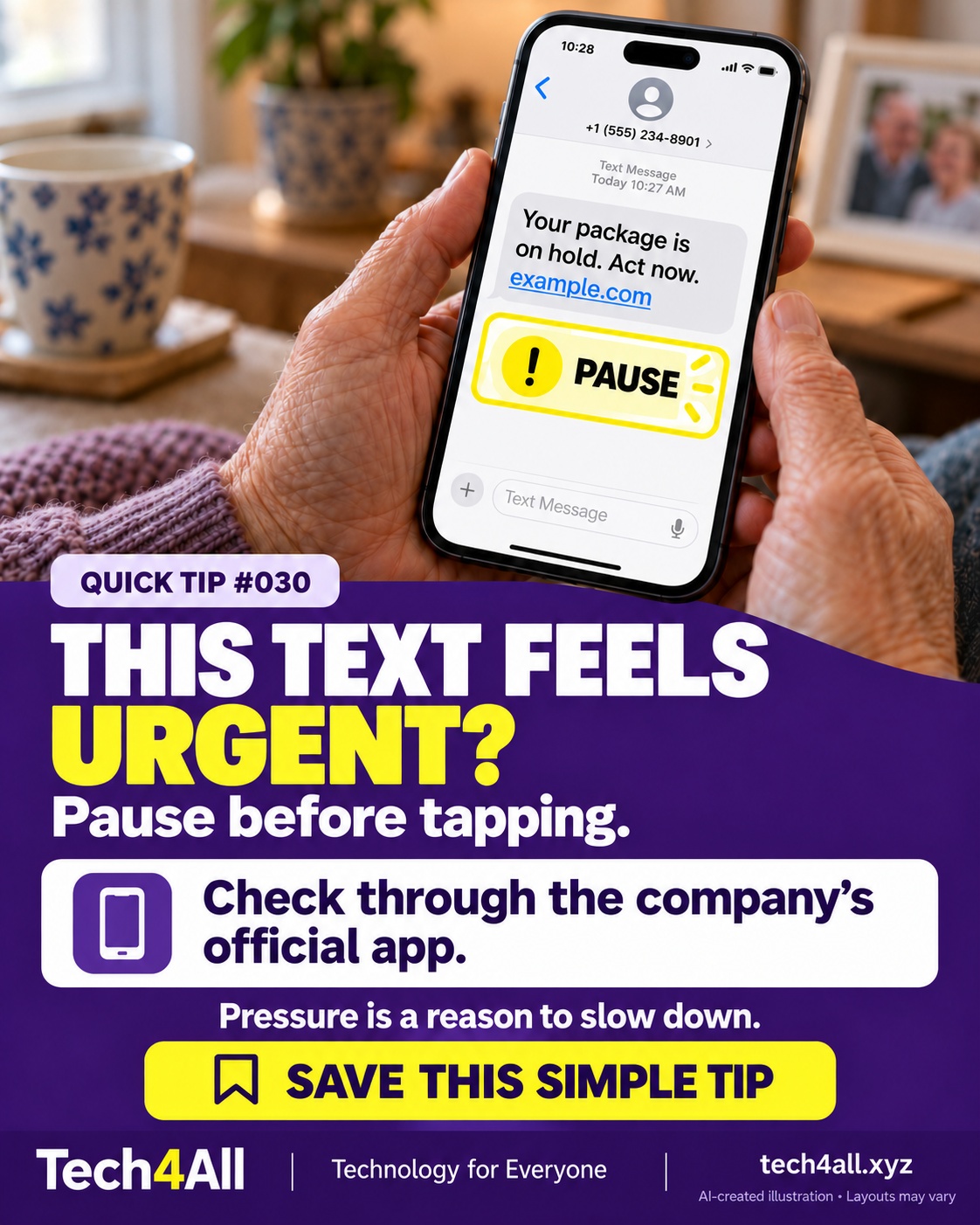
Do not follow a link in an unexpected message that pressures you to act. Open the company's official app yourself or contact it using a number you already trust. Urgency is a warning sign, not proof by itself.
iPhone, Android and tablet settings, apps, photos, contacts, notifications, password-manager guidance, scam awareness, Wi-Fi and Bluetooth. Tell us your main goal so we can check the fit.
One introductory in-home appointment of up to 60 minutes in a confirmed service area. We agree on the scope and total price before the visit. Parts, paid apps and subscriptions are not included. No surprise extra work.
Your charged device, charger and one or two things you want to learn. If sign-in is needed, you enter your own credentials privately. A family member or trusted support person is welcome.
We provide teaching and everyday technology assistance. Complex hardware repairs, electrical work, guaranteed recovery and emergency fraud response are outside this introductory service.
Once confirmed, use the cancellation or rescheduling link in your appointment email. If you need help, email harold@tech4all.xyz. For cancellation or refund questions, email Harold before paying.
Yes. The Calendly booking form is currently in English. Write “Spanish” in the appointment notes or contact us using the Spanish request form. We take it one step at a time.